
Study Paths
Follow a ready-made Library curriculum or build your own study path from subjects, chapters and your notes
A study path is a structured course inside Notesmakr: optional subjects containing chapters. There are two kinds, and both appear together on Study > Study:
- Library paths (a teal LIBRARY pill): a ready-made curriculum. Each chapter has a study guide to read plus flashcards and a quiz that are already made.
- Your own paths (a SCHOOL, WORK or PERSONAL pill): you create the path and fill each chapter with your own notes.
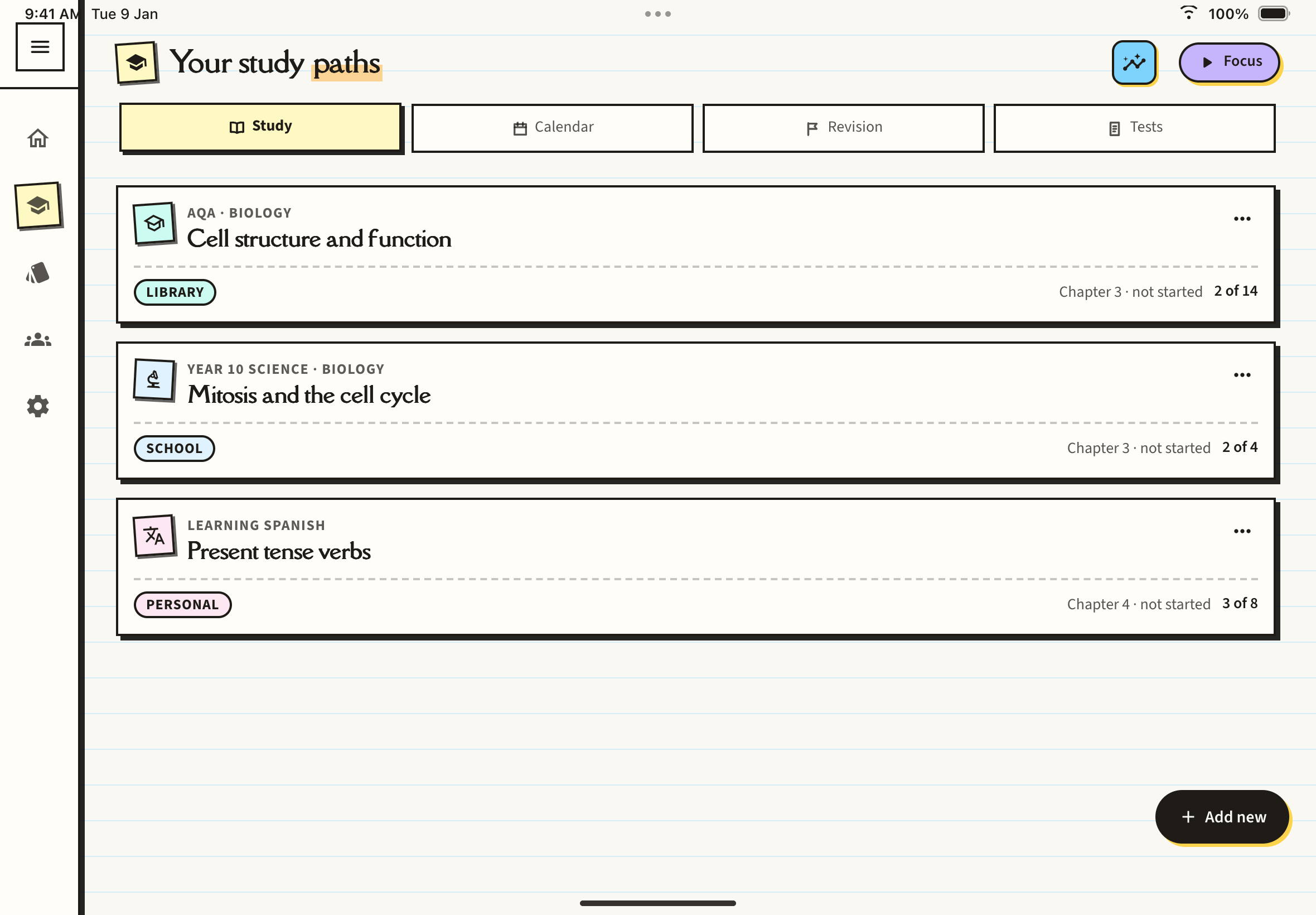
Each card shows the next chapter to do as its headline, a status such as "Chapter 3 · not started", and how many chapters you have covered ("2 of 14"). Tap the ... on a card to rename or delete your own path, or to remove a Library path from your list.
Your first path
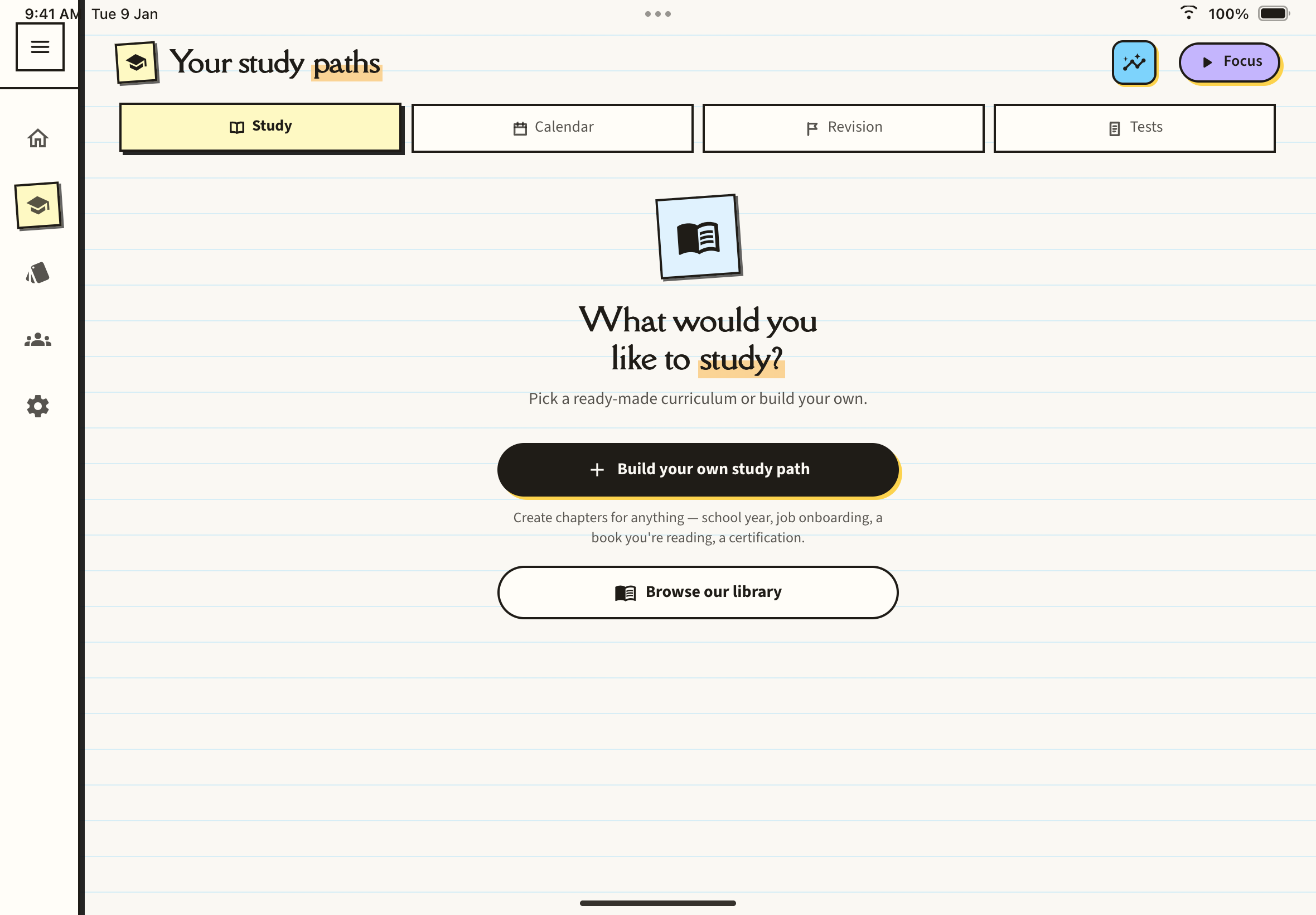
With no path yet, the Study tab asks What would you like to study? with two choices: Build your own study path and Browse our library. Once you have a path, the Add new button at the bottom right opens the same two choices.
Add a Library path
Tap Browse our library. The Set up curriculum page opens.
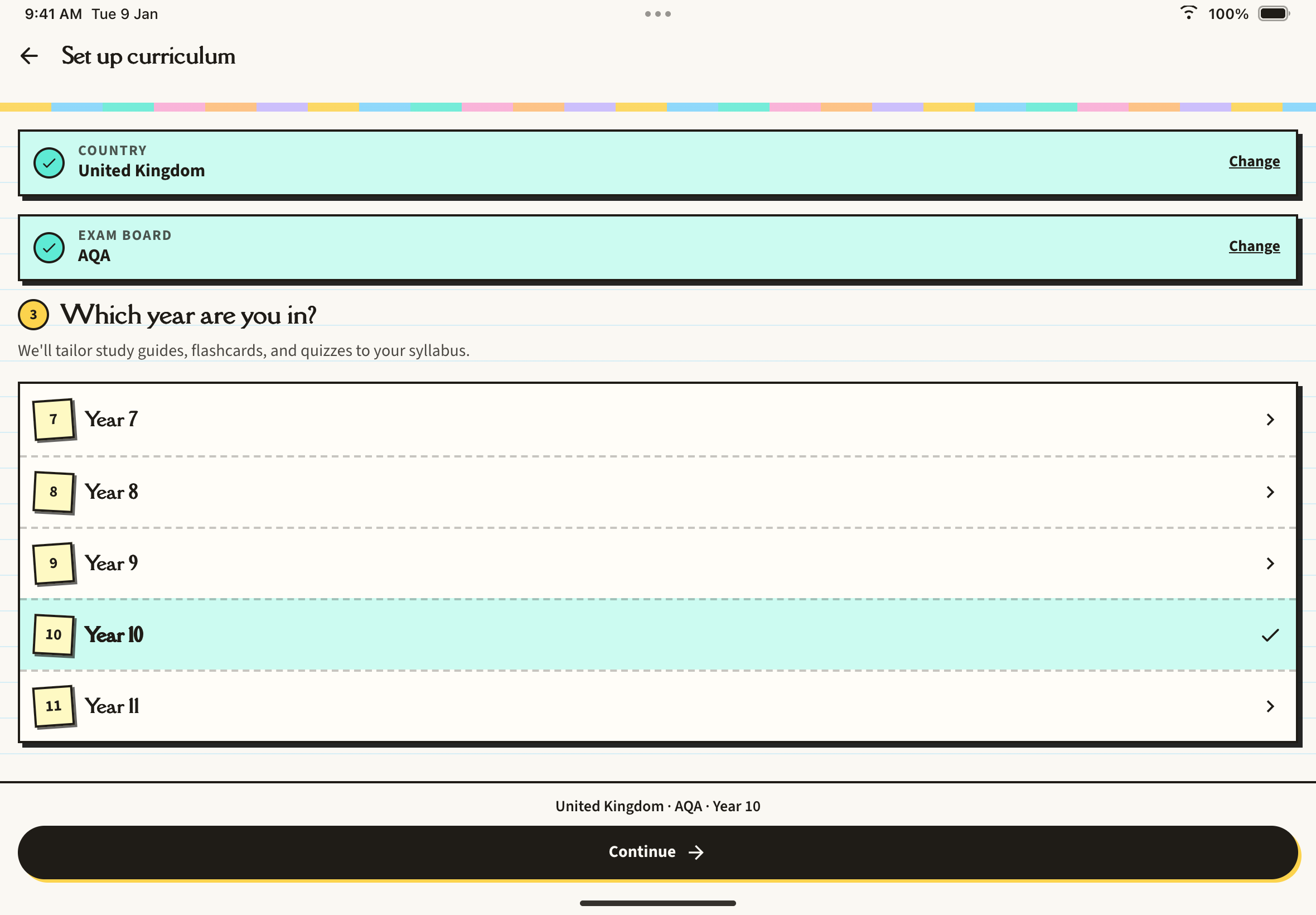
Choose your country, then your exam board if there is more than one to choose from. The library currently focuses on the United Kingdom, and more are being added. If yours is missing, tap My country isn't here to tell us.
Under Which year are you in?, choose your year and tap Continue. Each finished step has a Change link.
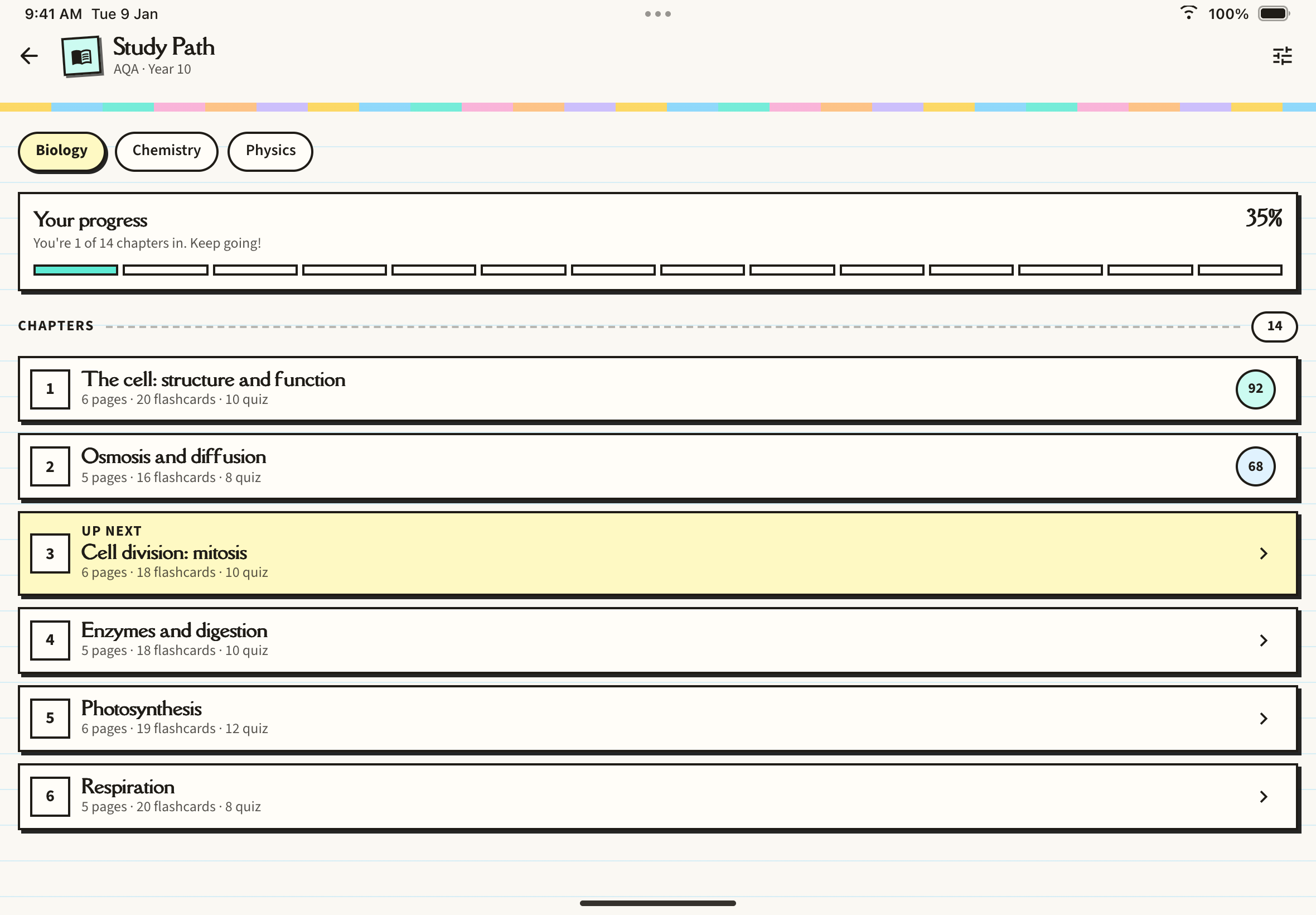
The path now appears on the Study tab. Open it to see the subjects across the top, a Your progress card and the list of chapters. The first chapter you have not mastered is marked UP NEXT, and each chapter you have worked on shows a score. The tune button at the top right lets you change the exam board, year and subject.
Open a chapter to find two tabs: Reading (the study guide, with highlights and annotations) and Study Tools (the ready-made Flashcards and Quiz). Library material is ready-made, so opening it does not use your AI generations.
To remove a Library path, tap ... then Remove from my study paths. This only hides it from your Study tab; your chapter progress is kept.
Build your own path
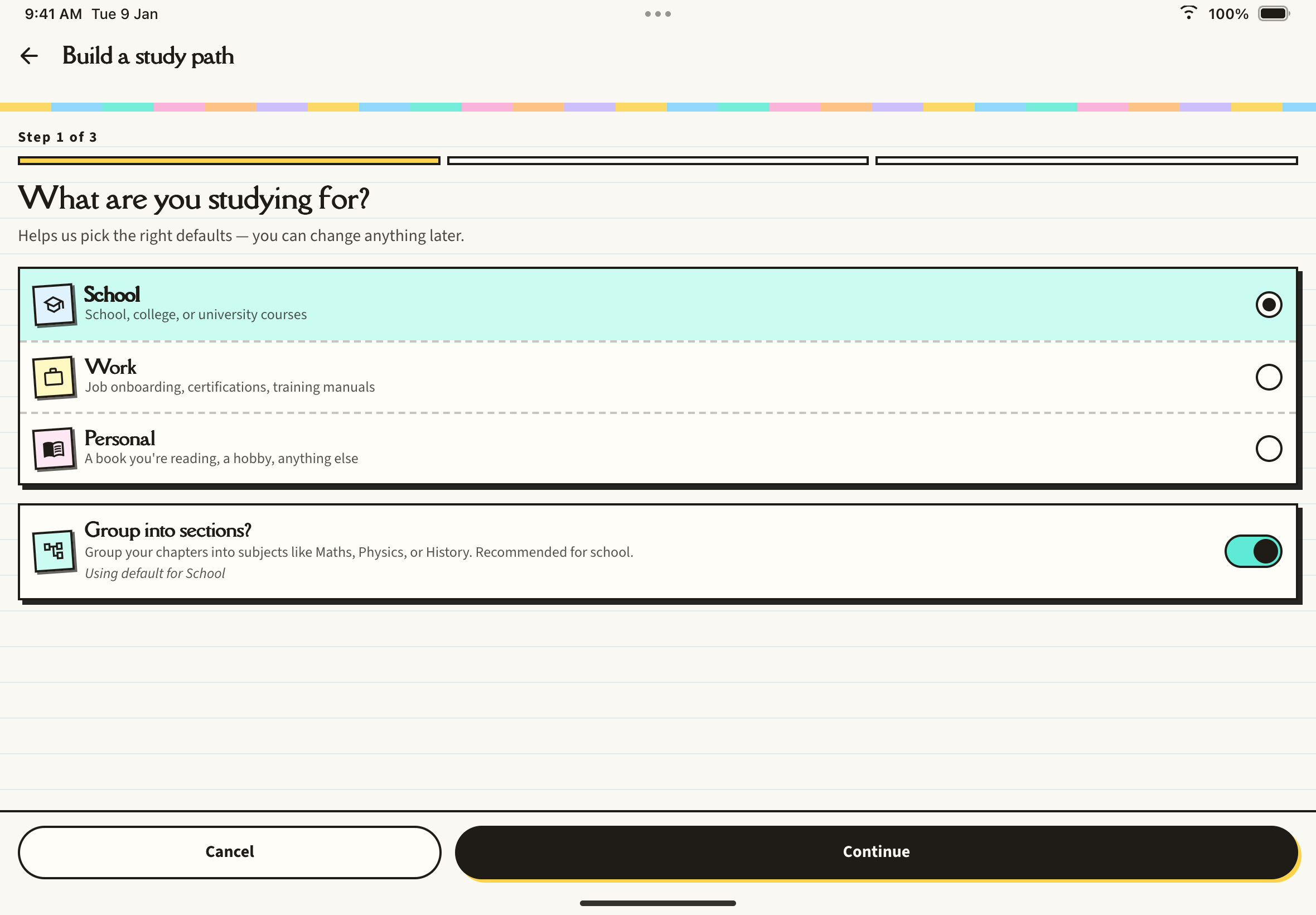
Choose School, Work or Personal. The Group into sections? switch decides whether chapters sit inside subjects. It is on for School and off for the others, and you can flip it.
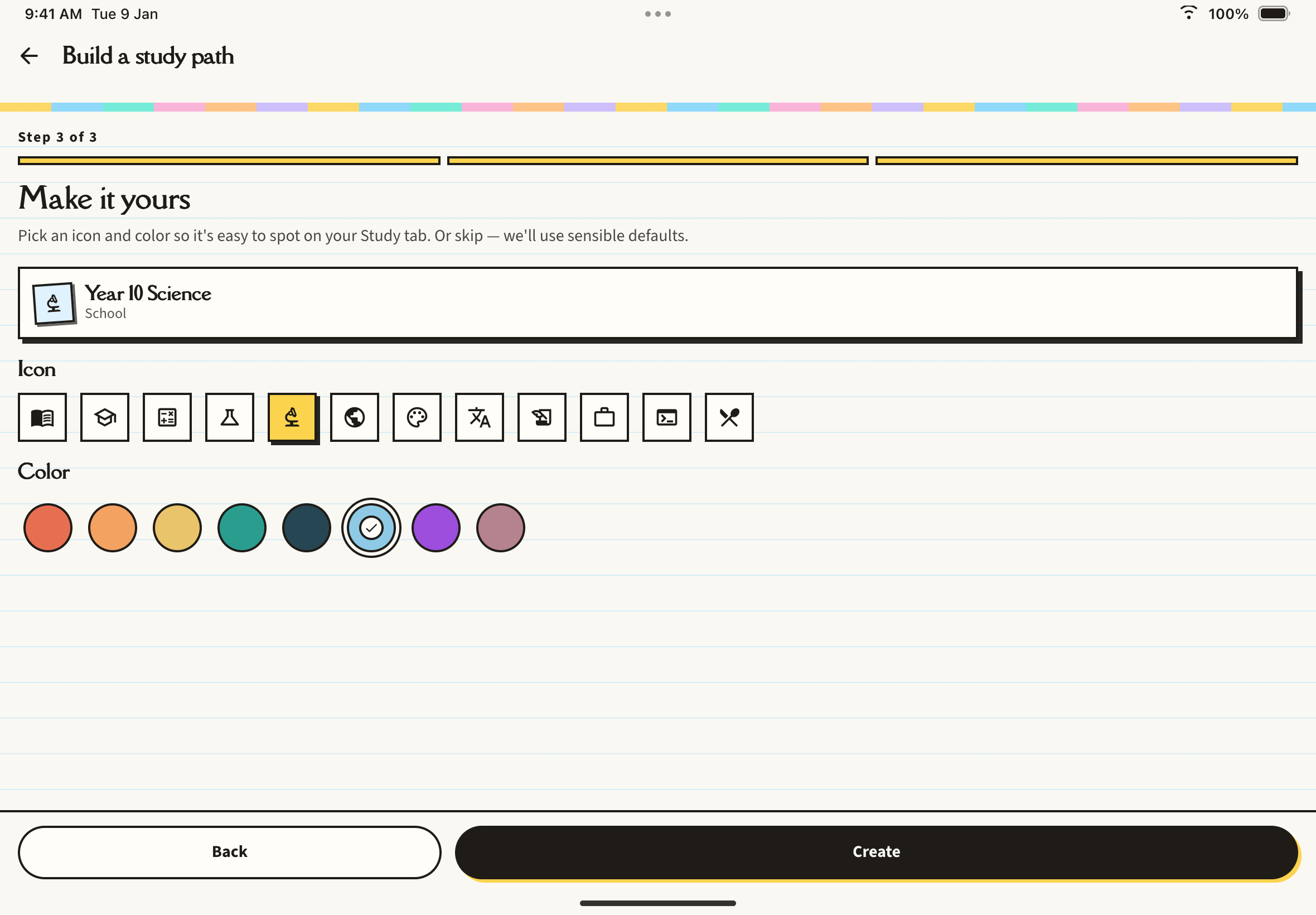
Type a name of 2 to 64 characters, for example "Year 10 Science".
Optionally pick an icon and a colour, or skip and use the defaults. Tap Create.
Fill your path
Your new path opens on its own page. If sections are on, tap Add subject first, since chapters need a subject to live in. Then tap Add chapter and choose:
- From an existing note: the note moves out of your main Notes list into the chapter and its title becomes the chapter name.
- From new content: opens the normal note creation flow (type or paste, PDF, audio, scan), and the result becomes the chapter's note.
Each chapter holds one note. Press and hold a chapter to drag it into a new order, and use Search chapters to find one.
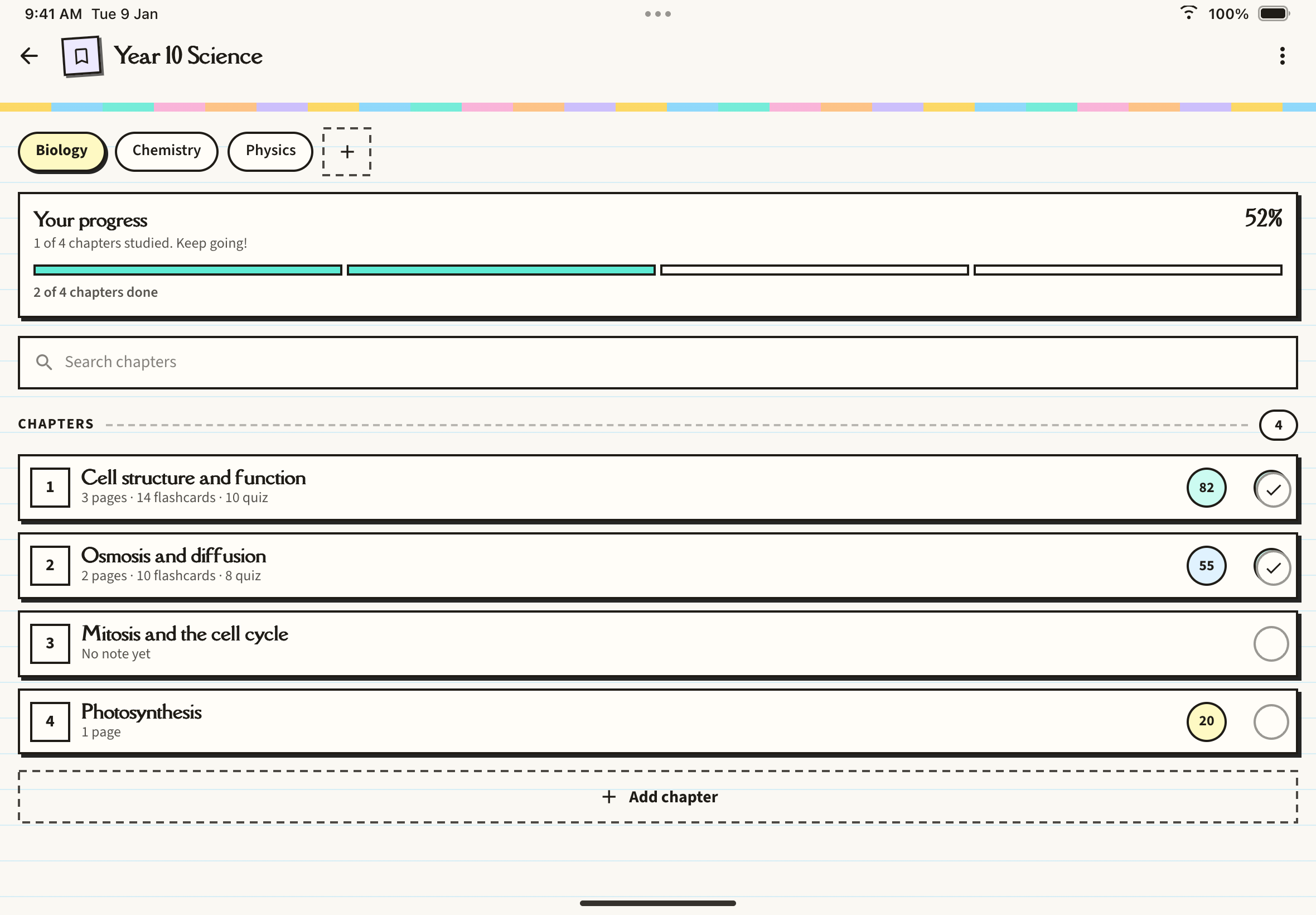
Each chapter row shows a progress circle and a round done tick. Progress combines opening the note, reviewing the flashcards and your best quiz score. The tick marks a chapter done: by default a chapter counts once its note has been read, and your tick always overrides that. Press and hold the tick for Mark as done, Mark as not done or Use automatic.
Chapter study tools
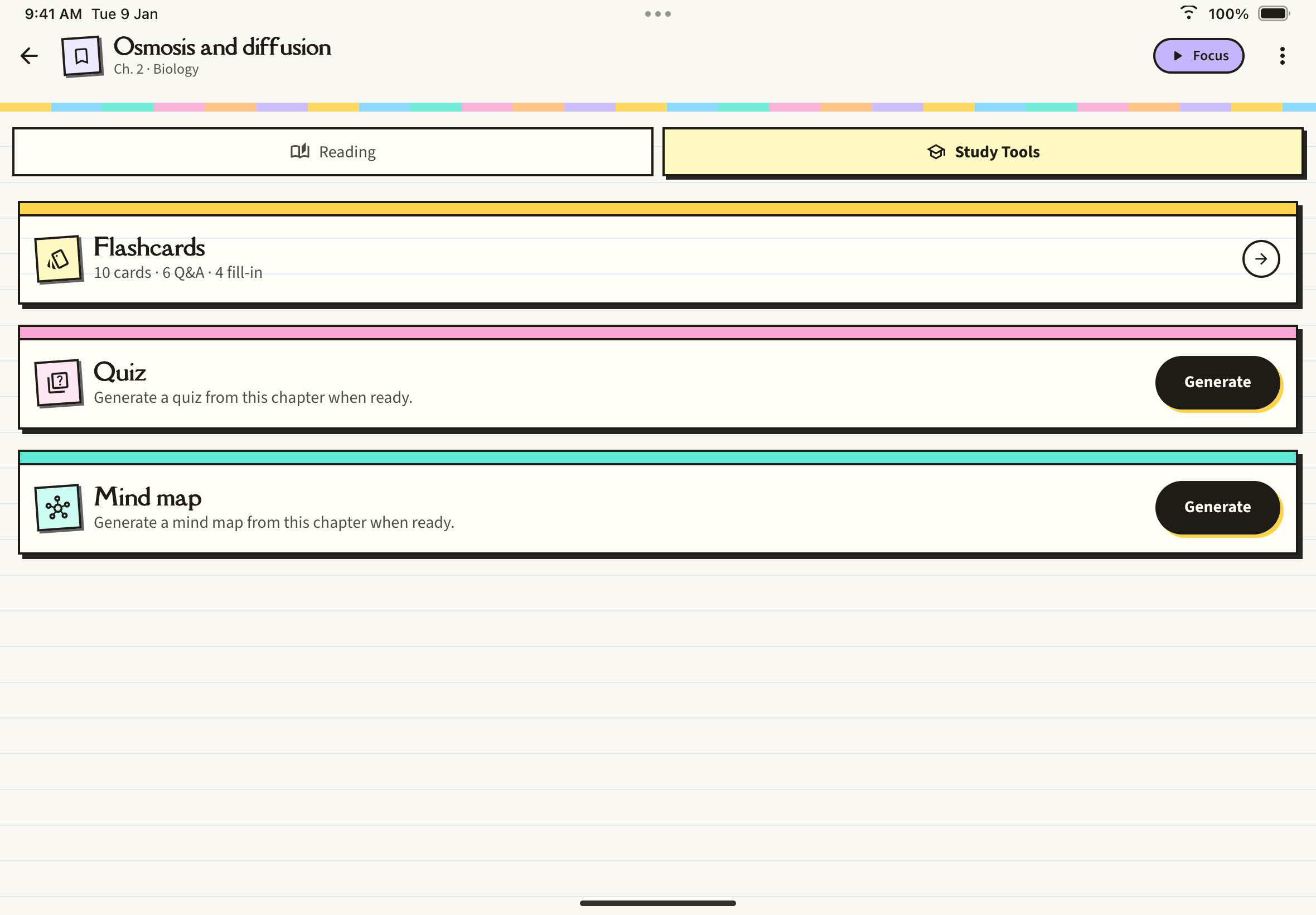
In an own-path chapter, the Study Tools tab has Flashcards, Quiz and Mind map cards. These are not built automatically. Tap Generate on a card to create it from the chapter's note.
Deleting
Deleting a path, subject or chapter always asks you to choose Keep my notes (they return to your main Notes list) or Delete everything.