Study Settings
Configure default options for quizzes and flashcards to match your learning preferences
Study settings let you configure default options for quizzes and flashcards. Setting smart defaults saves time and ensures study tools match your learning style every time.
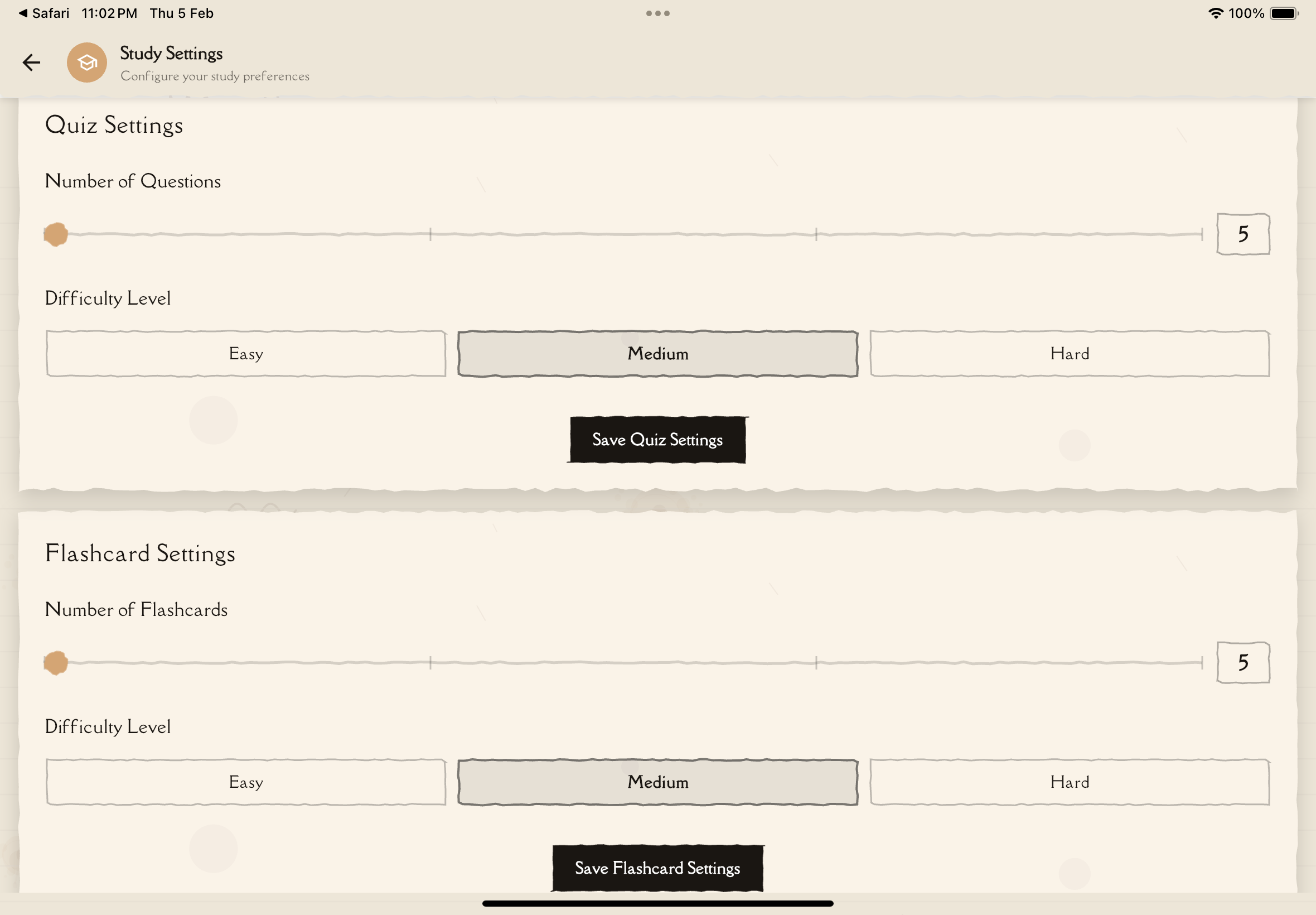
Accessing Study Settings
To configure study preferences:
Tap the menu (☰ or ⚙️) and select "Settings".
In the Configuration section, tap "Study Settings".
Configure quiz and flashcard defaults. Changes save automatically and apply to future study tool generations.
Quiz Settings
Configure default options for AI-generated quizzes.
Default Number of Questions
Set the default number of questions to generate when creating a quiz.
Range: 5-20 questions
Default: 5 questions
How to Adjust:
- Use the slider to select your preferred number
- Changes apply to future quiz generations
- You can still override this when generating a specific quiz
Shorter quizzes (5-10 questions) completed frequently are more effective than long, infrequent quizzes. The default of 5 is a good starting point!
Default Difficulty Level
Set the baseline difficulty for generated quizzes.
Options:
- Easy — Basic recall and simple concepts
- Medium — Balanced mix of recall and application (default)
- Hard — Complex scenarios and advanced application
What This Affects:
- Question complexity
- Amount of critical thinking required
- Whether questions test memorization or understanding
How to Adjust:
- Tap the difficulty button to select Easy, Medium, or Hard
- Changes apply to future quiz generations
- You can still override this when generating a specific quiz
Recommendation: Start with Medium and adjust based on results:
- Scoring 90%+ consistently? → Increase to Hard
- Scoring below 60%? → Decrease to Easy
Question Types
Currently, Notesmakr quizzes support single-choice questions (multiple choice with one correct answer).
What This Means:
- All generated quizzes use single-choice format
- Each question has one correct answer and several distractors
- Questions are designed to test comprehension and recall
Reading explanations for questions you got RIGHT reinforces correct understanding. Don't skip them!
Flashcard Settings
Configure default options for AI-generated flashcards.
Default Cards per Session
Set the default number of flashcards to generate.
Range: 5-20 cards
Default: 5 cards
How to Adjust:
- Use the slider to select your preferred number
- Changes apply to future flashcard generations
- You can still override this when generating a specific flashcard deck
Recommendation:
- Quick review: 5-10 cards (5 minutes)
- Standard session: 10-15 cards (10-15 minutes)
- Extended session: 15-20 cards (15-20 minutes)
Default Difficulty Level
Set the baseline difficulty for generated flashcards.
Options:
- Easy — Basic recall and simple concepts
- Medium — Balanced mix of recall and application (default)
- Hard — Complex scenarios and advanced application
What This Affects:
- Card complexity
- Level of detail in questions and answers
- Depth of concepts tested
How to Adjust:
- Tap the difficulty button to select Easy, Medium, or Hard
- Changes apply to future flashcard generations
- You can still override this when generating a specific flashcard deck
Annotation Settings
Configure default colors for different types of annotations.
Typed Note Color
Set the default color for typed annotations (text notes you add to study guides).
How to Adjust:
- Tap the color picker
- Select your preferred color
- New typed annotations will use this color
Voice Note Color
Set the default color for voice annotations (audio recordings you add to study guides).
How to Adjust:
- Tap the color picker
- Select your preferred color
- New voice annotations will use this color
Handwritten Note Color
Set the default color for handwritten annotations (drawings and handwriting you add to study guides).
How to Adjust:
- Tap the color picker
- Select your preferred color
- New handwritten annotations will use this color
Use different colors for different types of information. For example: yellow for definitions, green for examples, blue for questions.
Saving and Applying Settings
Changes Save Automatically
All study settings save automatically:
- No "Save" button required
- Changes apply immediately to the settings UI
- Future quiz and flashcard generations use your new defaults
Settings Sync Across Devices
Your study settings sync automatically:
- Local Storage: Saved to your device for quick access
- Cloud Sync: Synced to your user profile in the cloud
- Cross-Device: Changes propagate to all devices where you're logged in
- Sync Timing: Usually syncs within a few seconds to minutes
Configure study settings once on your primary device, and the same defaults will appear on your phone, tablet, and other devices automatically!
Doesn't Affect Existing Content
Changing settings doesn't modify:
- Previously generated quizzes
- Existing flashcard decks
- Past study sessions
- Existing annotations
To update existing content, regenerate it manually with the new settings.
Study Settings Best Practices
Start Simple
Begin with defaults and adjust based on experience:
- Use default settings for 1-2 weeks
- Notice what feels too easy, too hard, or not enough
- Adjust incrementally based on your performance
Match Settings to Goals
For Daily Review:
- 5-10 flashcards per session
- Medium difficulty quizzes
- Consistent study schedule
For Exam Prep:
- 15-20 flashcards per session
- Hard difficulty quizzes
- More frequent quiz generation
For Long-Term Retention:
- 10-15 flashcards per session
- Medium difficulty
- Consistent daily practice
Review Settings Periodically
Check settings every few months:
- Are you still hitting your goals?
- Have your study habits changed?
- Do you need more or fewer questions/cards?
- Should you increase difficulty as you improve?
Your optimal settings will evolve as you get better at studying. What works as a beginner might not challenge you enough after a few months. Re-evaluate regularly!
Next Steps
Now that you've configured study settings, explore:
- Flashcard Study — Put your settings into practice
- Taking Quizzes — Test with your customized quiz defaults
- Annotations — Use your configured annotation colors
Or explore other settings:
- Language Settings — Change app language
- Note Card Customization — Personalize note appearance
- Punch Hole Actions — Customize quick action shortcuts