Generate a Quiz
Create AI-powered quizzes from your study notes
AI-generated quizzes are one of Notesmakr's most powerful study tools. Creating a quiz is quick and easy—AI analyzes your note content and generates multiple choice questions that test your understanding at multiple levels.
When to Generate Quizzes
After first read (diagnostic):
- See what information stuck from your initial read
- Identify concepts that need more attention
- Establish a baseline score to measure improvement
After studying (validation):
- Confirm you've mastered the material
- Test comprehensive understanding
- Practice for exams
Before exams (preparation):
- Simulate test conditions
- Identify last-minute gaps
- Build confidence
Days/weeks later (retention check):
- Test long-term retention
- Refresh fading knowledge
- Maintain mastery over time
Generate multiple quizzes from the same note! Each generation creates different questions, giving you broader coverage and preventing memorization of specific Q&A pairs.
Step-by-Step Guide
From the Notes tab, tap the note you want to create a quiz for.
Tap the Study Tools tab.
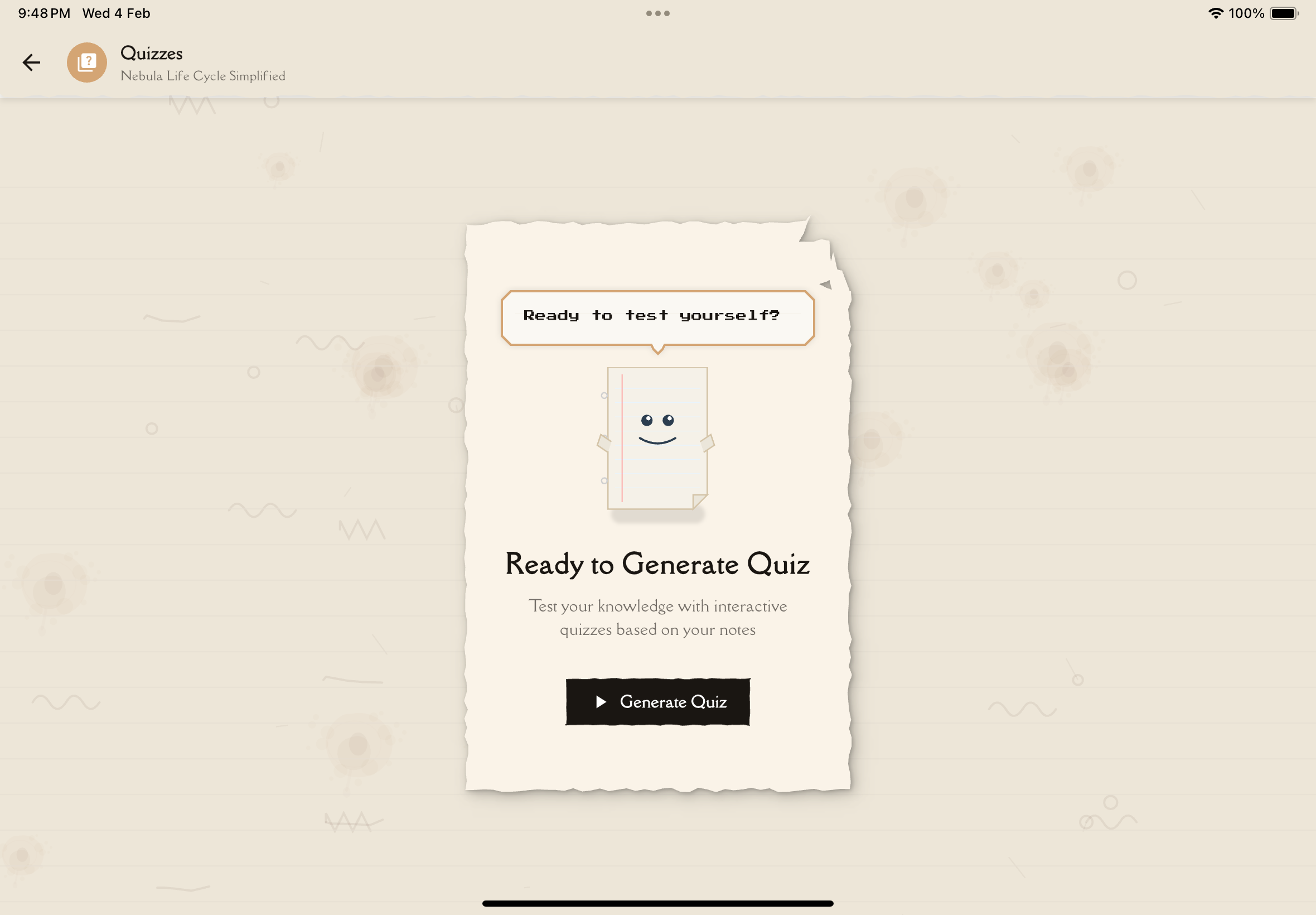
Look for the Quiz card and tap Generate Quiz (or + New Quiz if you already have quizzes for this note).
AI analyzes your note content and creates questions based on your quiz settings. Generation typically takes a few seconds depending on the number of questions.
Once generated, you'll see the quiz with:
- Quiz title (auto-generated based on note content)
- Number of questions
- Take Quiz button
Tap to begin!
Quiz Settings
You can customize quiz generation from Settings. The following options are available:
Number of Questions
Choose how many questions to generate using a slider:
- 5 questions (default)
- 10 questions
- 15 questions
- 20 questions
Difficulty Level
Select the difficulty for generated questions:
- Easy: Basic comprehension and recall questions — definitions, simple facts, direct from text
- Medium: Application and analysis questions (default) — explaining concepts, comparing ideas, applying to examples
- Hard: Synthesis and evaluation questions — connecting concepts, solving problems, critical thinking
What Gets Generated
All questions are multiple choice with 4 answer options and one correct answer. Each question includes:
- A clearly worded question testing a key concept
- Four plausible answer options (A, B, C, D)
- The correct answer index
- A detailed explanation of why the correct answer is right
Topic Coverage
AI ensures balanced coverage:
- All major sections represented
- Proportional to section importance
- Key concepts always included
- Supporting details selectively tested
- Questions progress through the content from beginning to end
AI prioritizes important concepts—not every detail will be tested. Focus on understanding core ideas rather than memorizing every word.
Cost and Limits
Quiz generation uses your plan's AI generation quota, which is shared across all AI features (quizzes, flashcards, mindmaps, Q&A).
Free Plan
- Limited number of AI generations per month (shared across all AI tools)
- All difficulty levels available
- Up to 20 questions per quiz
Premium Plan
- Higher generation limits
- All difficulty levels available
- Up to 20 questions per quiz
Using Your Own API Key
- Unlimited generation on any plan
- Access to latest AI models
Tips for Effective Quiz Generation
Generation best practices:
- Generate multiple quizzes: Different questions = better coverage
- Use after first read: Diagnostic to reveal gaps
- Adjust difficulty: Start medium, increase if doing well
- Generate regularly: Not just before exams—throughout study process
- Review explanations: Don't just check score—understand why
- Combine with other tools: Quizzes + flashcards + reading = mastery
Troubleshooting
"Generation failed"
Possible causes:
- Server temporarily unavailable
- Network issues
- Generation limits reached
Solutions:
- Try again in a few moments
- Check internet connection
- Verify plan limits haven't been reached
Questions seem off-topic
Possible causes:
- AI misinterpreted note content
- Note has unclear structure
- Mixed topics in one note
Solutions:
- Generate a new quiz (each generation creates different questions)
- Edit note to clarify structure
- Split mixed-topic notes
Too easy or too hard
Solutions:
- Adjust difficulty setting in Settings before generating a new quiz
- Try generating again — each quiz is unique
What's Next?
Now that your quiz is generated:
- Learn how to take quizzes effectively →
- View and manage all your quizzes →
- Explore other study tools →
Ready to test your knowledge!