Settings Tab
Customize your learning experience and manage your Notesmakr account
The Settings tab is your control center for personalizing Notesmakr, managing your account, and accessing help resources. Everything you need to customize your learning experience is here.
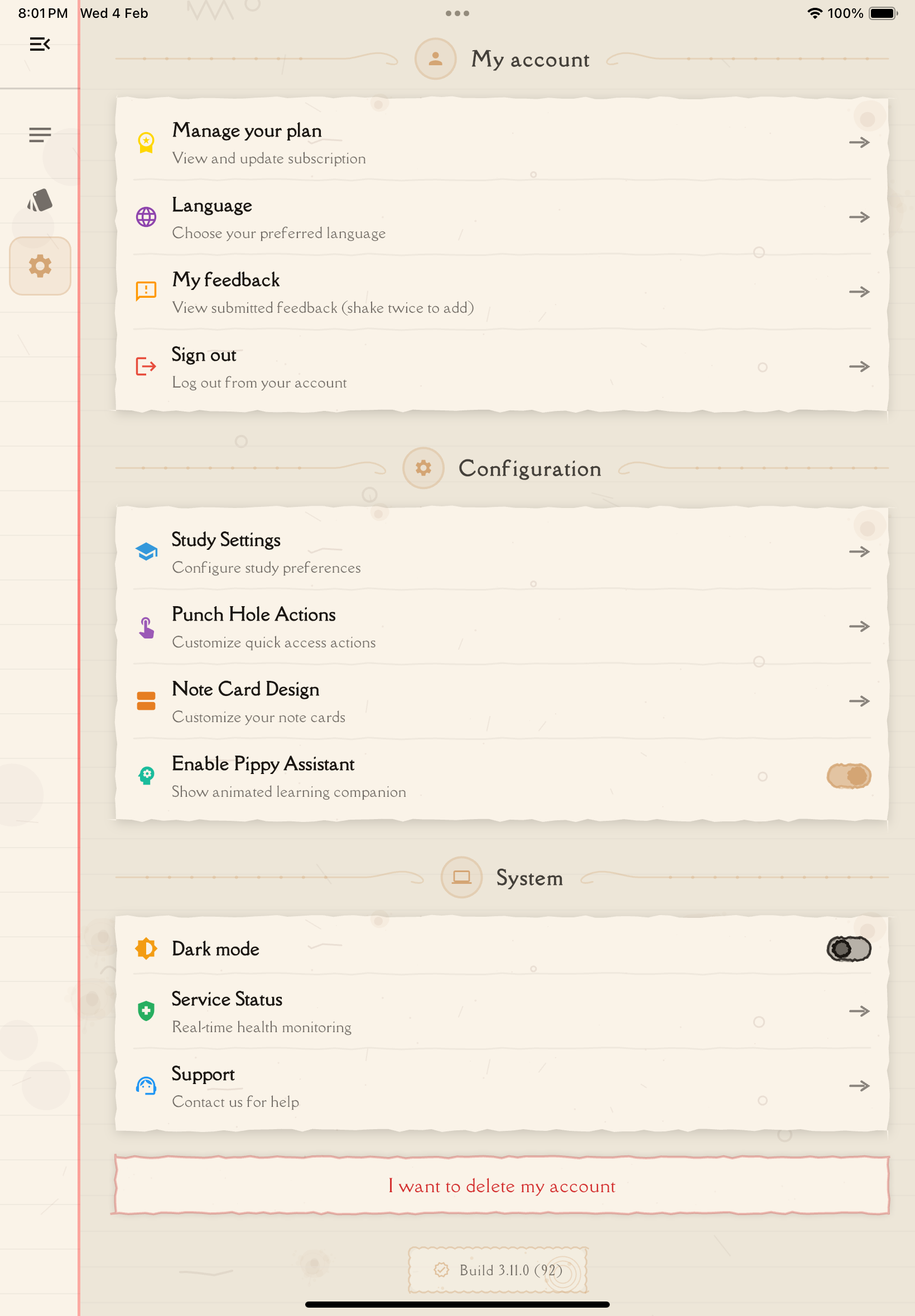
Settings Categories
The Settings tab is organized into three main sections:
My Account
Manage your account, subscription, and preferences.
What's included:
- Manage Plan: View and manage your subscription
- Language Settings: Change app language (14 supported languages)
- Feedback: Submit feedback and feature requests
- Sign Out: Sign out of your account
Configuration
Customize your study experience and app behavior.
What's included:
- Study Settings: Configure quiz, flashcard, and annotation preferences
- Punch Hole Actions: Customize the configurable action buttons
- Note Card Design: Customize how note cards appear on the Notes tab
- Pippy Assistant: Toggle the Pippy AI assistant on or off
System
System-level settings and support.
What's included:
- Dark Mode: Toggle between light and dark themes
- Service Status: Check the status of Notesmakr services
- Support Email: Contact the support team
At the bottom of the Settings tab, you'll also find:
- Delete Account: Permanently delete your account and all data
- App Version: Displayed as a footer
Key Settings Explained
Let's dive into the most important settings you'll want to configure:
Profile Setup
Make Notesmakr your own by completing your profile:
Tap your profile picture placeholder and choose an image from your device or take a new photo.
This appears in shared notes and when collaborating with study partners.
Ensure your email is current for important notifications and password resets.
Language Selection
Notesmakr supports 14 languages:
- Go to Settings → Language Settings
- Tap your preferred language
- Choose from the list:
- English
- Spanish (Español)
- French (Français)
- German (Deutsch)
- Italian (Italiano)
- Portuguese (Português)
- Russian (Русский)
- Japanese (日本語)
- Korean (한국어)
- Chinese Simplified (简体中文)
- Chinese Traditional (繁體中文)
- Tamil (தமிழ்)
- Hindi (हिन्दी)
- Hebrew (עברית)
- The app restarts with your selected language
Changing the app language doesn't translate your existing notes—it only changes the interface language. Your notes remain in their original language.
Study Settings
Optimize your learning with study preferences:
Go to Settings → Study Settings to configure quiz, flashcard, and annotation preferences for your study sessions.
Service Status
Check the health and status of Notesmakr services by tapping Service Status in the System section. This shows whether the AI processing and sync services are operational.
Subscription Management
Managing Your Subscription
Tap Manage Plan in the My Account section to view and manage your subscription.
To upgrade:
- Go to Settings → Manage Plan
- Choose your preferred plan
- Complete payment
- Enjoy premium features immediately
To cancel subscription:
- Settings → Manage Plan
- Follow your platform's cancellation flow (App Store or Google Play)
- You keep premium access until the billing period ends
If you cancel premium, you'll revert to the free plan at the end of your billing period. Your notes and data remain intact—you just lose premium features.
Help & Support
Contacting Support
Need help? Tap Support Email in the System section to reach out to the Notesmakr team directly via email.
Feedback and Feature Requests
Have an idea to improve Notesmakr?
- Go to Settings → Feedback
- Browse existing feature requests and add your comments
- Submit new ideas with detailed descriptions
- You can include drawings, audio, or text feedback
Feature requests are reviewed weekly and prioritized based on user demand!
Account Security
Your account security depends on your sign-in method:
- SSO users (Google, Apple): Security is managed through your provider
- Email users: Password management is handled through the authentication flow
Sign Out
On this device:
- Tap Sign Out in the My Account section of Settings
Delete Account
Deleting your account is permanent and cannot be undone!
If you're sure you want to delete your account:
- Scroll to the bottom of the Settings page and tap Delete Account
- Read the warning carefully
- If you have an active subscription, confirm you understand it will be cancelled by checking the checkbox
- Type "DELETE" to confirm
- Tap to permanently delete your account
This immediately:
- Deletes all your notes, flashcards, quizzes, and progress
- Removes your profile and personal information
- Cancels any active subscription
- Signs you out
Deleted data cannot be recovered.
Dark Mode
Notesmakr supports Light and Dark themes to suit your preference and environment.
Toggling Dark Mode
- Go to Settings
- Find the Dark Mode toggle in the System section
- Tap the toggle to switch between light and dark themes
Your preference is saved and persists across sessions. Dark Mode applies a dark color scheme throughout the entire app — notes, flashcards, quizzes, settings, and all study tools.
When to Use Dark Mode
- Low-light environments: Reduces eye strain when studying at night
- OLED screens: Saves battery by turning off pixels in dark areas
- Personal preference: Some users find dark backgrounds easier to read
Accessibility
Notesmakr is built with accessibility in mind:
- Screen Reader Support: Full compatibility with VoiceOver (iOS) and TalkBack (Android) — 295+ semantic labels throughout the app ensure every button, card, and interactive element is properly described
- Text Scaling: Respects your device's system text size settings — increase text size in your device's accessibility settings and Notesmakr adjusts accordingly
- Right-to-Left (RTL) Support: Full RTL layout support for Hebrew, including mirrored UI, reversed reading flow, and directional icon mirroring
- Dark Mode: Reduces eye strain in low-light environments and saves battery on OLED screens
What's Next?
Now that you know how to customize Notesmakr, it's time to start creating and studying:
Your personalized learning journey awaits!