Email Authentication
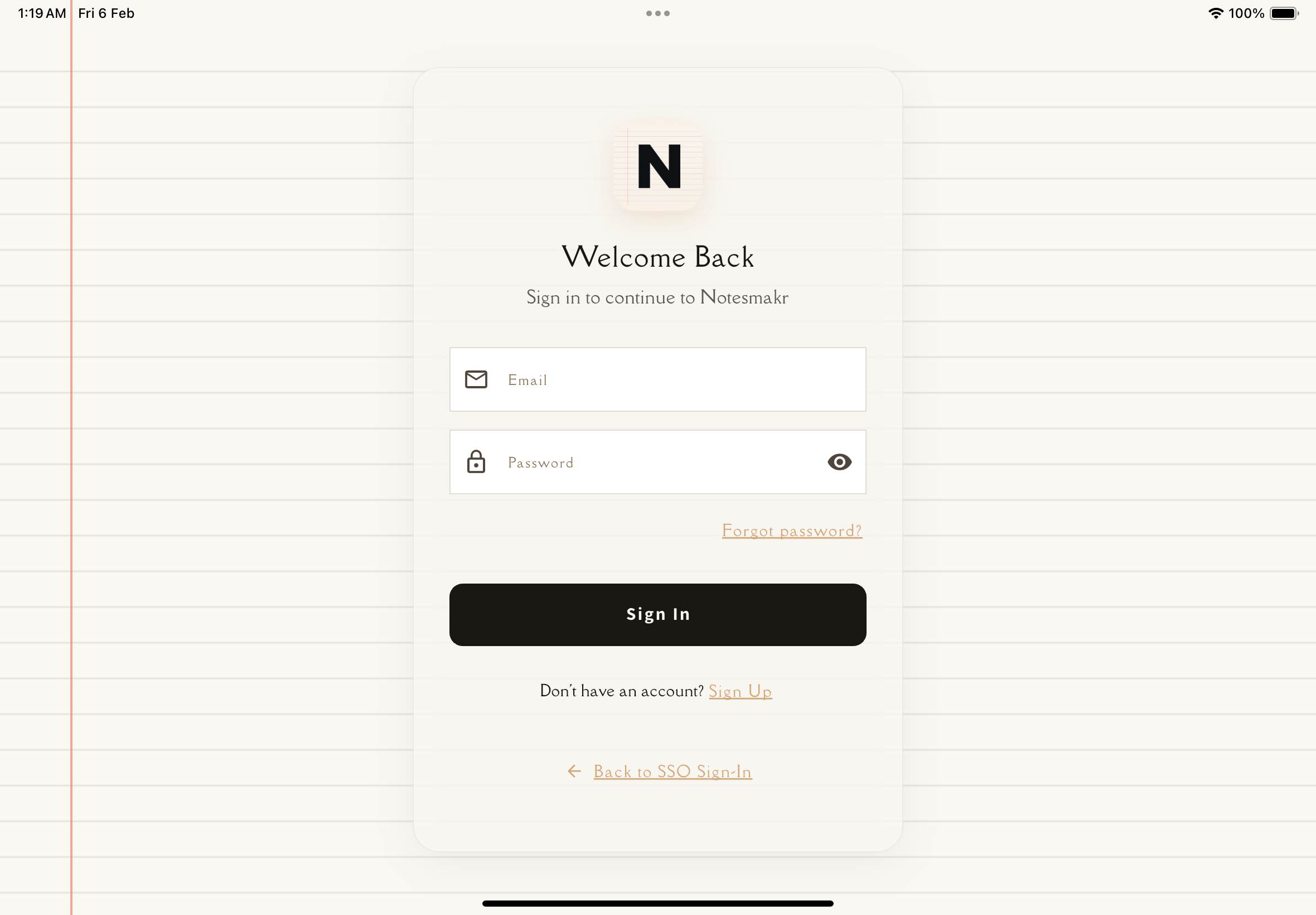
Sign in to Notesmakr using your email address and password
Email Authentication
Prefer to use a traditional email and password? Notesmakr offers email authentication as an alternative to SSO sign-in methods.
When to Use Email Authentication
Email sign-in is perfect if you:
- Don't have or prefer not to use Google/Apple accounts
- Want a dedicated email specifically for your study materials
- Need to comply with organizational email policies
- Prefer traditional username/password authentication
Creating a New Account
From the main sign-in screen, tap "Sign in with Email" or the email icon button.
Type the email address you want to use for your Notesmakr account. Make sure it's an email you can access, as you'll need to verify it.
Enter a password that is at least 6 characters long.
Use a password manager to generate and store a strong, unique password for Notesmakr.
You'll receive a 6-digit verification code via email. Enter the code in the app to verify your email address and activate your account.
If you don't see the email within a few minutes, check your spam or junk folder. You can also tap Resend code to request a new one.
Once your email is verified, you'll be signed in automatically and taken to the Notes tab ready to create your first note!
Signing In to an Existing Account
Already have an account? Here's how to sign in:
From the main sign-in page, tap "Sign in with Email".
Type your registered email address and password.
If your credentials are correct, you'll be signed in immediately and taken to your Notes tab.
Make sure you're entering the correct email address. If you signed up with SSO (Google/Apple), that is a separate account.
Forgot Your Password?
Don't worry—it happens! Here's how to reset it:
On the email sign-in screen, look for the "Forgot Password?" link and tap it.
Type the email address associated with your Notesmakr account.
You'll receive a 6-digit verification code via email. Enter the code in the app when prompted.
After verifying the code, enter and confirm your new password. It must be at least 6 characters long.
Once your password is reset, sign in using your email and new password.
Verification codes expire after a short period for security reasons. If your code has expired, just request a new one.
Security Best Practices
Keep your account secure:
- Use a unique password: Don't reuse passwords from other services
- Keep your email secure: If someone accesses your email, they can reset your password
Troubleshooting
"Invalid email or password" error
Double-check that:
- You're typing your email correctly (no extra spaces)
- Your password is correct (remember it's case-sensitive)
- You're using the same sign-in method you registered with
Not receiving verification or reset emails?
- Check your spam/junk folder
- Make sure you entered the correct email address
- Wait 5-10 minutes—sometimes emails are delayed
- Try requesting a new email
- Check if your email provider is blocking emails from Notesmakr
Account already exists
If you see this message, it means someone has already registered with that email. Try:
- Signing in instead of creating a new account
- Using the password reset feature if you forgot your password
- Checking if you registered with SSO (Google/Apple) instead
Privacy note: Your email address is only used for authentication and important account notifications. We never share your email with third parties or send marketing emails without your consent.
Ready to start learning? Create your first note now!