
Practice Papers
Build a timed practice test from your own notes, chapters or PDFs, sit it one question at a time and see where you lost marks
A practice paper is a full test written from your own material. You choose how the paper is set out, pick the notes or PDFs it should draw on, decide how the marks are split between topics, and Notesmakr writes it. Then you sit it with or without a clock, get marked question by question, and can print it as a PDF.
Your papers live on Study > Tests.
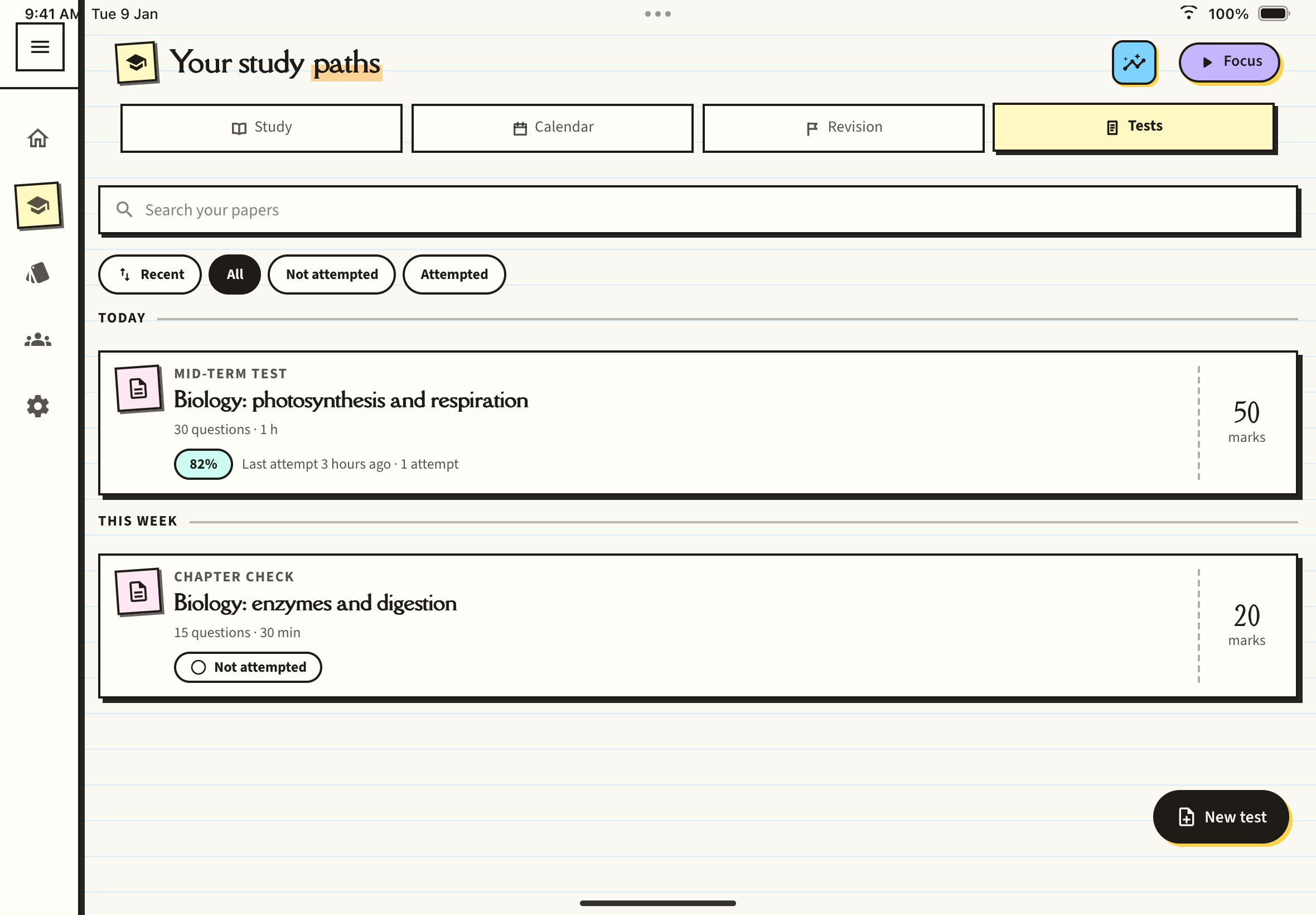
Each card shows the paper's title, its format, the number of questions and time, the total marks, and either your latest score or Not attempted. Use the search box, or the Recent, All, Not attempted and Attempted chips, to find a paper. Papers are grouped under Today, This week and Earlier.
Make a paper
On Study > Tests, tap New test at the bottom right. If you have no papers yet, tap Take a test instead. You can also start from the Study Desk's Test papers card, the Take a test shortcut, or the Test yourself card on a revision plan.
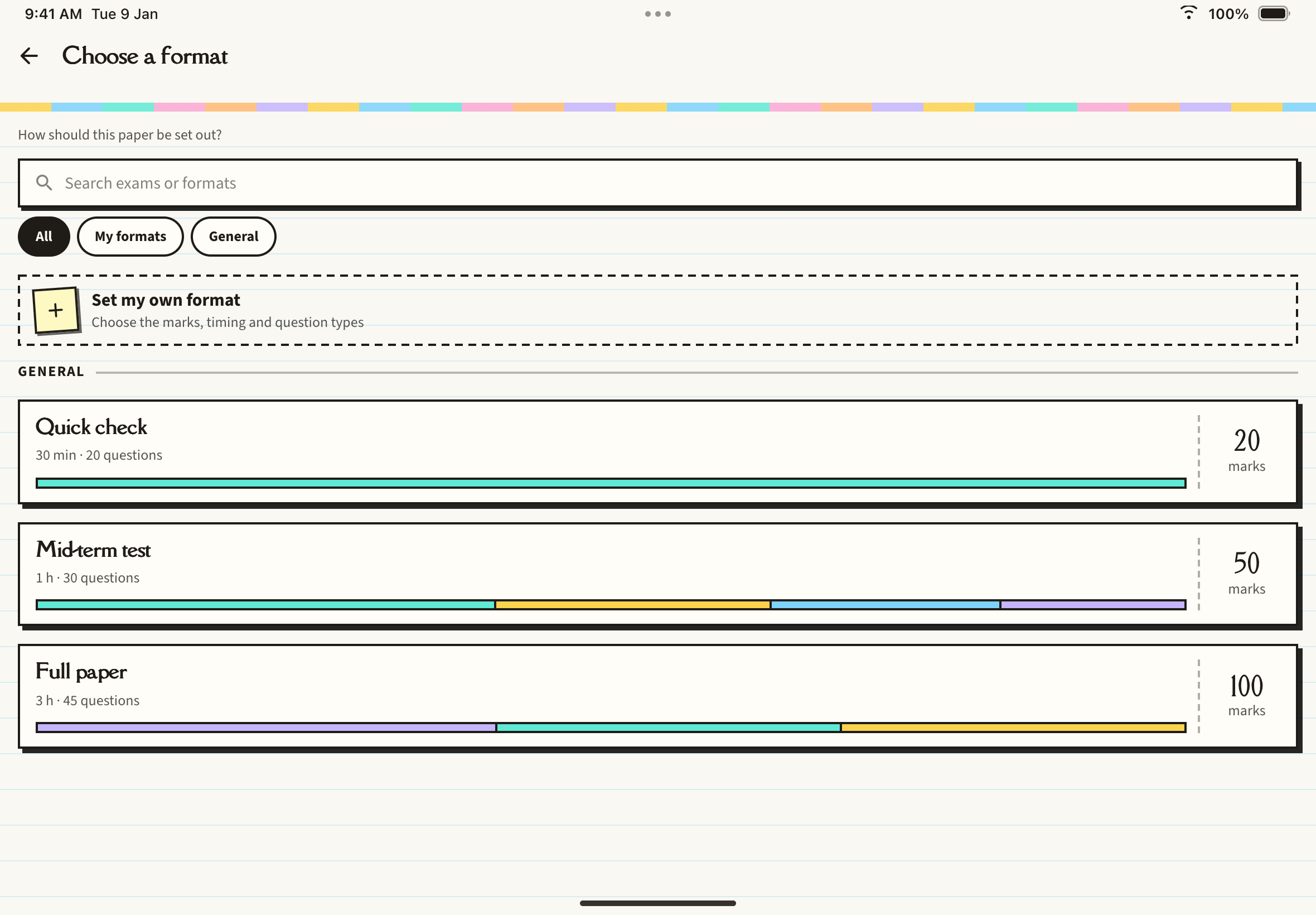
The Choose a format page asks How should this paper be set out? Tap a format to see its sections, question types, marks and pass mark, then tap Use this. To tweak one, tap Duplicate & edit.
Pick the notes, study path chapters or PDFs the paper should cover. Any mix works, and Upload a PDF lets you add one on the spot. You can give the test a name and set a pass mark here. A tally under your choices shows how many items you have selected and roughly how many pages that is.
On What should it cover?, the app reads your material on your device and finds its topics. It shows a split bar and three presets for How should the marks fall?: Match my material, Even split and Set it myself. With Set it myself you move each topic up or down in 5% steps. Tap the cross on a topic to leave it out. A live Your test preview shows how many questions each section gets from each topic.
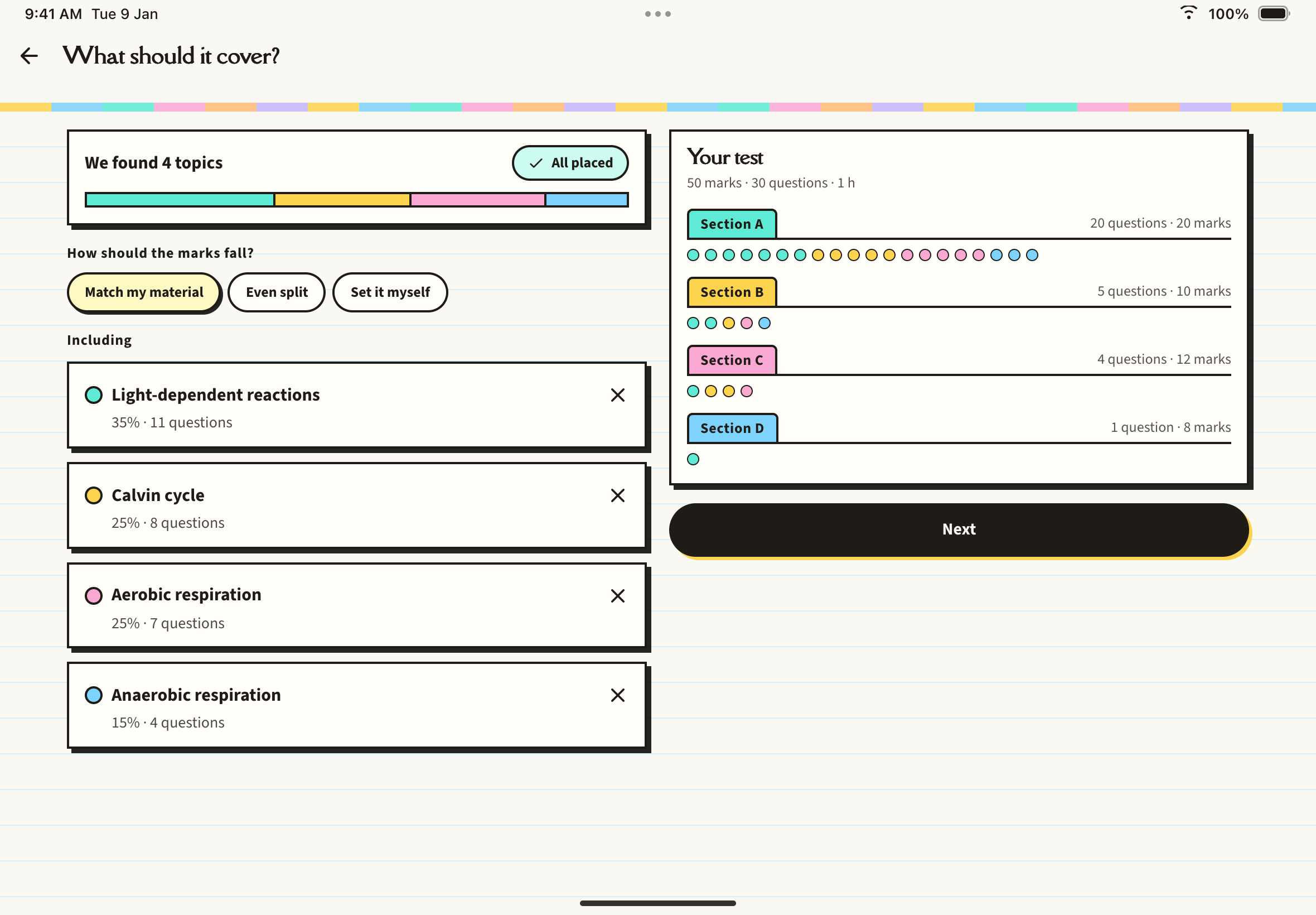
The split has to add up to exactly 100% before Next works; the page tells you how much is left to place or over. Finding topics this way does not use a generation.
Tap Next. A sheet titled Ready to generate tells you it uses 1 generation and takes a few minutes. Tap Generate paper, or Not yet to go back. If your material looks thin for the number of marks, the sheet warns that the paper may come up short; add more material for a fuller test.
While it writes
The Writing your test screen shows each section filling with questions as they are written.
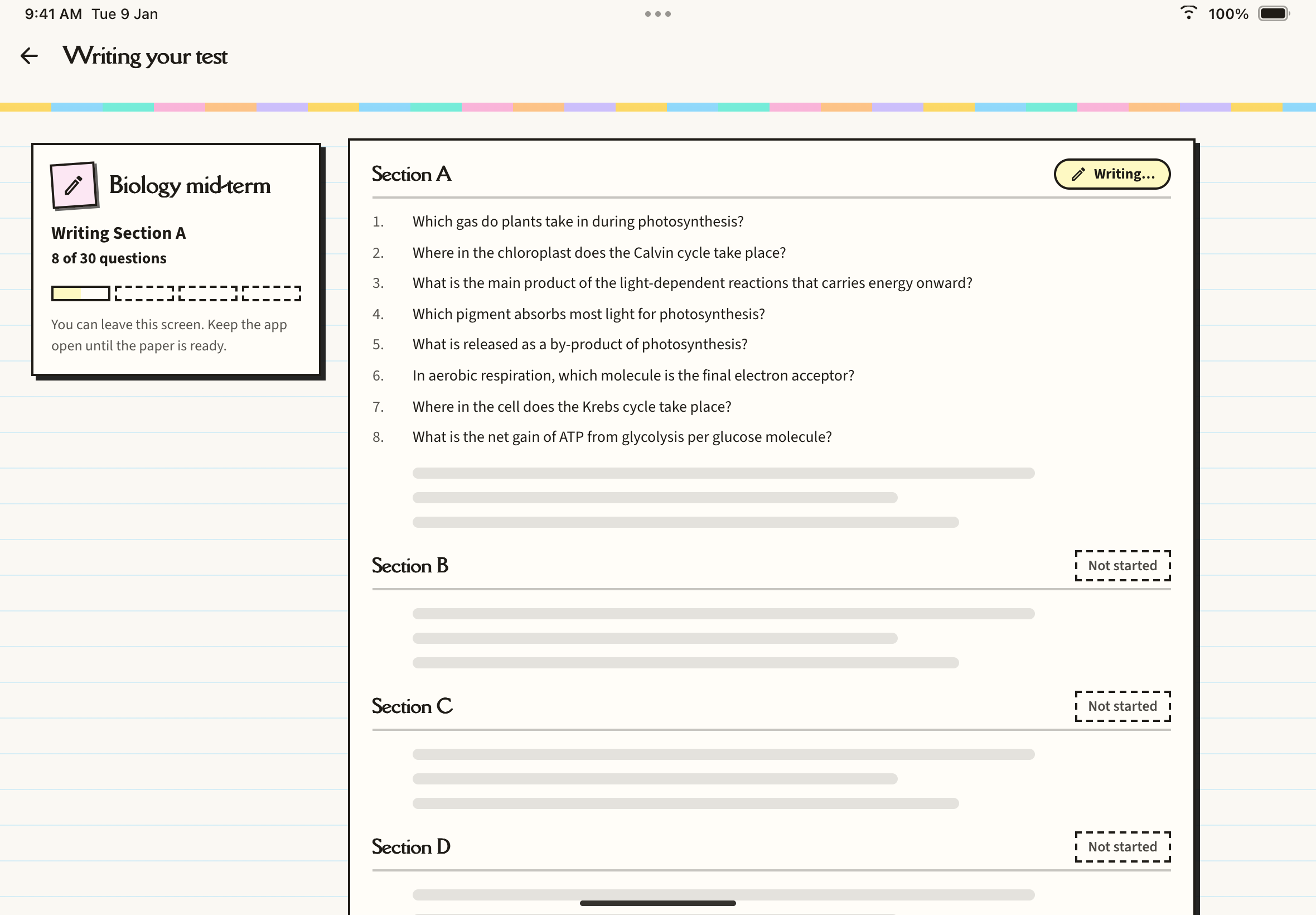
You can leave this screen, but keep the app open until the paper is ready. If something goes wrong in a section, tap Retry those sections; this does not use another generation. The paper is written in the language your app is set to when you create it.
Your own formats
On Choose a format, Set my own format lets you design a paper: its name, total marks, duration, pass mark, and sections of questions with the marks each is worth. The question types you can add are multiple choice, multiple answers, true or false, assertion and reason, fill the blank, match the following, short answer and long answer. A section can offer a choice of questions, such as answer any 4 of 6. A live meter shows how many marks you have placed, and you can only save once the marks add up exactly to your total. Your formats appear under the My formats chip, and deleting a format does not delete papers already made from it. Making a format uses no generations.
The test paper
Tap a paper on the Tests tab to open it. The cover shows its status, marks, time, questions and a Pass mark row (33%, 40%, 50%, 60%, 70%, Custom or None) that only changes this paper. Below are all the questions, and a list of your attempts once you have some.
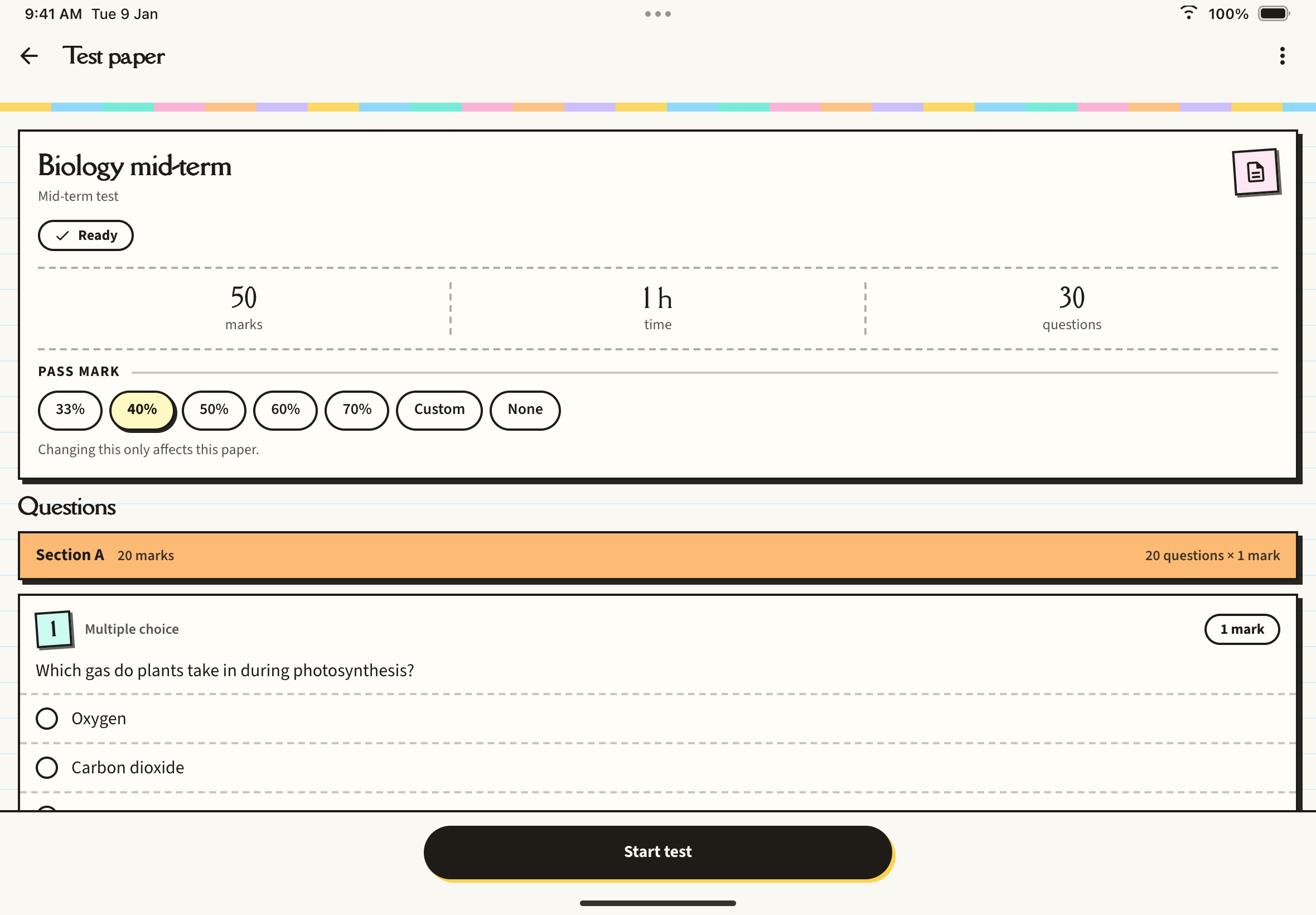
Tap Start test and choose how to sit it:
- Timed: runs to the paper's duration.
- Practice, no clock: the same questions and the same marking, with no timer.
- Attempt it on paper: opens the PDF export so you can print the paper and write by hand.
Tap the three dots at the top right to rename or delete the paper, or export a PDF. Deleting removes the questions and all your attempts. You can also press and hold a paper in the list for the same options.
Taking the test
The session shows one question per screen. Use Previous and Next, tap the grid button (for example 7 / 30) to jump to any question, and tap Flag to mark one to come back to. The bar along the top shows your progress through each section.
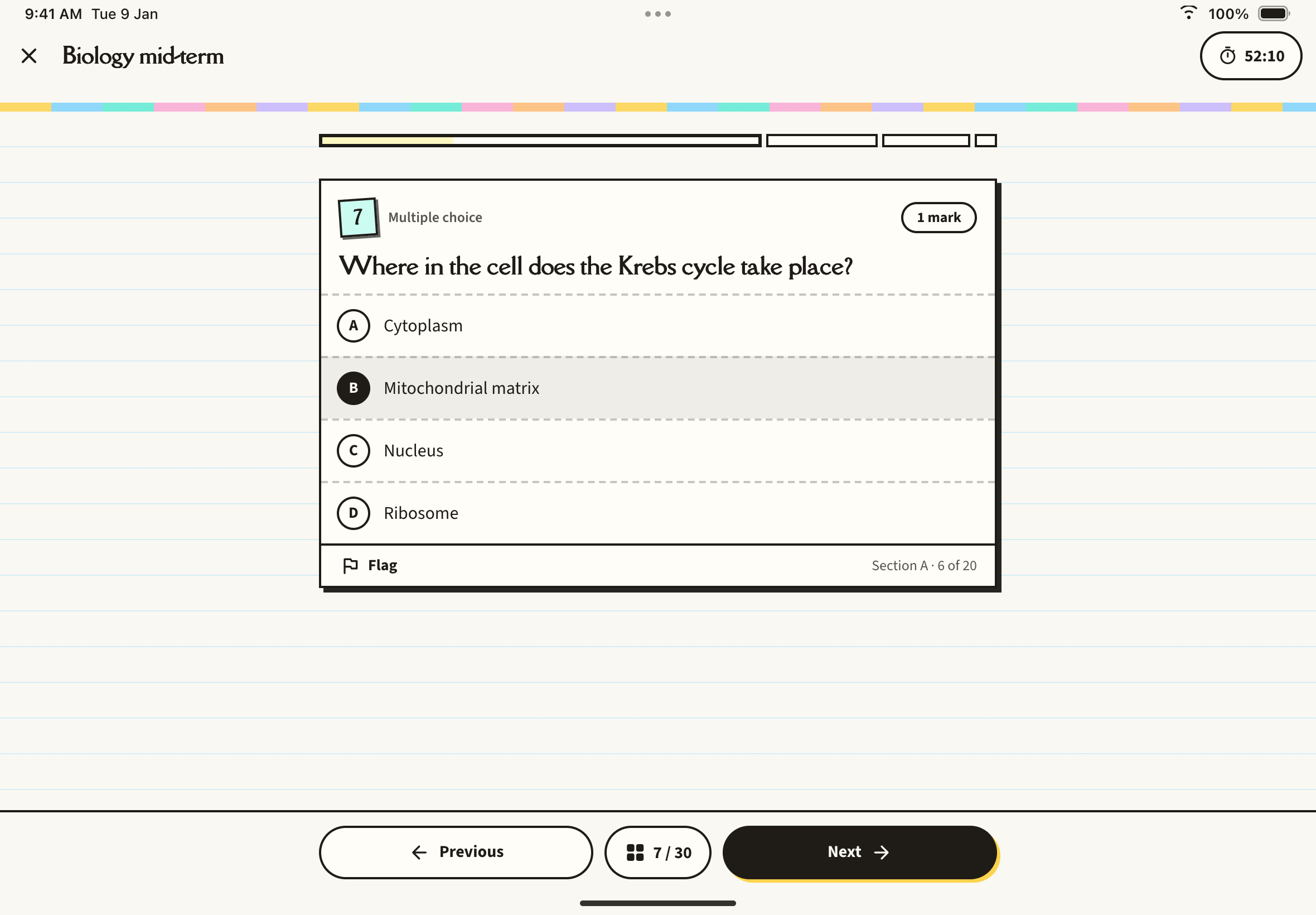
On a timed attempt the clock sits at the top right. It turns amber as time runs low and red near the end, you get a warning when one minute is left, and the test submits itself when time runs out. When you submit with questions unanswered, Before you submit shows how many are answered, how many marks are at stake and which are flagged.
Your results
After you submit, Your answers shows your percentage, your marks (for example "41 of 50"), the time you took, and Passed or Not passed if the paper has a pass mark. A bar and counts show how many answers were correct, partly correct and wrong, and a grid lets you jump to any question.
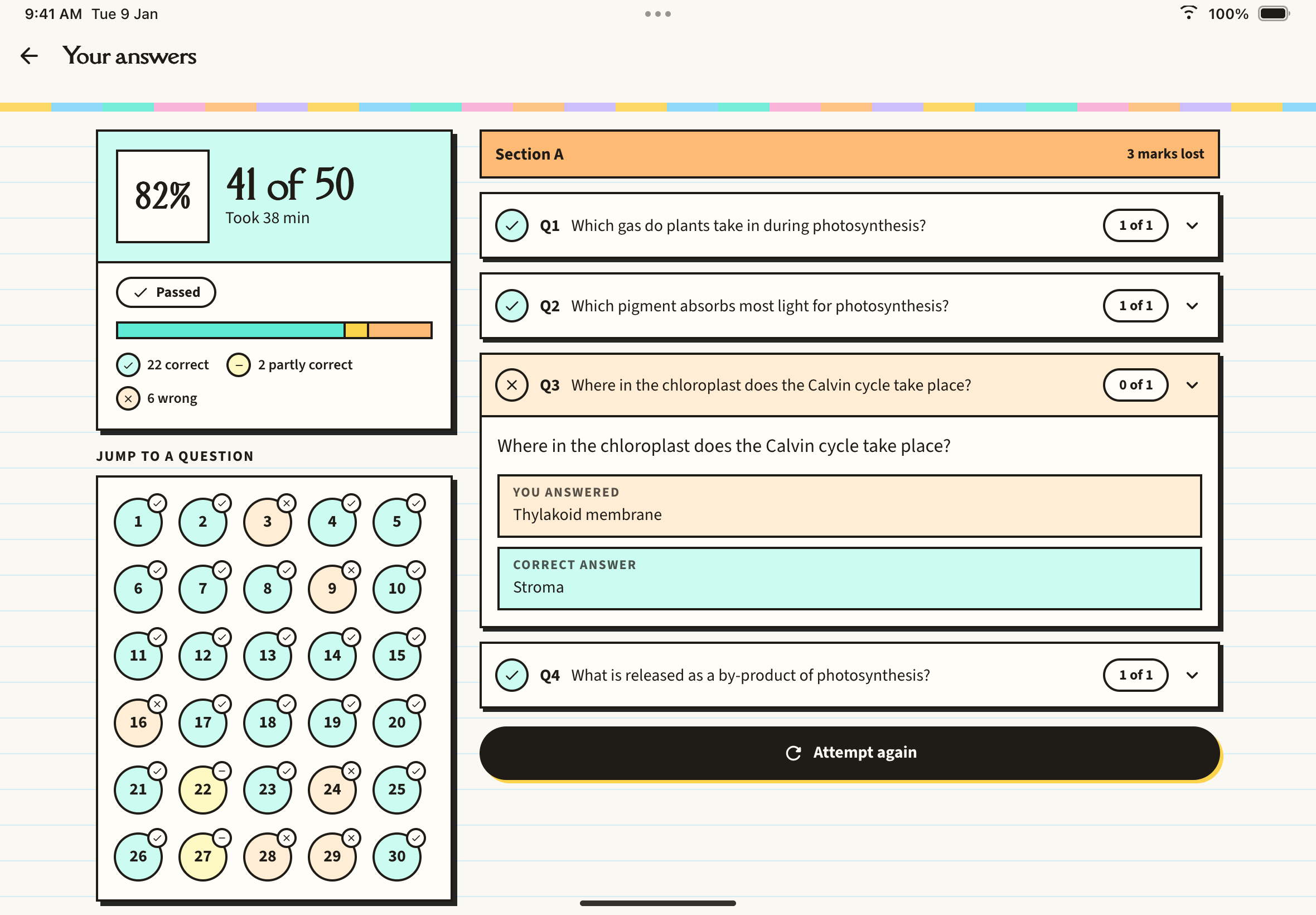
Each question card opens by default when you got it wrong or partly right. It shows You answered and the Correct answer, and where marks were lost it explains why, which points were missed and what was expected. Marks are given to the nearest half mark.
Written answers are marked by the AI after you submit, so the score first reads Provisional and then updates. If marking fails, tap Try marking again. Tap Attempt again to sit the same paper once more, or go back to the paper to see all your attempts.
Print a paper
On the paper's page, tap the three dots and choose Export. You can include the Question paper, the Answer sheet and, once you have finished at least one attempt, the Marking scheme. The share sheet opens, where you can print or save the PDF.