
Revision Plans and Reminders
Use the Calendar for revision reminders, build a spaced countdown to your exam, and catch up on missed sessions
The Calendar and Revision tabs of the Study tab help you decide when to revise. The Calendar holds single revision reminders and every session of your plans. A revision plan counts down to an exam and spreads revision sessions across the days you have left. The calendar, reminders, plans and catch-up do not use your AI generations.
The Calendar
Open Study > Calendar. A month grid sits next to an agenda of what is coming up.
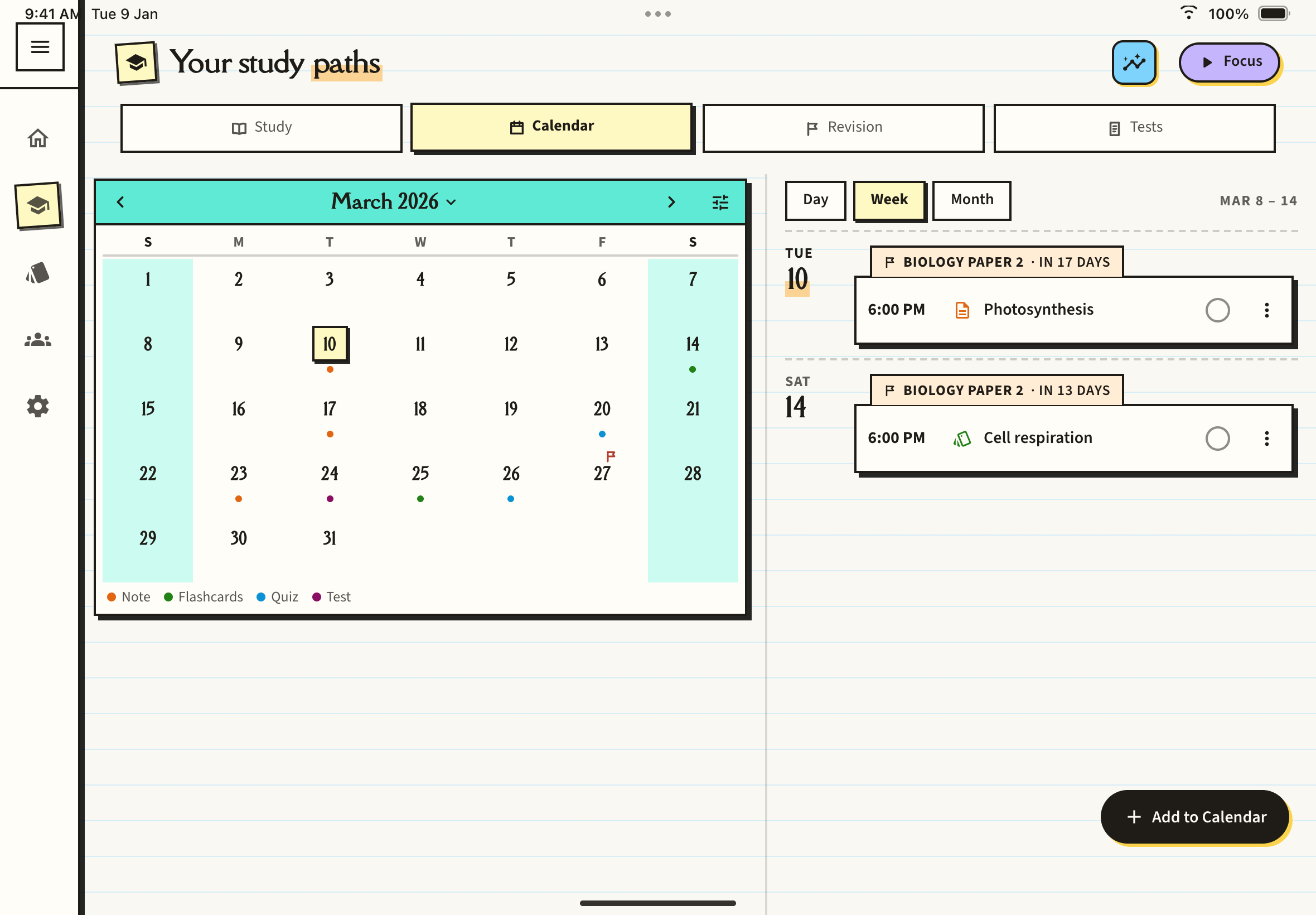
- Dots under a date show what is due that day, coloured by type: note, flashcards, quiz, mind map, study session or test. A small flag marks an exam day.
- Choose Day, Week or Month above the agenda. The app remembers your choice on that device.
- Tap the date at the top for a month and year picker, and the tune icon to choose which day the week starts on.
- Each agenda row shows the time, what it is for, a circle to tick it off and a menu to Edit or Delete. Tap a row to open the item. Sessions from a plan carry a tab with the exam name and how many days are left.
Add a revision reminder
A reminder is a single nudge, once or repeating, to revise one note, deck, quiz or mind map.
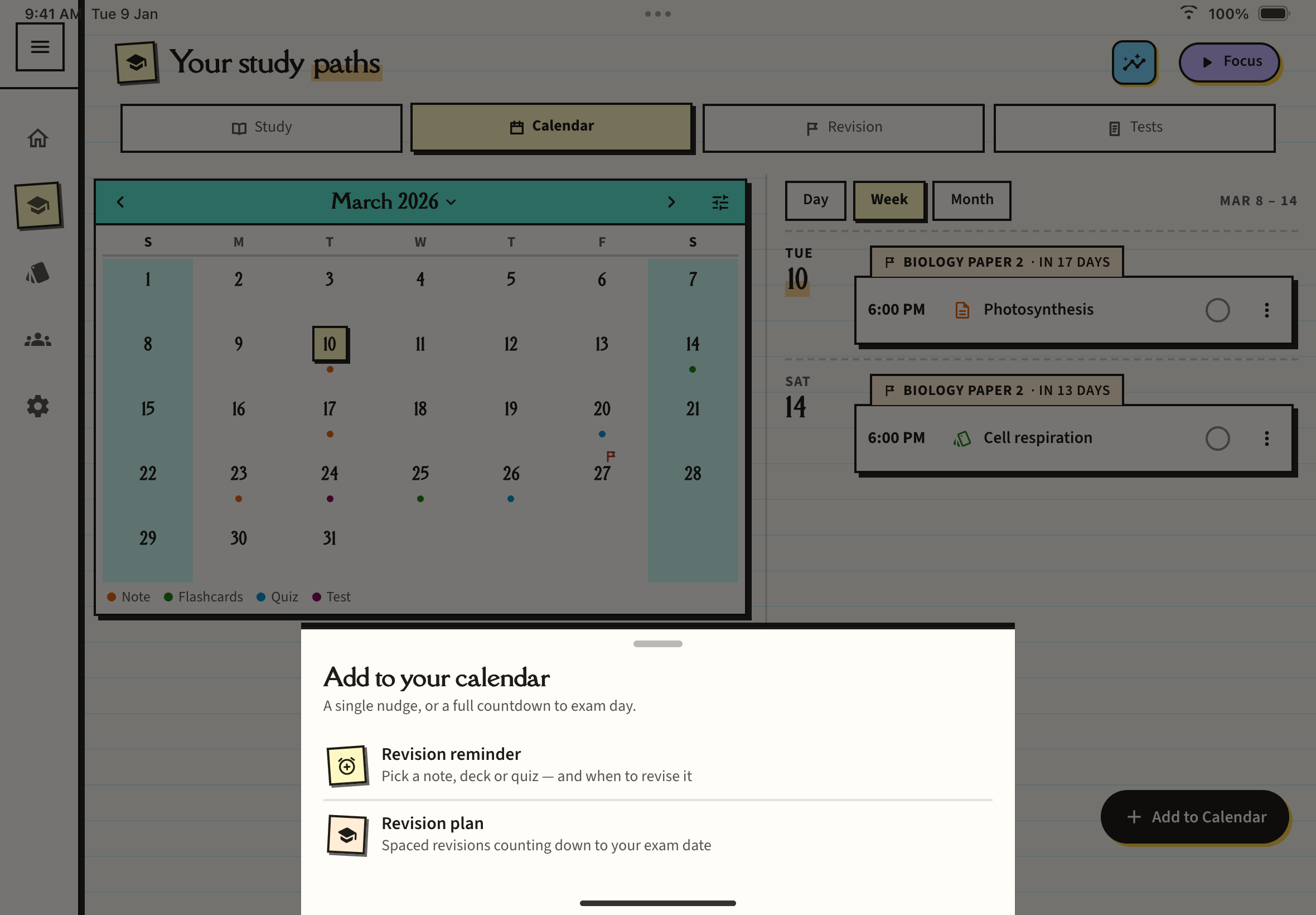
On the Calendar tab, tap Add to Calendar and choose Revision reminder. Pick what to revise. The picker has a search box and filters for notes, flashcards, quizzes and mind maps. Tapping a reminder opens the item. You can also choose a General study session and name it yourself.
Pick a date and a time. The time starts at your default reminder time, which you can change in Settings under Study > Reminders (see Study Settings).
Choose Once, Daily, Weekdays or Weekly. For Weekly, tick the days you want.
Tap Set reminder. If you have not yet allowed notifications, the button reads Set & turn on reminders, and Just save it saves without asking.
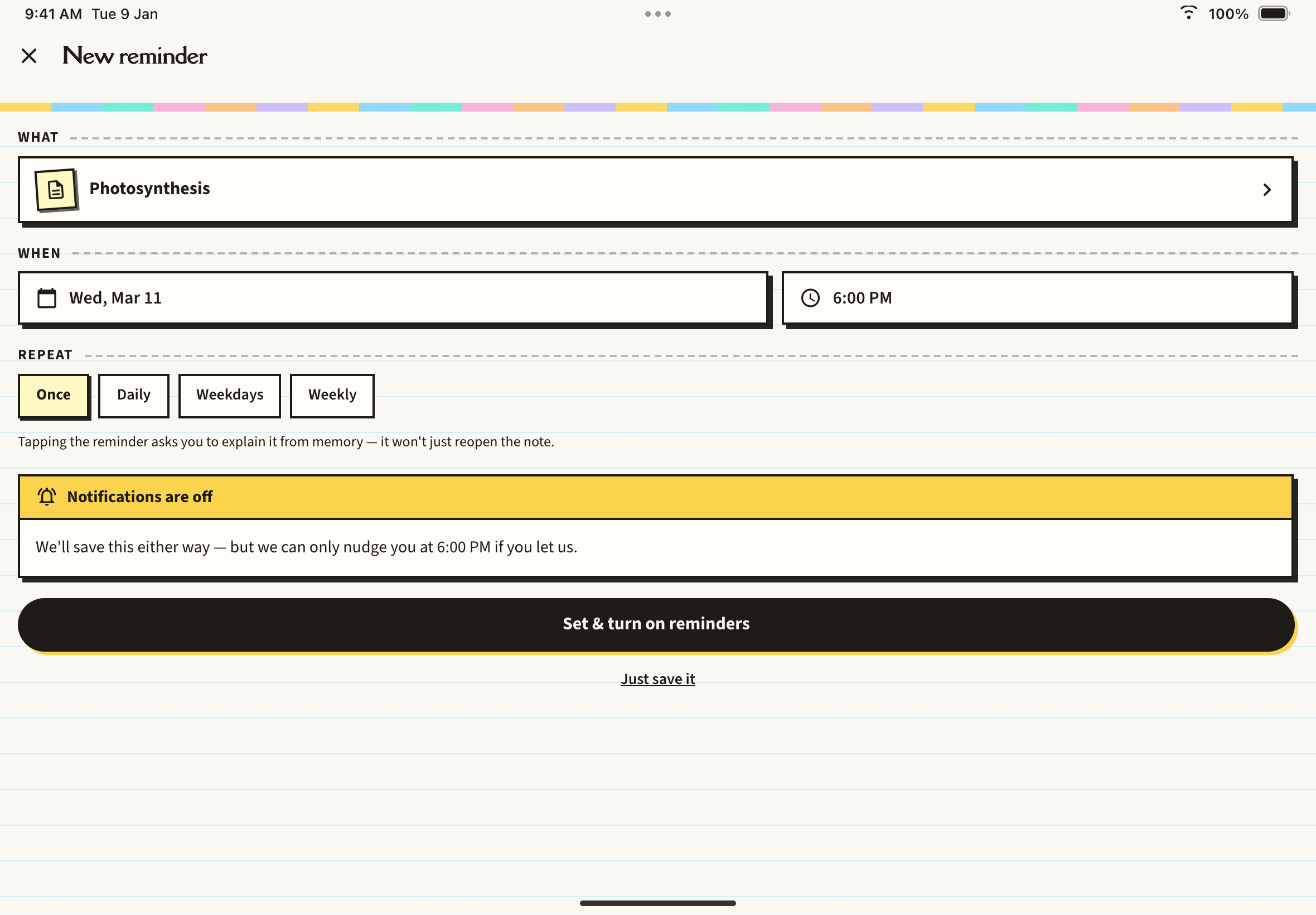
A one-off reminder has to be in the future. Reminders sync across your devices, so they need you to be signed in to an account. To receive them on your phone you need to allow notifications for Notesmakr on your device; without that, the reminders still appear on your Calendar.
Plan your revision for an exam
Tap New Revision Plan on Study > Revision, or choose Revision plan in the Add to Calendar sheet. Plan revision on the Home shortcuts and Study Desk opens the same page.
Under What exam, give it a name such as "Biology Paper 2". Set the Date (it cannot be in the past) and the Time the exam starts.
Under Topics it covers, tap Add or change topics and choose notes, decks, quizzes or mind maps, or pull in everything from a study path. Tap the pill beside each topic to cycle Shaky, Getting there and Solid. Weaker topics come round more often.
Under How often can you study?, use the plus and minus buttons to choose between one and seven days a week.
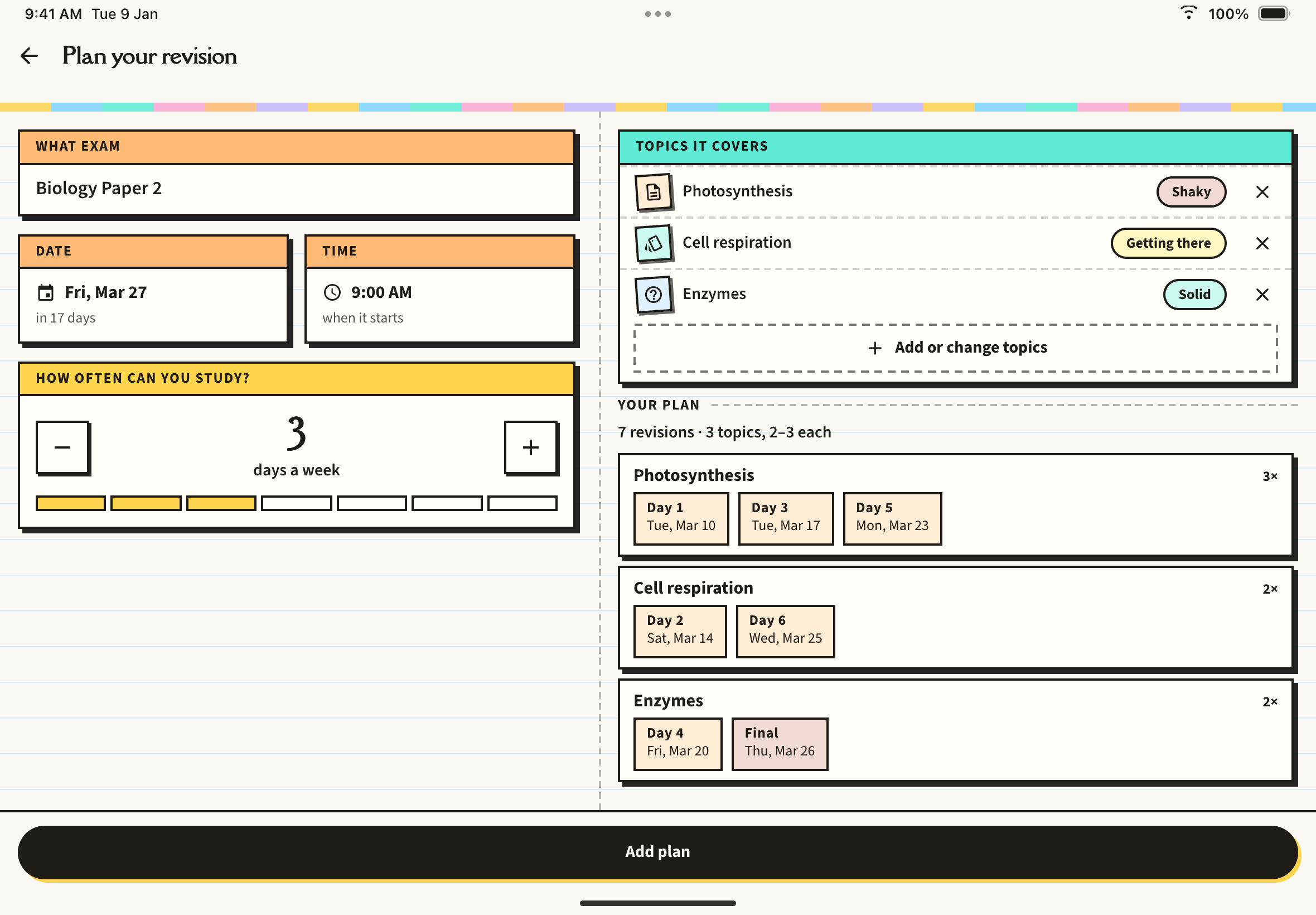
As you change anything, Your plan updates beneath: how many revisions you get, and which days each topic lands on. Revisions are spaced widely at first and come closer together towards the exam. None falls on exam day, and the last is the evening before, shown as Final. Tap any day chip to move that revision, and tap Put it back where the plan had it to undo.
Tap Add plan. Each revision lands on your Calendar as an ordinary reminder, at your default time, that you can edit or delete like any other. A plan holds up to 60 revisions and at most one per day.
The Revision tab
Study > Revision lists every plan as a card: a date stamp for the exam, a countdown pill such as 8 DAYS (red in the last three days), how many topics and revisions are done and when the next one is, and a row of boxes for each revision. Plans whose exam has passed move under FINISHED.
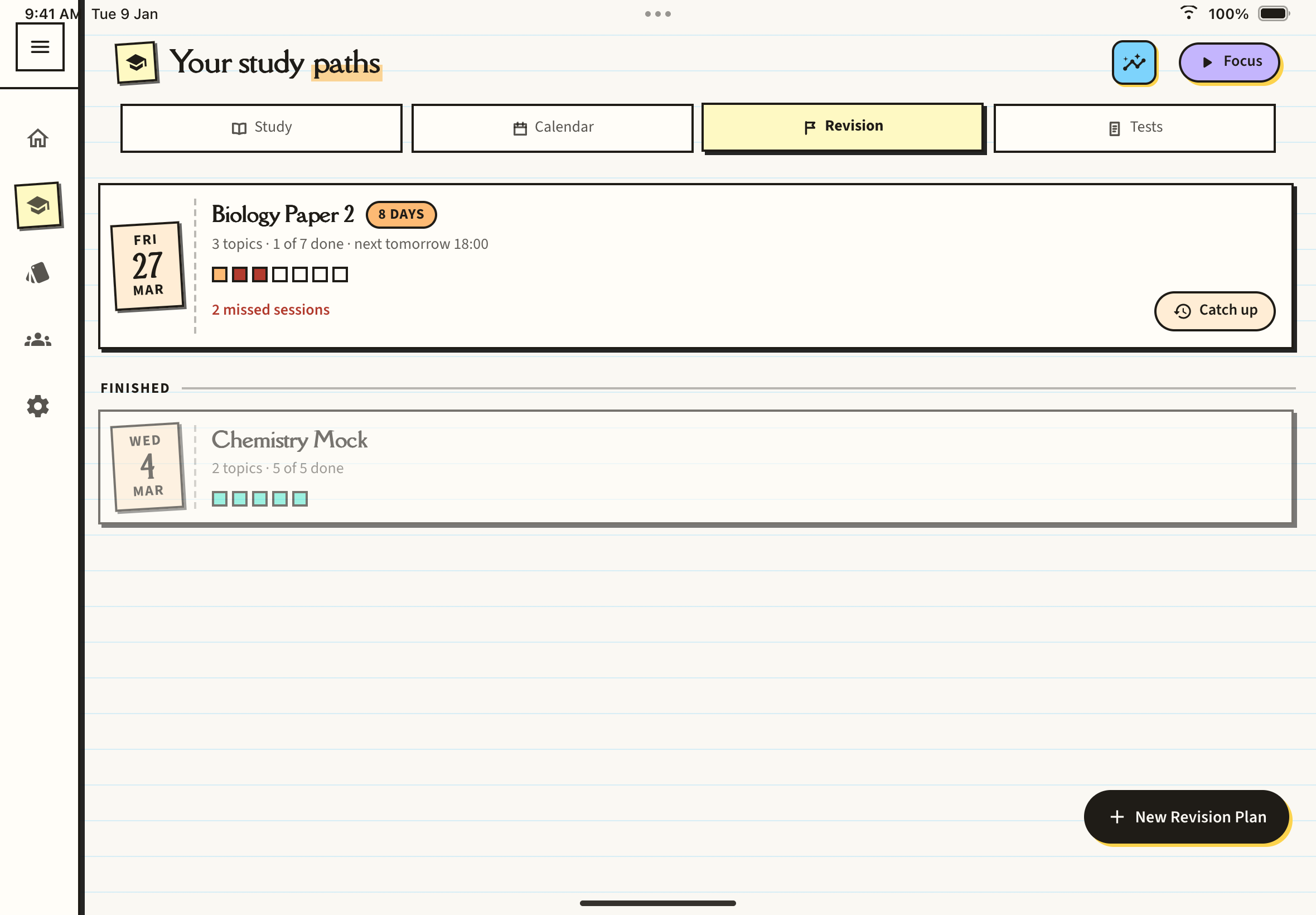
A session is done when you tick it, and missed when its time passes without a tick.
One plan's page
Tap a plan to open it. It shows a readiness ring, the days to go, how many sessions are done, and which topic needs the most work. Readiness weights your ticked sessions by how shaky each topic was, and the label moves from Just getting started up to Well prepared as it grows.
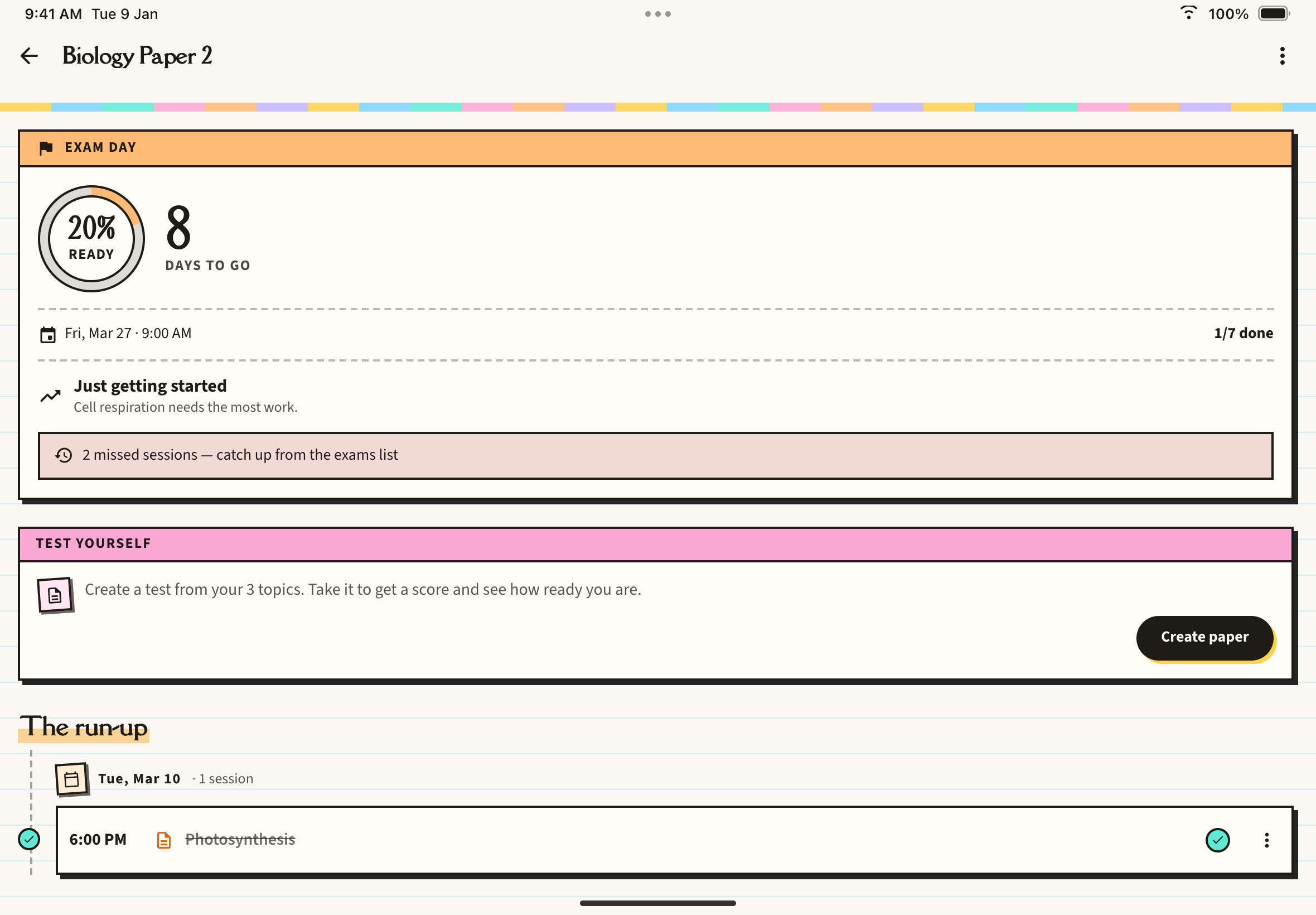
- Test yourself creates a practice paper from the plan's topics and ties it to the plan. It uses one AI generation like any paper.
- The run-up is a timeline of every session. Tap the plus on a day to add extra revisions, or open a session's menu to edit or delete it.
- The three dots at the top right let you Edit revision plan or Delete plan. Editing re-plans only the sessions still ahead and untouched; done and past sessions are kept. Deleting removes the plan and all its revisions, but not your notes or decks.
Catch up on missed sessions
When a plan has missed sessions, a Catch up button appears on its card (and on the Revision card of the Study Desk). Tap it and a sheet asks Move 2 missed sessions?, proposing a new day for each. Tap a date or time to change it. Nothing changes until you tap the confirm button.
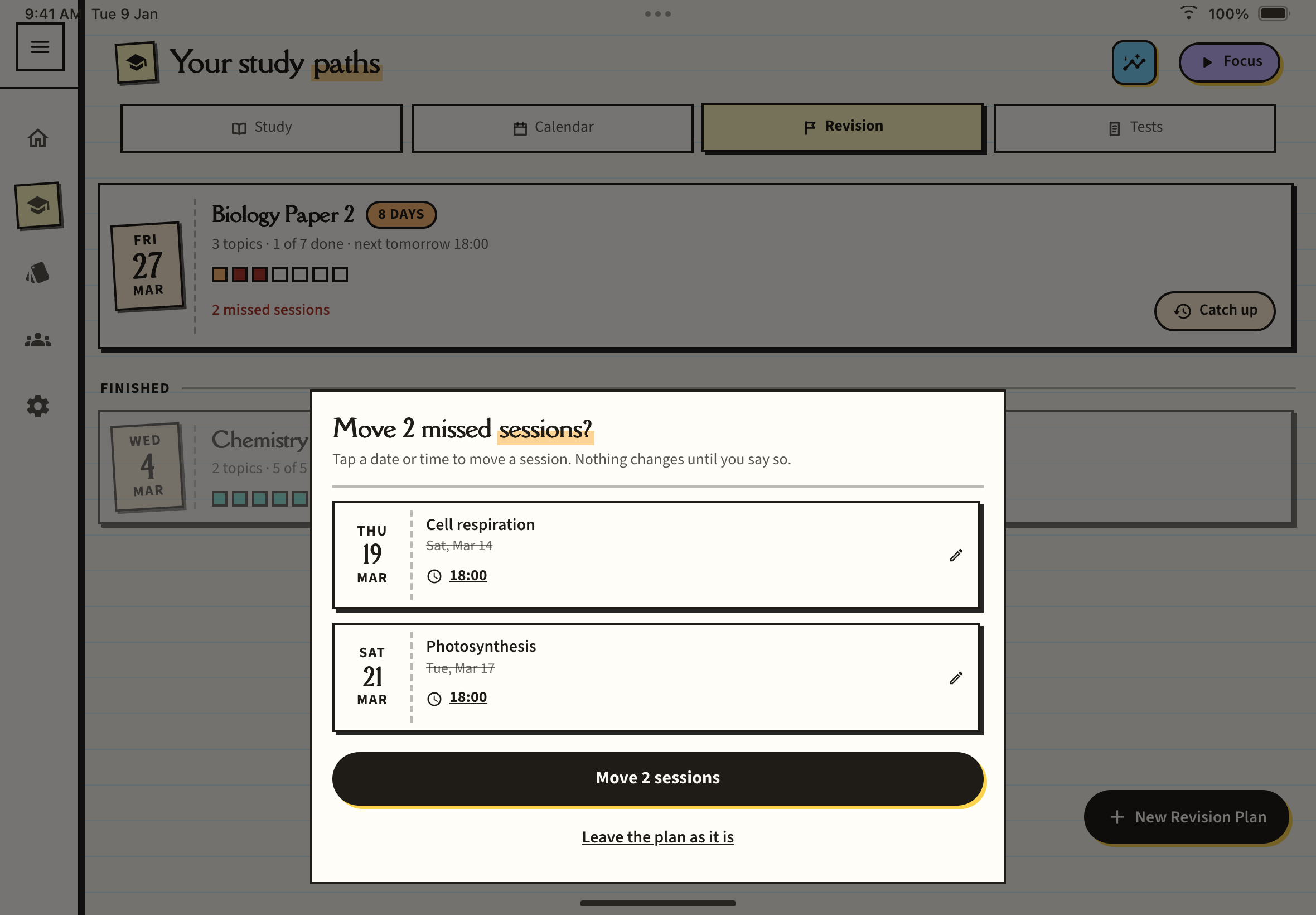
The oldest missed session goes first, to the earliest free day from today, at the same time of day. Two plan sessions never share a day and nothing is squeezed onto the evening before the exam. If a session has no room, it stays where it is. Practice papers are never moved.