Typed Note Editor
Create detailed explanations, summaries, and written insights using the rich text editor
The typed note editor lets you write detailed explanations, examples, questions, and insights in your own words. It's perfect for practicing the Feynman Technique by transforming complex concepts into simple, clear language.
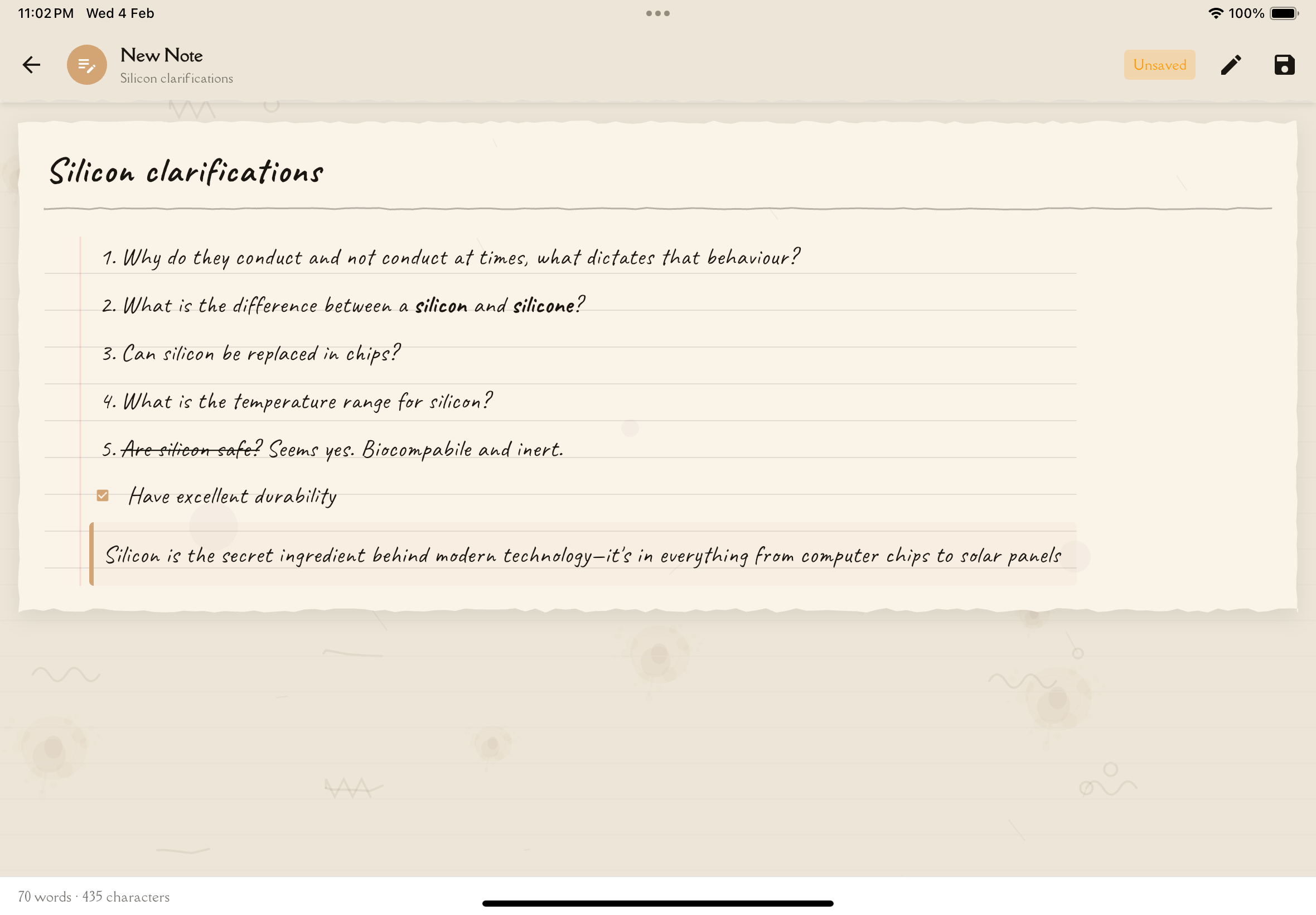
Creating a Typed Note
To create a new typed note:
Open your study note and navigate to the Reading tab.
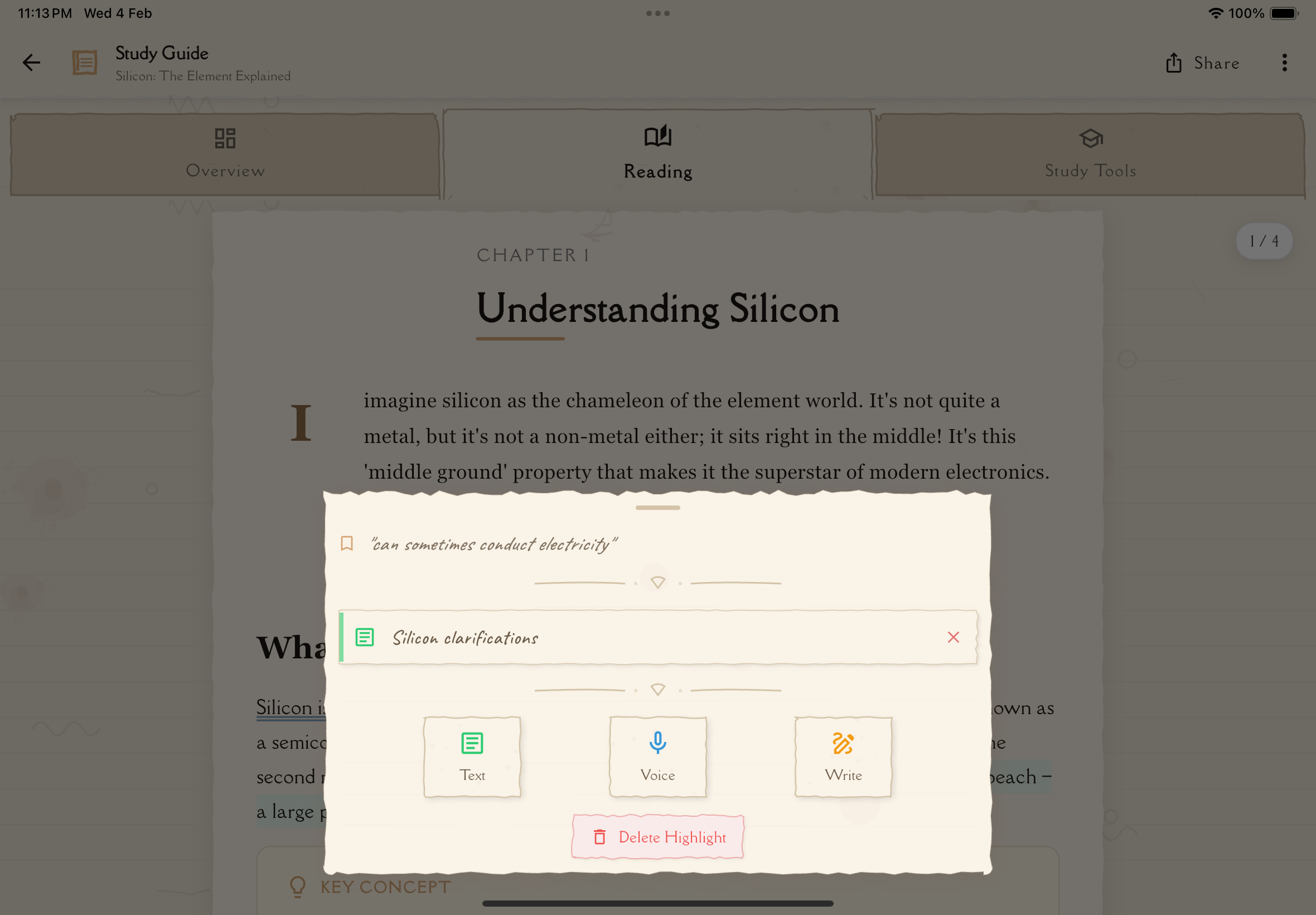
Long-press on the text you want to annotate. A context menu will appear.
From the context menu, tap "Typed Note". The rich text editor opens.
Start typing your explanation, example, question, or insight in your own words.
Use the formatting toolbar to organize and emphasize your content (see formatting options below).
Tap "Save" or "Done" when finished. Your typed note appears inline in the Reading tab, linked to the text you selected.
The Editing Interface
The typed note editor provides:
Text Input Area
A clean, distraction-free space for writing. The text area expands as you type, so you're never limited by space.
Formatting Toolbar
Quick access buttons for text formatting (explained in detail below).
Character/Word Count
Optional display showing how much you've written (helpful for checking if you've explained thoroughly enough).
Auto-Save Indicator
Shows when your work is automatically saved, so you never lose progress.
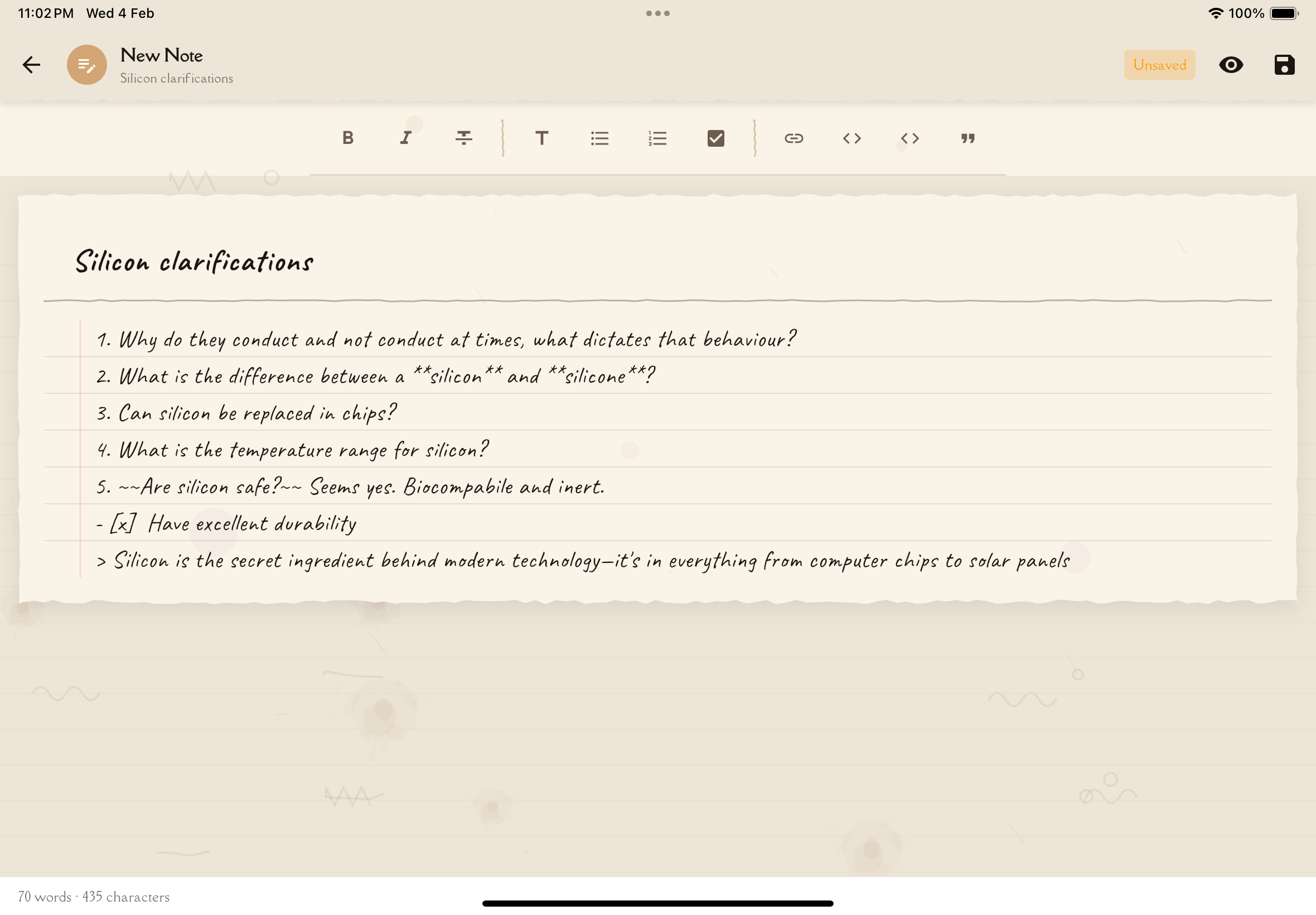
Formatting Options
Make your typed notes clear and organized with these formatting tools:
Basic Text Formatting
Bold Emphasize key terms and important concepts.
- Toolbar button: B
- Use for: Critical vocabulary, main ideas, key takeaways
Italic Add subtle emphasis or denote examples.
- Toolbar button: I
- Use for: Examples, foreign terms, book titles
Underline Highlight important points.
- Toolbar button: U
- Use for: Definitions, core concepts (use sparingly—bold is often better)
Strikethrough Show corrections or things you initially misunderstood.
- Use for: Documenting your learning evolution
Don't over-format! Too much bold, italic, and underlining makes everything look equally important (which means nothing stands out). Reserve formatting for truly critical elements.
Headings
Use headings to organize your note into sections:
Heading 1 — Main sections Heading 2 — Subsections Heading 3 — Sub-subsections
Example structure:
# Main Concept
## My Explanation [Your simplified explanation here]
## Real-World Example [An example that helped you understand]
## Questions I Still Have [Things you need to research]
Lists
Bulleted Lists Use for non-sequential items:
- Key points
- Examples
- Ideas
Numbered Lists Use for sequential steps or ranked items:
- First step
- Second step
- Third step
Lists help break complex information into digestible chunks and make your notes scannable.
Quotes
Use quote formatting to:
- Highlight important passages from your source material
- Distinguish between your words and others' words
- Emphasize key insights
Example:
"If you can't explain it simply, you don't understand it well enough." – Richard Feynman
Links
Add links to:
- Related study notes
- Online resources you found helpful
- Video explanations you watched
Links keep all your learning resources connected and easily accessible.
What to Write in Typed Notes
Explanations in Your Own Words
This is the heart of the Feynman Technique. Take a concept from your study note and explain it as if teaching a friend who knows nothing about the topic.
Example:
# Photosynthesis – My Simple Explanation
Imagine a plant is like a tiny factory that runs on sunlight instead of electricity. The plant takes in carbon dioxide (CO₂) from the air – the stuff we breathe out – and water (H₂O) from the soil. Then, using energy from sunlight, it transforms these ingredients into glucose (sugar) that it uses for energy and oxygen (O₂) that it releases into the air.
So basically: CO₂ + H₂O + Sunlight → Glucose + O₂
This is why plants are so important – they make the oxygen we breathe!
Personal Examples
Add examples that helped you understand, especially ones from your own life or experiences.
Example:
# Compound Interest Example
My savings account: I put in $1,000 at 5% annual interest.
- Year 1: $1,000 + $50 interest = $1,050
- Year 2: $1,050 + $52.50 interest = $1,102.50
- Year 3: $1,102.50 + $55.13 interest = $1,157.63
The interest grows each year because I'm earning interest on the interest! That's the "compound" part – it snowballs.
Analogies
Create comparisons that make abstract concepts concrete.
Example:
# DNA as a Recipe Book Analogy
DNA is like a massive recipe book for building and running your body:
- Each GENE is like one recipe (how to make a specific protein)
- CHROMOSOMES are like chapters in the book
- The NUCLEUS is like a kitchen where the cookbook is kept
- RNA is like a chef who reads a recipe and actually cooks the dish
Questions and Gaps
Write down what's still confusing. Admitting confusion is the first step to clarity!
Example:
# Questions I Still Have
- If plants need CO₂ for photosynthesis, why is CO₂ considered bad for the environment?
- How do plants photosynthesize at night when there's no sunlight?
- What happens to the glucose—does the plant store it or use it immediately?
[Come back to research these!]
Memory Aids and Mnemonics
Create acronyms, rhymes, or memory tricks that work for you.
Example:
# Remembering the Order of Taxonomy
King Philip Came Over For Good Soup
- Kingdom
- Phylum
- Class
- Order
- Family
- Genus
- Species
Study Strategies
Note what's working (or not working) as you learn this material.
Example:
# What's Helping Me Learn This
✓ Drawing diagrams really helps – visual learning works for me with this topic ✓ Teaching my sister helped me realize I didn't understand step 3 ✗ Just reading the textbook didn't stick – too abstract → Next time: start with audio recording, THEN read textbook
There's no "right" or "wrong" content for annotations. The goal is to engage with the material in a way that deepens YOUR understanding. If it helps you think, it's valuable!
Writing Tips
Use Simple Language
Avoid copying jargon from textbooks. If you use a complex term, immediately define it in simple words.
Bad: "Mitochondria perform oxidative phosphorylation via the electron transport chain."
Good: "Mitochondria are like power plants in cells. They take in glucose (sugar) and oxygen and convert them into ATP (energy) through a series of chemical reactions."
Write in First Person
Use "I" and "me"—this is YOUR personal note, not a textbook.
Better: "I understand photosynthesis as..." instead of "Photosynthesis is understood as..."
Embrace Imperfection
Your first explanation won't be perfect. That's okay! The act of writing imperfect explanations IS the learning process.
Be Specific
Vague statements don't help. Use concrete details, numbers, and examples.
Vague: "This process is important."
Specific: "This process produces 90% of the cell's energy, so without it, we'd die in minutes."
Ask "Why?" and "How?"
Don't just state facts—explain the reasoning and mechanisms.
Surface: "Plants need sunlight."
Deeper: "Plants need sunlight because light energy powers the chemical reactions that convert CO₂ and water into glucose. Without light, these reactions can't happen."
If you find yourself struggling to explain something, that's GOOD—you've identified a gap in your understanding. Go back to your source material, research it further, then try again. This cycle is how deep learning happens!
Editing Existing Typed Notes
To edit a typed note you've already created:
From your Annotations List, tap on the typed note you want to edit.
Tap the "Edit" button or pencil icon.
Modify the text, add new sections, remove outdated content, or improve your explanations.
Tap "Save" to update the note.
Revisit old typed notes after studying more. You'll often find your understanding has deepened, and you can improve your explanations with new insights!
Keyboard Shortcuts
If using Notesmakr on a device with a physical keyboard, speed up formatting with shortcuts:
- Ctrl/Cmd + B — Bold
- Ctrl/Cmd + I — Italic
- Ctrl/Cmd + U — Underline
- Ctrl/Cmd + S — Save note
- Ctrl/Cmd + Z — Undo
- Ctrl/Cmd + Shift + Z — Redo
Export
Your typed notes can be:
- Copied to paste into other documents
- Exported as plain text or formatted documents
Next Steps
Want to add visual elements? Try the Handwritten Note Editor for diagrams and sketches. Prefer explaining out loud? Use the Voice Note Recorder to practice verbal explanations.