Punch Hole Actions
Customize the 6 interactive punch holes on note cards for quick access to your favorite study tools and features
Punch hole actions let you customize what happens when you tap the 6 interactive punch holes on the left side of your note cards. Assign each punch hole to your most-used study tools for one-tap access.
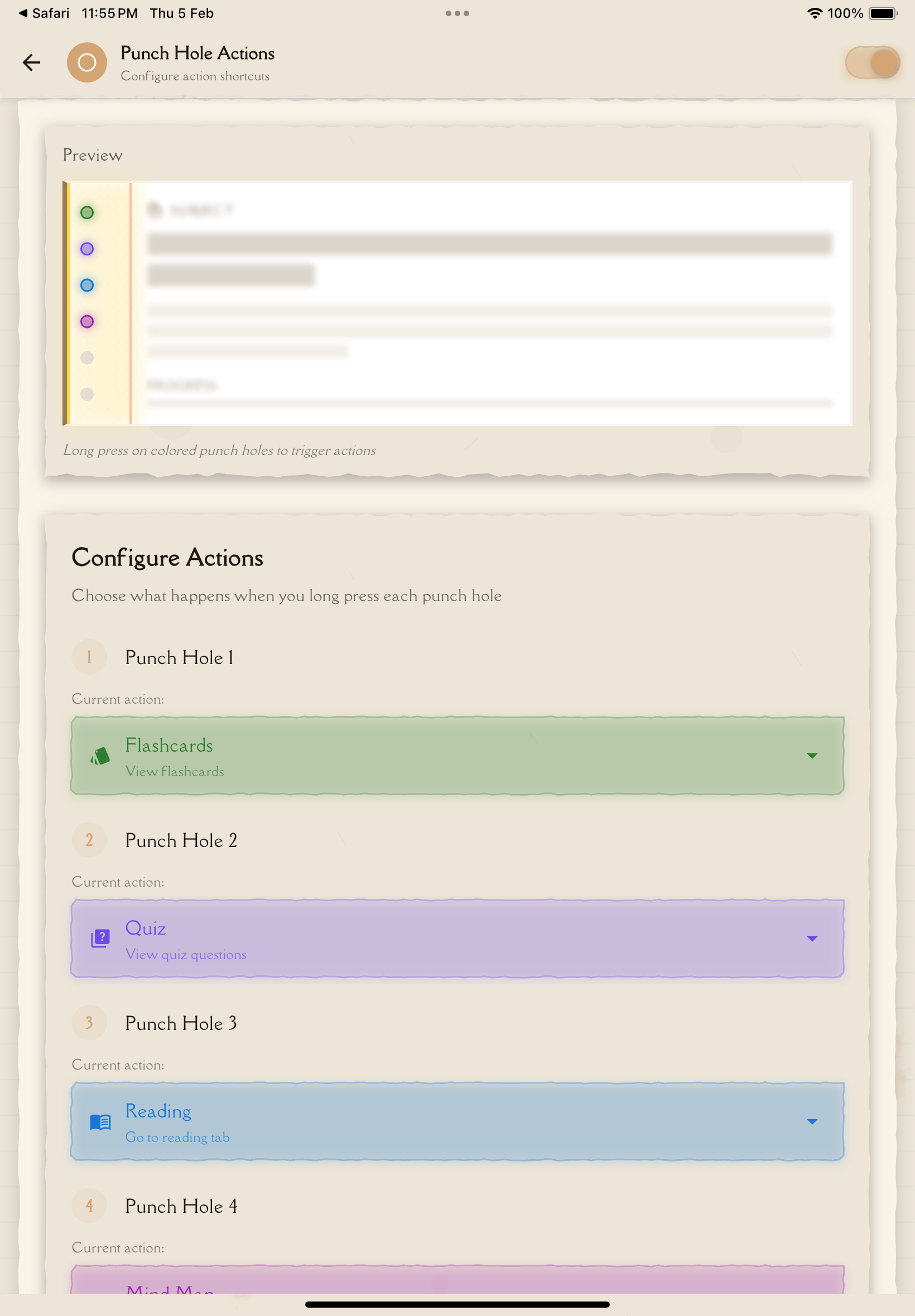
What Are Punch Holes?
Punch holes are 6 interactive circular buttons on the left side of each note card in your notes list. They provide quick access to study tools and features without opening the note.
Visual Design
- 6 punch holes arranged vertically on the left edge
- Skeuomorphic design mimicking physical hole-punched paper
- Interactive — tap any punch hole to trigger its assigned action
- Configurable — assign different actions to each hole
Where You'll See Them
- Note cards in your notes list
- Visible when punch hole display is enabled (Settings → Note Card Design)
Why Customize Them
Assign your most-used features to punch holes:
- One-tap access to study tools (Quiz, Flashcards, Mind Map)
- Skip navigation — no need to open the note first
- Personalized workflow — configure based on your study habits
- Visual shortcuts — see all options at a glance
Punch holes are inspired by physical notebook binders! Each hole is a quick shortcut to a study tool or feature, just like tabs in a physical notebook.
Accessing Punch Hole Actions Settings
To configure punch hole actions:
Tap the menu (☰ or ⚙️) and select "Settings".
In the Configuration section, tap "Punch Hole Actions".
Assign an action to each of the 6 punch holes, or set them to "None" if you don't want all 6 active.
Available Actions
You can assign any of these 6 actions to each punch hole:
Quiz
- Generate and open a quiz from the note
- One-tap access to quiz creation
- Uses your default quiz settings (configured in Study Settings)
Flashcards
- Generate and open flashcards from the note
- One-tap access to flashcard study
- Uses your default flashcard settings (configured in Study Settings)
Reading
- Open the note in Reading view
- Jump straight to the reading tab
- View simplified content with annotations
Personal Notes
- Open Personal Notes view for the note
- See all your typed, handwritten, and voice annotations
- Quick access to add new annotations
Mind Map
- Generate and open a mind map from the note
- One-tap visual concept mapping
- AI-generated structure based on note content
None
- Disable the punch hole
- No action assigned
- The punch hole is visually present but non-interactive
You have exactly 6 punch holes to configure—one for each position. Assign the actions you use most frequently, and set the rest to "None" if you don't need all 6.
Configuring Punch Hole Actions
Each of the 6 punch holes can be assigned independently:
Go to Settings → Configuration → Punch Hole Actions.
You'll see 6 punch holes labeled (Hole 1, Hole 2, Hole 3, Hole 4, Hole 5, Hole 6) corresponding to their positions from top to bottom on the note card.
Tap a punch hole and select an action from the dropdown:
- Quiz
- Flashcards
- Reading
- Personal Notes
- Mind Map
- None
Assign actions to all 6 punch holes, or set some to "None" if you don't need all positions.
Your configuration saves automatically and syncs across devices.
Assign your most-used action to Hole 1 (top) for easiest thumb access on mobile devices!
Recommended Configurations
Balanced Configuration (Default)
- Hole 1: Quiz
- Hole 2: Flashcards
- Hole 3: Reading
- Hole 4: Personal Notes
- Hole 5: Mind Map
- Hole 6: None
Best for: Most users who use a mix of study tools
Study-Focused Configuration
- Hole 1: Flashcards
- Hole 2: Quiz
- Hole 3: Personal Notes
- Hole 4: Reading
- Hole 5: None
- Hole 6: None
Best for: Active test preparation and review sessions
Visual Learner Configuration
- Hole 1: Mind Map
- Hole 2: Personal Notes (handwritten/visual)
- Hole 3: Reading
- Hole 4: Flashcards
- Hole 5: Quiz
- Hole 6: None
Best for: Visual thinkers who rely on diagrams and drawings
Reading-Focused Configuration
- Hole 1: Reading
- Hole 2: Personal Notes
- Hole 3: None
- Hole 4: None
- Hole 5: None
- Hole 6: None
Best for: Users who primarily read and annotate without generating study tools
There's no "correct" configuration—choose based on YOUR workflow. If you rarely use mind maps, set those punch holes to "None"!
How Many Punch Holes Should You Use?
Fixed Number: You have exactly 6 punch holes available
Minimum Recommended: At least 2-3 active punch holes to make the feature useful
Using All 6: You can assign all 6 if you use all available actions frequently
Setting to "None": Unused punch holes should be set to "None" rather than left with arbitrary assignments
Why 6 Positions?
- Optimal balance between utility and visual clutter
- Easy to reach with thumb on mobile devices
- Matches the skeuomorphic design of physical hole-punched paper (standard 6-hole configuration)
Don't feel obligated to use all 6! It's better to have 3-4 well-chosen punch holes than 6 actions you rarely use.
Using Punch Holes
Once configured, punch holes are easy to use:
Locate a note card in your notes list.
Tap any of the 6 punch holes on the left side of the card.
The assigned action triggers:
- Quiz: Generates and opens a quiz
- Flashcards: Generates and opens flashcards
- Reading: Opens the note in Reading view
- Personal Notes: Opens Personal Notes view
- Mind Map: Generates and opens a mind map
- None: No action (punch hole is inactive)
Visual Feedback
- Active punch holes have subtle visual indicators
- Inactive punch holes (set to "None") appear dimmed or non-interactive
Punch holes work from the notes list WITHOUT opening the note first. This saves time when you want quick access to study tools!
Showing or Hiding Punch Holes
You can toggle punch hole visibility from Note Card Design settings:
Go to Settings → Configuration → Note Card Design.
Find the "Show punch holes" toggle and enable or disable it.
Punch holes are shown or hidden on all note cards instantly.
When to Hide Punch Holes:
- You prefer a cleaner, more modern card appearance
- You don't use the punch hole shortcuts frequently
- You navigate through menus and tabs instead
When to Show Punch Holes:
- You rely on quick shortcuts for study tools
- You like the skeuomorphic design aesthetic
- You want one-tap access to features
Learn more about Note Card Design →
Restoring Default Configuration
To reset punch hole actions to their original assignments:
Go to Settings → Configuration → Punch Hole Actions.
Manually reassign each punch hole to the default action, or set them to your preferred configuration.
Default Configuration:
- Hole 1: Quiz
- Hole 2: Flashcards
- Hole 3: Reading
- Hole 4: Personal Notes
- Hole 5: Mind Map
- Hole 6: None
Syncing Across Devices
Punch hole action configurations sync automatically:
Local Storage: Saved to your device for quick access
Cloud Sync: Synced to your user profile in the cloud
Cross-Device: Changes propagate to all logged-in devices within seconds to minutes
Auto-Save: No manual "Save" button—changes apply immediately
Configure punch holes once on your primary device, and the same configuration will automatically appear on your phone, tablet, and other devices!
Troubleshooting Punch Hole Actions
Punch Holes Don't Appear on Note Cards
Check:
- Go to Settings → Configuration → Note Card Design
- Verify "Show punch holes" toggle is enabled
- Punch holes won't display if this setting is disabled
Tapping a Punch Hole Does Nothing
Check:
- The punch hole may be set to "None" (inactive)
- Go to Settings → Configuration → Punch Hole Actions
- Verify that punch hole has an action assigned (not "None")
Action Takes Too Long to Trigger
AI Generation Time:
- Quiz, Flashcards, and Mind Map actions require AI generation
- May take 5-30 seconds depending on note length and complexity
- A loading indicator should appear while generating
Configuration Not Syncing
Try:
- Check internet connection
- Log out and log back in
- Restart the app
- Configuration should sync within a few minutes
Best Practices
Start with Defaults
Use the default punch hole configuration for 1-2 weeks to understand which actions you use most frequently before customizing.
Prioritize by Frequency
Assign your most-used actions to Hole 1 and Hole 2 (top positions):
- Easiest to reach with your thumb on mobile
- Most convenient for quick access
Use "None" for Unused Positions
If you don't use all 6 actions, set unused punch holes to "None" rather than assigning arbitrary actions:
- Prevents accidental taps
- Creates cleaner visual appearance
- Focuses attention on actions you actually use
Match Your Study Style
Configure punch holes based on your learning preferences:
- Visual learners: Mind Map in Hole 1
- Test preparers: Quiz and Flashcards in top positions
- Annotators: Personal Notes in Hole 1
- Readers: Reading in Hole 1
Review Periodically
Check your punch hole configuration every few months:
- Are you using all assigned actions?
- Have your study habits changed?
- Should you reorder based on new priorities?
Consider Study Phase
Your optimal configuration may change based on study phase:
- Learning phase (early semester): Reading, Personal Notes, Mind Map
- Review phase (mid-semester): Flashcards, Personal Notes, Reading
- Exam prep (finals): Quiz, Flashcards, Reading
Your study habits evolve! Reconfigure punch holes at the start of each semester or exam preparation period to match your current workflow.
Next Steps
Now that you've customized your punch hole actions, explore:
- Note Card Customization — Personalize note appearance
- Study Settings — Configure study tool defaults
- Annotations — Use your quick action shortcuts
Or continue optimizing your workflow:
- [Keyboard Shortcuts] (if available) — Learn shortcuts for power users