Generate Flashcards
Use AI to automatically create flashcard decks from your study notes in seconds
Notesmakr's AI can automatically generate comprehensive flashcard decks from your study notes, saving you hours of manual work while ensuring you cover all the important concepts.
How AI Flashcard Generation Works
Notesmakr's AI analyzes your study note content and intelligently creates question-answer pairs that:
- Target key concepts — Focuses on the most important information
- Use effective phrasing — Creates clear, concise questions
- Vary question types — Includes definitions, applications, comparisons, and examples
- Cover comprehensively — Ensures all major topics are included
- Match your language — Generates cards in the same language as your note
The AI creates flashcards based on your simplified explanations in the study note, not the original source material. This means your flashcards will use the same language and concepts you've already understood!
Generating Flashcards from a Study Note
Follow these steps to automatically create a flashcard deck:
Navigate to the study note you want to create flashcards from. Make sure the note has substantial content—the more detail you've added, the better the flashcards will be.
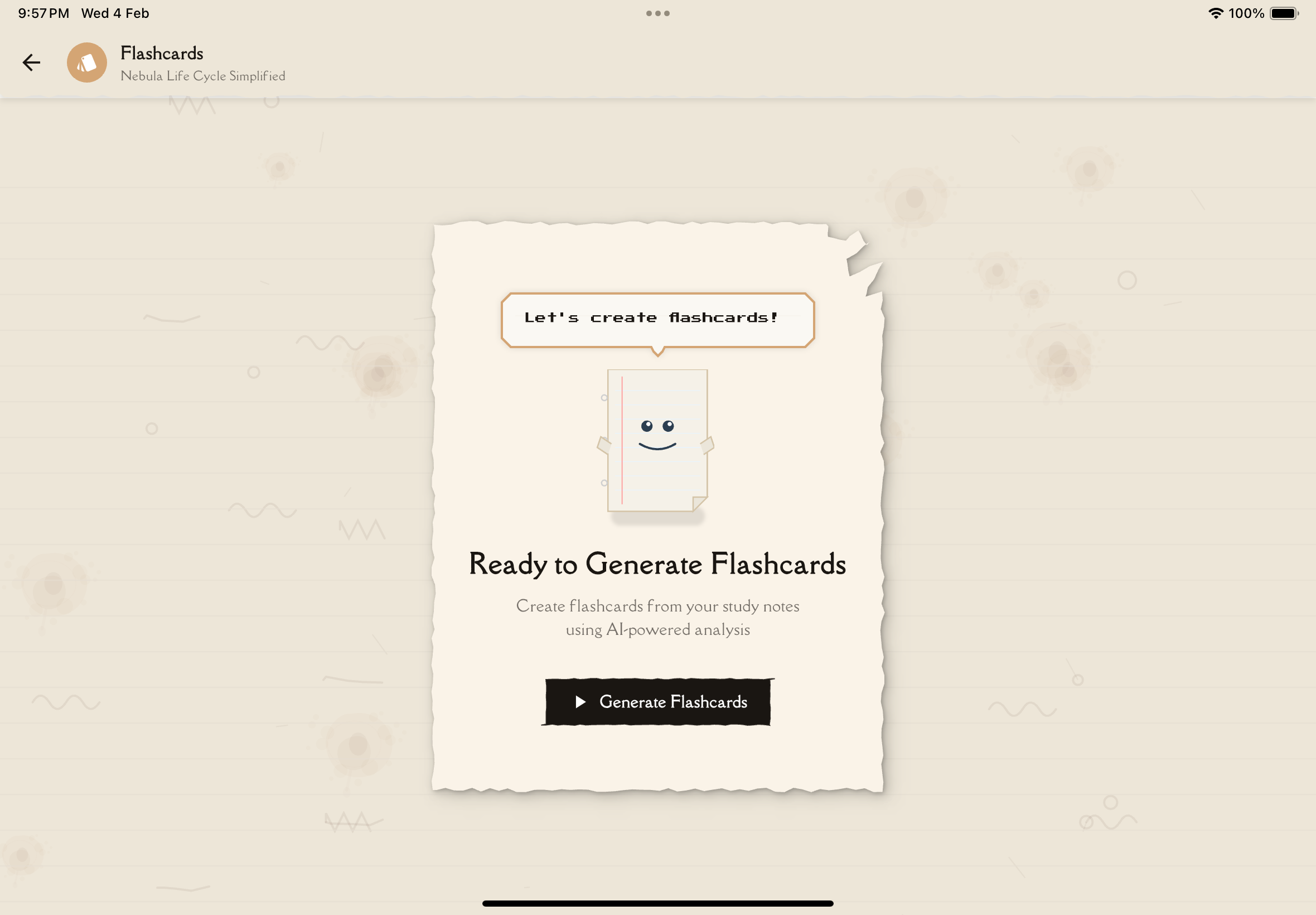
Tap on the Flashcards tab in your study note view. If you haven't generated flashcards for this note yet, you'll see a prompt to create them.
Tap the "Generate Flashcards" button. Notesmakr will display a loading indicator while the AI processes your note content.
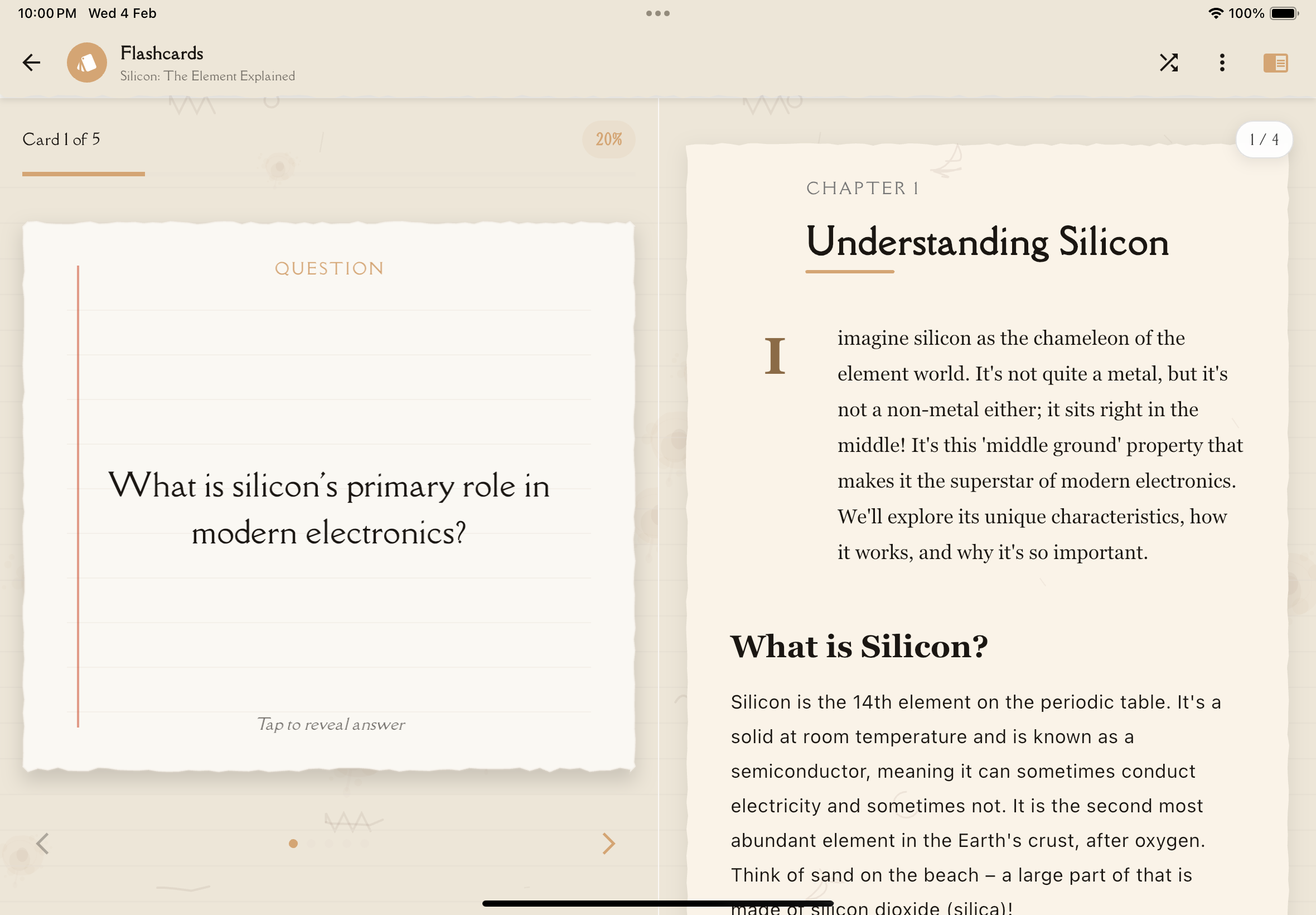
After a few seconds, your flashcard deck will be ready. The AI typically generates cards based on your configured settings (5-20 cards) and the length and complexity of your note.
Once generated, you can immediately begin studying your flashcard deck. Flashcards generated from study notes are optimized for learning and cannot be edited—they're tied to your study guide content.
Flashcards generated from study notes cannot be edited. They're automatically created based on your note content and remain synchronized with your study guide. If you want editable flashcards, create a manual deck from scratch or import flashcards instead.
What to Expect
Number of Cards
The number of flashcards generated depends on your Flashcard Settings (configurable from 5 to 20 cards). You can adjust the default count and difficulty level in your settings to match your study preferences.
Question Types
You'll see a variety of question formats:
- Definition questions — "What is...?" or "Define..."
- Explanation questions — "Why does...?" or "How does...?"
- Comparison questions — "What's the difference between...?"
- Application questions — "When would you use...?"
- Example questions — "Give an example of..."
The AI bases flashcards on what's actually in your note. If your note is missing certain topics, those won't appear in the flashcards. Make sure your study notes are comprehensive before generating cards!
Tips for Better AI-Generated Flashcards
Write Clear, Detailed Notes
The better your input note, the better the output flashcards. Use clear language and include:
- Key definitions
- Important examples
- Relationships between concepts
- Step-by-step processes
Use Headings and Structure
Well-organized notes with headings help the AI understand topic boundaries and create more focused questions.
Include Explanations, Not Just Facts
The AI generates better questions when your note explains why and how, not just what.
Review the Generated Deck
AI-generated flashcards from study notes are designed to comprehensively cover your note content. Since these flashcards cannot be edited, ensure your study note is well-written before generating:
- Include all important concepts and definitions
- Write clear explanations and examples
- Structure content with headings
- Review your note for completeness
Generate flashcards after you've completed your study note and feel confident you understand the material. This ensures the flashcards reflect your actual knowledge, not just copied facts.
Generating Additional Flashcards
You can generate additional flashcards from the same study note to create more decks:
Go to the Flashcards tab in your study note where you already have generated flashcards.
Tap the "Generate Flashcards" button to create a new flashcard deck from the same study note.
The AI generates a new flashcard deck from your study note content. The new deck is created separately—it doesn't add cards to your existing deck.
Each generation creates a new deck. The AI randomly generates flashcards from your study note content, so some cards may overlap with previously generated decks. This gives you variety, but you may see similar questions across different decks from the same note.
Subscription Requirements
Flashcard generation is available on all Notesmakr plans:
- Free Plan — Limited number of flashcard generations (lifetime limit)
- Plus & Unlimited Plans — Unlimited flashcard generation
Editing Flashcards
Flashcards generated from study notes cannot be edited. They're automatically created and tied to your study guide content.
If you need editable flashcards:
- Create a manual flashcard deck from scratch
Both manual and imported flashcards are fully editable—you can modify questions, answers, add cards, remove cards, and organize them however you like.
Next Steps
Once you've generated your flashcard deck, you can:
- Start studying right away
- Generate more decks from your other study notes
- Create manual flashcards if you need editable cards