Voice Note Recorder
Record audio explanations and practice the Feynman Technique by teaching concepts out loud
Voice notes let you record audio explanations, practice verbal teaching, and capture spontaneous insights. Speaking concepts out loud is one of the most powerful ways to test and strengthen your understanding.
Recording Limit: Each voice note can be up to 60 seconds (1 minute) long. The recording will automatically stop when you reach this limit. Keep your explanations focused and concise—you can create multiple voice notes if needed!
Why Voice Notes?
Recording yourself explaining concepts offers unique learning benefits:
Verbal Practice
The Feynman Technique emphasizes teaching concepts out loud. Voice notes let you practice this without needing an audience.
Authentic Understanding
You can't hide behind fancy words when speaking. If you stumble or can't explain clearly, you've identified a gap in your understanding.
Auditory Learning
For auditory learners, hearing yourself explain concepts reinforces memory more effectively than reading or writing.
Quick Capture
Voice notes are faster than typing or writing—perfect for capturing sudden insights or thoughts while on the go.
Natural Expression
Speaking feels more natural than writing for many people, leading to more authentic explanations in your own voice.
If you feel awkward recording yourself at first, that's normal! It gets easier with practice, and the learning benefits are worth pushing through the initial discomfort.
Voice Note Modes
Notesmakr supports three ways to work with voice notes:
Create New Annotation
Select text in your study note and create a brand new voice note annotation. The highlighted text becomes linked to your recording.
Add to Existing Highlight
Add a voice note to text you've already highlighted or annotated. This lets you supplement existing annotations with audio explanations.
View Existing
Play back and listen to voice notes you've previously saved. In this mode, you can only listen—to make changes, you'll need to create a new recording.
Creating a Voice Note
To create a new voice note:
Open your study note and navigate to the Reading tab.
Long-press on the text you want to annotate. A context menu will appear.
From the context menu, tap "Voice Note". The voice recorder opens.
If this is your first voice note, Notesmakr will request microphone access. Tap "Allow" to grant permission.
Tap the red Record button (●) to start recording. The timer begins counting.
Explain the concept as if teaching it to someone unfamiliar with the topic. Speak clearly and naturally.
- Tap Pause (❚❚) to temporarily pause recording (timer stops)
- Tap Stop (■) to end recording and review
Listen to your recording. If you're satisfied, tap "Save". Your voice note appears inline in the Reading tab, linked to the text you selected.
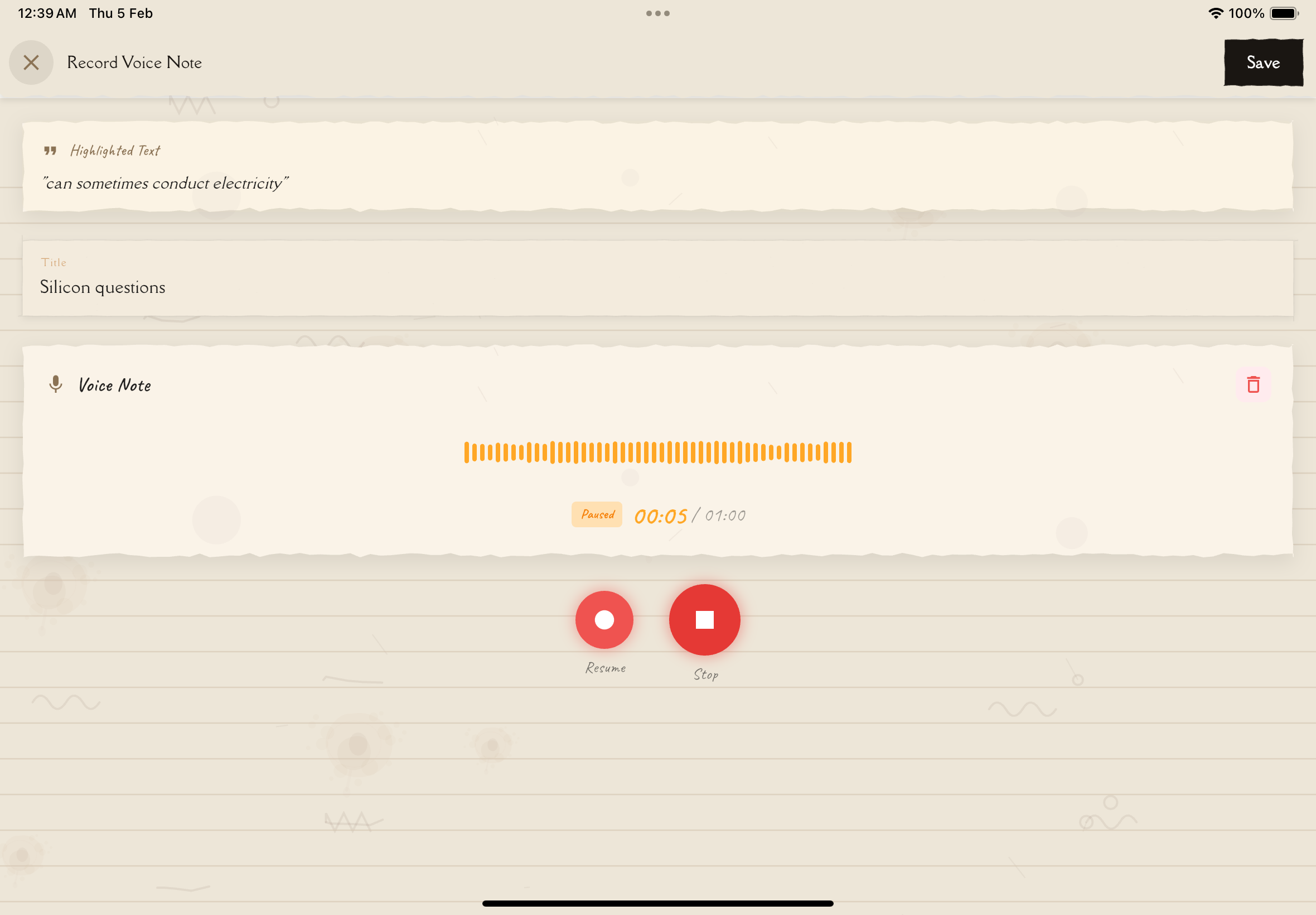
The Recording Interface
Record Button (●)
Tap to start recording. The button turns red when active.
Pause Button (❚❚)
Temporarily pause recording without ending it. Tap again to resume.
Stop Button (■)
End the recording and move to the review screen.
Timer
Shows the duration of your current recording (e.g., "00:23 / 01:00"). Each recording has a maximum duration of 60 seconds.
Waveform Display
A visual representation of your audio levels—peaks and valleys show where you spoke louder or softer. Helps confirm the microphone is picking up your voice.
Recording Indicator
A red pulsing indicator or "REC" label shows recording is active.
Cancel Option
Tap "Cancel" or "×" to discard the recording and return without saving.
After Recording
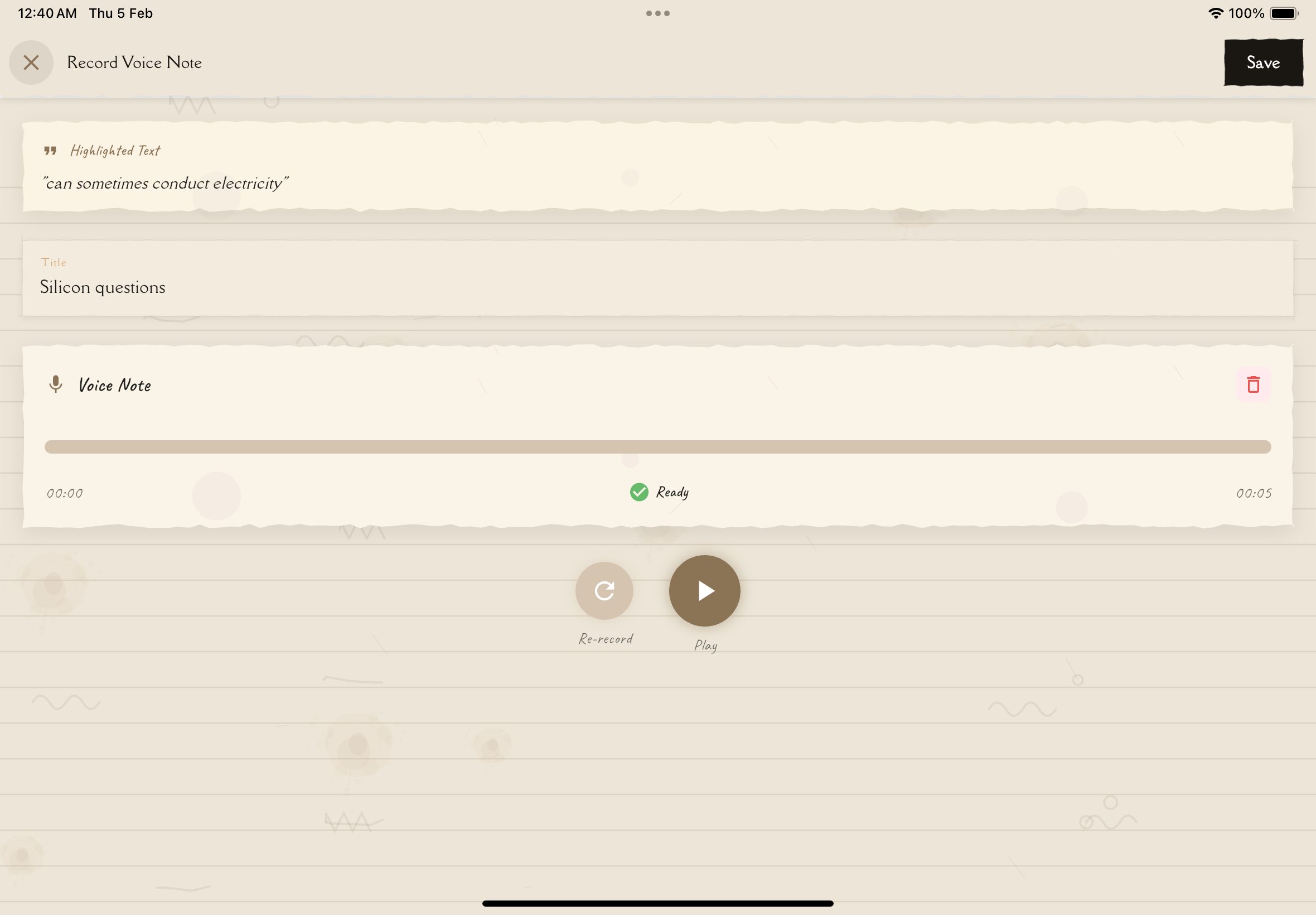
Once you stop recording, you can review your voice note before saving:
Playback Controls
- Play — Listen to your recording
- Pause — Pause playback
- Stop — Stop playback and return to the beginning
- Seek — Tap anywhere on the progress bar to jump to that point in the recording
Recording Options
- Save — Keep the recording and add it to your annotations
- Re-record — Discard the current recording and start over
- Delete — Remove the recording entirely
Don't obsess over perfection! If your explanation has a few "um"s or you stumble slightly, that's fine. The goal is authentic thinking, not a polished podcast. Save it and move on!
What to Record in Voice Notes
Explain a Concept
The core of the Feynman Technique—explain a concept as if teaching someone:
Example:
"Okay, so photosynthesis is basically how plants make their own food. Imagine you're a plant—you can't go to a store and buy a sandwich, right? So what do you do? You use sunlight as your energy source. You take in carbon dioxide from the air through tiny holes in your leaves called stomata, and you pull water up from the soil through your roots. Then, using energy from the sun, you combine the CO₂ and water in a chemical reaction that produces glucose—which is sugar, the plant's food—and releases oxygen as a waste product. That oxygen is what we breathe! So basically, plants are solar-powered sugar factories that give us oxygen as a bonus."
Talk Through a Problem
Verbally work through a math problem, logic puzzle, or case study:
Example:
"Let's see... if I have $1,000 and I'm earning 5% compound interest annually, after one year I'd have $1,050. But in year two, I'm not just earning 5% on the original $1,000—I'm earning 5% on the new total of $1,050. So that's $52.50 in interest in year two, bringing me to $1,102.50. And then in year three, I earn 5% on that amount... Okay, I'm seeing the pattern now—it snowballs because you're earning interest on your interest. That's why they call it compound interest!"
Ask Questions Out Loud
Voice your confusion and questions—speaking them often helps clarify your thinking:
Example:
"Wait, I'm confused about something. If plants need carbon dioxide for photosynthesis, and we're told that CO₂ is bad for the environment, isn't that contradictory? Plants should want more CO₂, right? Hmm... I think the issue is that TOO MUCH CO₂ causes problems like global warming, even though plants use it. But maybe I need to research this more—why is extra CO₂ bad if plants use it? I'll look that up."
Create Verbal Mnemonics
Record memory aids, rhymes, or acronyms:
Example:
"Here's how I remember the taxonomy levels: King Philip Came Over For Good Soup. Kingdom, Phylum, Class, Order, Family, Genus, Species. King Philip Came Over For Good Soup!"
Teach Step-by-Step Processes
Walk through procedures or sequences:
Example:
"The steps for solving a quadratic equation using the quadratic formula: Step one, identify your a, b, and c values from the equation. Step two, plug those into the formula: x equals negative b, plus or minus the square root of b squared minus four a c, all over two a. Step three, simplify the discriminant—that's the part under the square root. If it's positive, you have two solutions. If it's zero, you have one. If it's negative, you have no real solutions. Step four, solve for both the plus and minus versions to get your two x values."
Reflect on What Worked
Capture meta-learning insights about your study strategies:
Example:
"I just realized that drawing diagrams really helps me understand this topic way better than just reading the textbook. I should start with a visual every time I learn something new in biology. Also, teaching my little brother actually helped me see that I didn't really understand the difference between mitosis and meiosis—I kept mixing them up when I tried to explain. That's something I need to work on."
Capture Spontaneous Insights
Record "aha!" moments as they happen:
Example:
"Oh! I just realized why this matters! If DNA is the recipe book and RNA is the chef, then mutations are like typos in the recipe book! Some typos might not matter—like if you write 'solt' instead of 'salt,' you can still figure it out. But some typos could completely ruin the recipe, like saying 'one cup of salt' instead of 'one teaspoon.' That's what genetic diseases are—typos in the DNA recipe that cause the protein to be made wrong. This analogy really helps me understand!"
Don't script your voice notes! Spontaneous, unpolished explanations reveal your actual understanding better than prepared speeches. Mistakes and stumbles are learning opportunities, not failures.
Recording Tips
Find a Quiet Space
Background noise can be distracting and make it hard to hear yourself during playback. Find a quiet room or use headphones with a microphone.
Speak Clearly
Articulate your words, but speak naturally—no need to sound formal or robotic.
Use Conversational Language
Imagine explaining to a friend over coffee, not giving a lecture. Use "you" and "I" freely.
Don't Worry About Perfection
Pauses, "um"s, and corrections are fine. They show authentic thinking.
Explain, Don't Just State
Don't just list facts—explain why and how. Say "This happens because..." not just "This happens."
Add Context
Start with a brief intro: "I'm going to explain photosynthesis in simple terms" helps you (and future you listening back) know what to expect.
Keep It Focused
Each voice note is limited to 60 seconds, so focus on one concept or question per recording. It's better to create multiple short, focused voice notes than try to cram everything into one.
If you struggle to explain something out loud, that's a clear sign you don't fully understand it yet. This isn't a bad thing—it's valuable feedback! Go back to your source material, study more, then try recording again.
Playback and Study
Review Your Explanations
Listen back to hear how you explained concepts. Often, you'll notice:
- Parts where you were confident and clear
- Parts where you hesitated or got confused
- Mistakes in your understanding
- Good analogies and explanations to reuse
Listen While Commuting
Voice notes are perfect for passive review while driving, walking, or exercising.
Share with Study Partners
(Premium feature) Send voice notes to friends studying the same material.
Use for Pre-Test Review
Listening to your own explanations before a test reinforces memory and builds confidence.
Managing Voice Notes
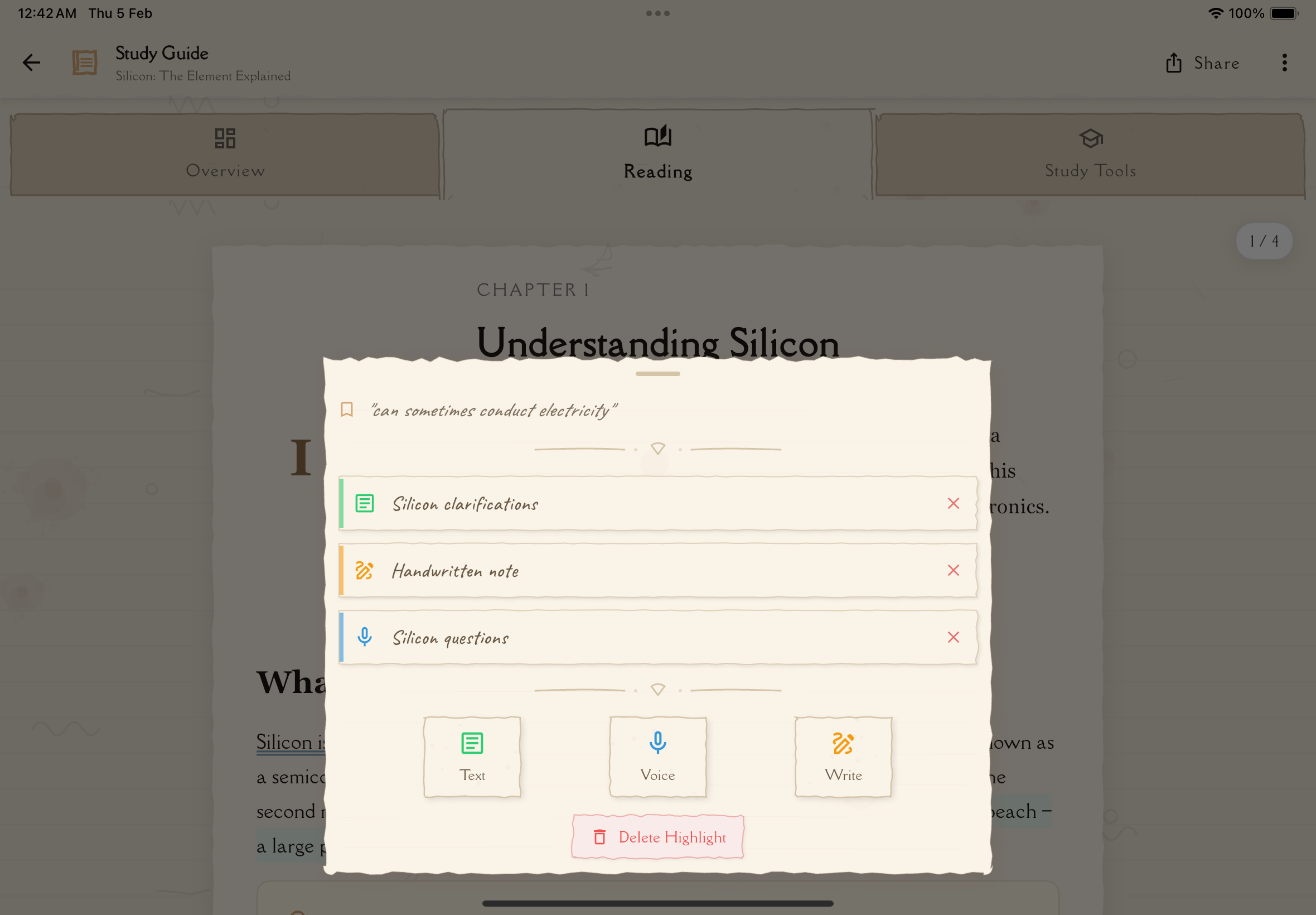
Rename Recordings
Give your voice notes descriptive titles so you can find them later:
- "Photosynthesis Explanation"
- "Quadratic Formula Step-by-Step"
- "Questions About Mitosis"
Delete Recordings
Remove voice notes you no longer need or that were failed attempts.
Organize by Topic
If you have many voice notes for one study note, consider adding prefixes:
- "Concept: Photosynthesis"
- "Example: Real-World Application"
- "Question: Confusion About..."
Audio Quality Tips
Microphone Positioning
Hold your device 6-12 inches from your mouth for best quality.
Avoid Wind and Noise
Don't record outdoors or near fans, air conditioning, or other noise sources.
Test First
Record a few seconds and play it back to ensure audio quality before recording a long explanation.
Use Headphones
If recording in a slightly noisy environment, headphones with a built-in microphone can improve quality.
Transcription (Future Feature)
In future versions, Notesmakr may offer automatic transcription to convert your voice notes into searchable text. This will make voice notes even more powerful by combining the benefits of audio and written notes!
Editing Voice Notes
Voice notes cannot be edited after saving. If you need to make changes, you have two options:
Option 1: Use Re-record During Review
Before saving your initial recording, use the "Re-record" button to discard and start over.
Option 2: Create a New Recording
If you've already saved the voice note:
- Open the voice note from your Annotations List
- Listen to identify what needs improvement
- Create a new voice note with the corrected explanation
- Delete the old version if you no longer need it
Since recordings are limited to 60 seconds and cannot be edited, it's often easier to just re-record than to try planning a perfect take. Embrace the spontaneity!
Storage and Technical Details
Recording Format
Voice notes are recorded in AAC format (128kbps, 44.1kHz) for optimal quality and efficient storage.
Recording Duration
Each individual voice note is limited to 60 seconds. You can create as many voice notes as you need.
File Size
Voice notes are stored efficiently as compressed audio files. A 60-second recording typically uses about 1MB of storage.
Privacy and Permissions
Microphone Access
Notesmakr requires microphone permission to record voice notes. You can revoke this in your device settings if needed.
Privacy
Voice notes are private by default and stored securely. They're only accessible to you unless you explicitly share them (Premium feature).
Data Usage
Recording and saving voice notes uses minimal data. Playback uses no data if you're offline (notes are stored locally).
Next Steps
Combine voice notes with other formats for comprehensive annotations:
- Use Typed Note Editor for detailed written explanations
- Use Handwritten Note Editor for visual diagrams
Together, these three formats create a powerful multi-modal learning experience that engages your brain in different ways!