Flashcard Decks List
View and manage all your flashcard decks, track study progress, and organize your learning materials
The Flashcard Decks List is your central hub for managing all your flashcard collections. Here you can see all available decks, track your progress, and quickly jump into study sessions.
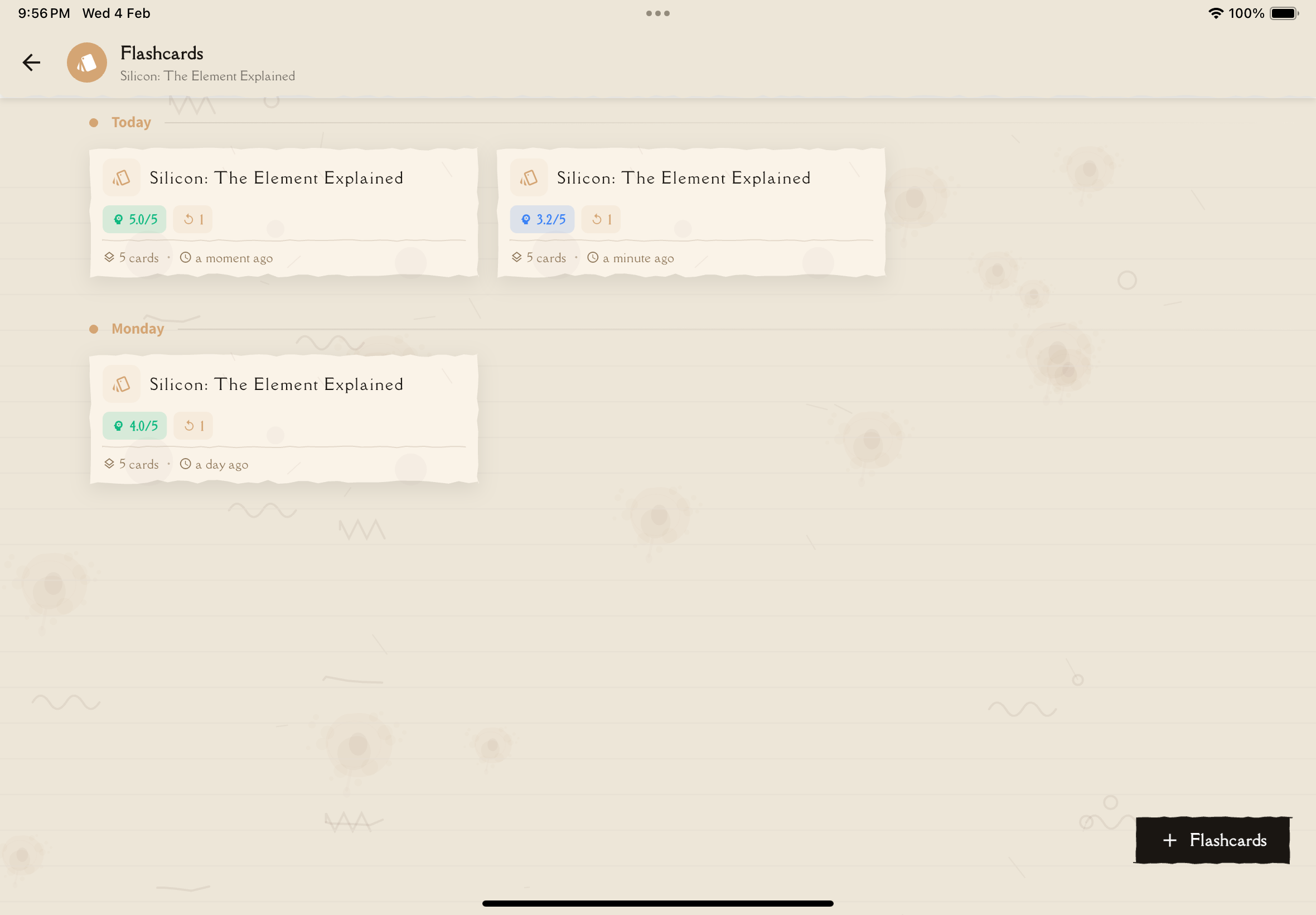
Accessing Your Flashcard Decks
To view your flashcard decks:
From any study note, tap the Flashcards tab or navigate to the Flashcards section from the main menu.
You'll see a list of all flashcard decks associated with your notes. Each deck card displays key information at a glance.
What You'll See on Each Deck Card
Each flashcard deck displays the following information:
Deck Title
The name of the flashcard deck, usually based on the note or topic it covers.
Card Count
Shows how many flashcards are in the deck (e.g., "24 cards"). This helps you gauge how long a study session might take.
Last Studied
Displays when you last reviewed this deck. This helps you identify which decks need attention:
- Recently studied — Shows the date (e.g., "2 days ago")
- Never studied — Indicates brand new decks
- Long time ago — Highlights decks that might need review
Aim to review each deck at increasing intervals: 1 day, 3 days, 1 week, 2 weeks. This spaced repetition pattern maximizes retention while minimizing study time.
Progress Indicator
Some decks show a progress bar or completion percentage indicating how well you've mastered the material.
Study Note Link
Each deck is connected to a specific study note, so you can quickly reference the full material if needed.
Filtering and Organizing
Use the filter and search controls to organize your deck list:
Search
Tap the search icon to find decks by name.
Filter by Source
Filter decks by how they were created:
- All — Show all decks
- From Study Guide — Decks generated from your study notes
- Manual — Decks you created from scratch
- Imported — Decks imported from CSV or Anki files
Filter by Tags
Tap the filter icon to open the tag filter drawer. Select one or more tags to narrow down your decks.
Due for Review
Toggle the "Due for Review" filter to show only decks that have cards scheduled for review based on spaced repetition.
Don't let your deck list become overwhelming! Focus on actively studying a manageable number of decks rather than creating dozens that never get reviewed.
Deck Actions
Tap on any deck card to access additional actions:
- Study Now — Start a flashcard study session immediately
- Edit Deck — Modify cards, add new ones, or remove outdated content
- Export Deck — Export as CSV or Anki-compatible format
- Delete Deck — Remove decks you no longer need (swipe left for quick delete)
Empty State
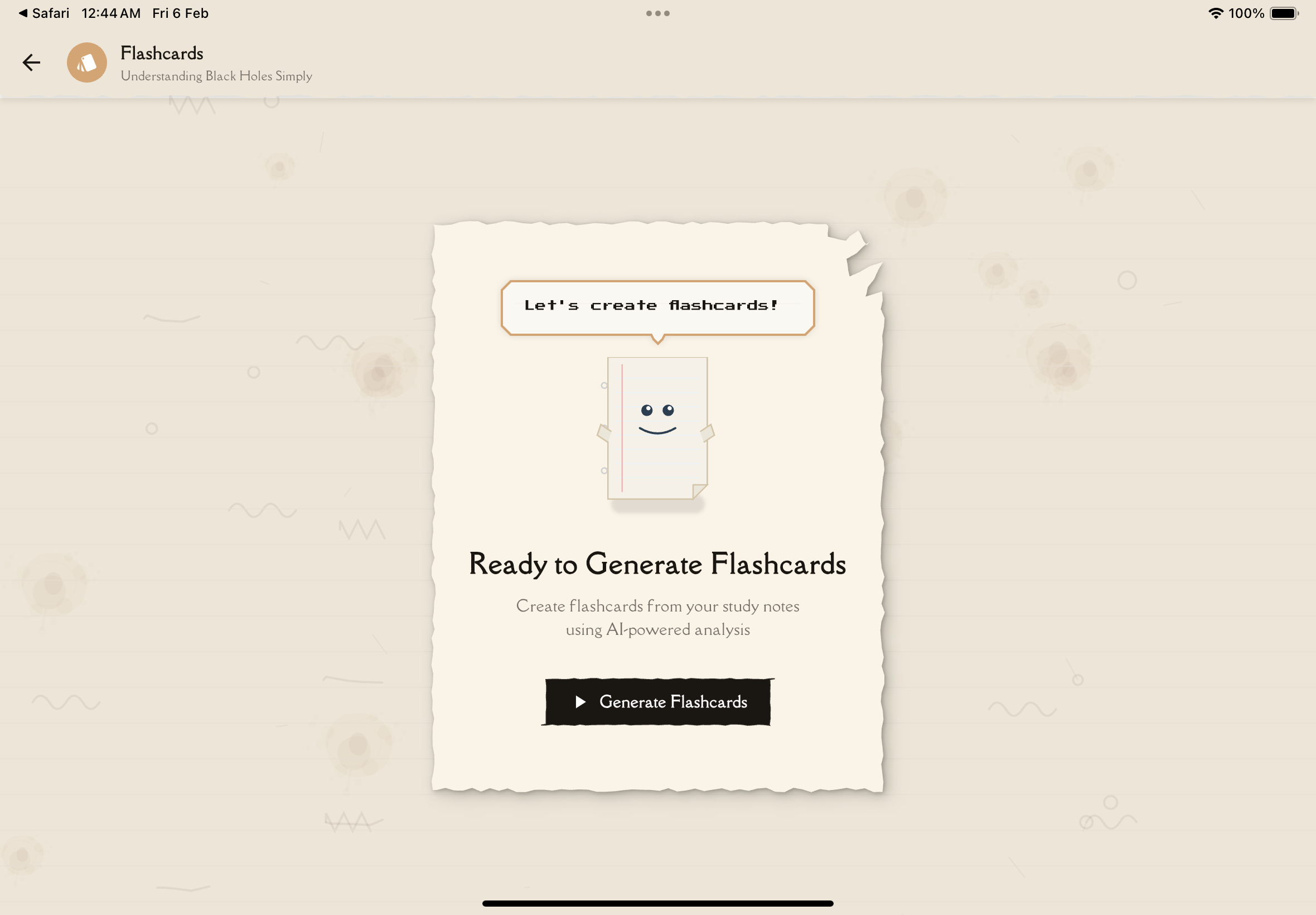
If you don't have any flashcard decks yet, you'll see a friendly prompt to:
- Generate flashcards from your existing notes
- Create a new deck manually
- Learn more about how flashcards work
Next Steps
Ready to create flashcards? Learn how to Generate Flashcards automatically or Create & Edit Flashcards manually. Then dive into Studying Flashcards to master your material.