
Results & Leaderboard
View the final results, podium, and share your group study performance
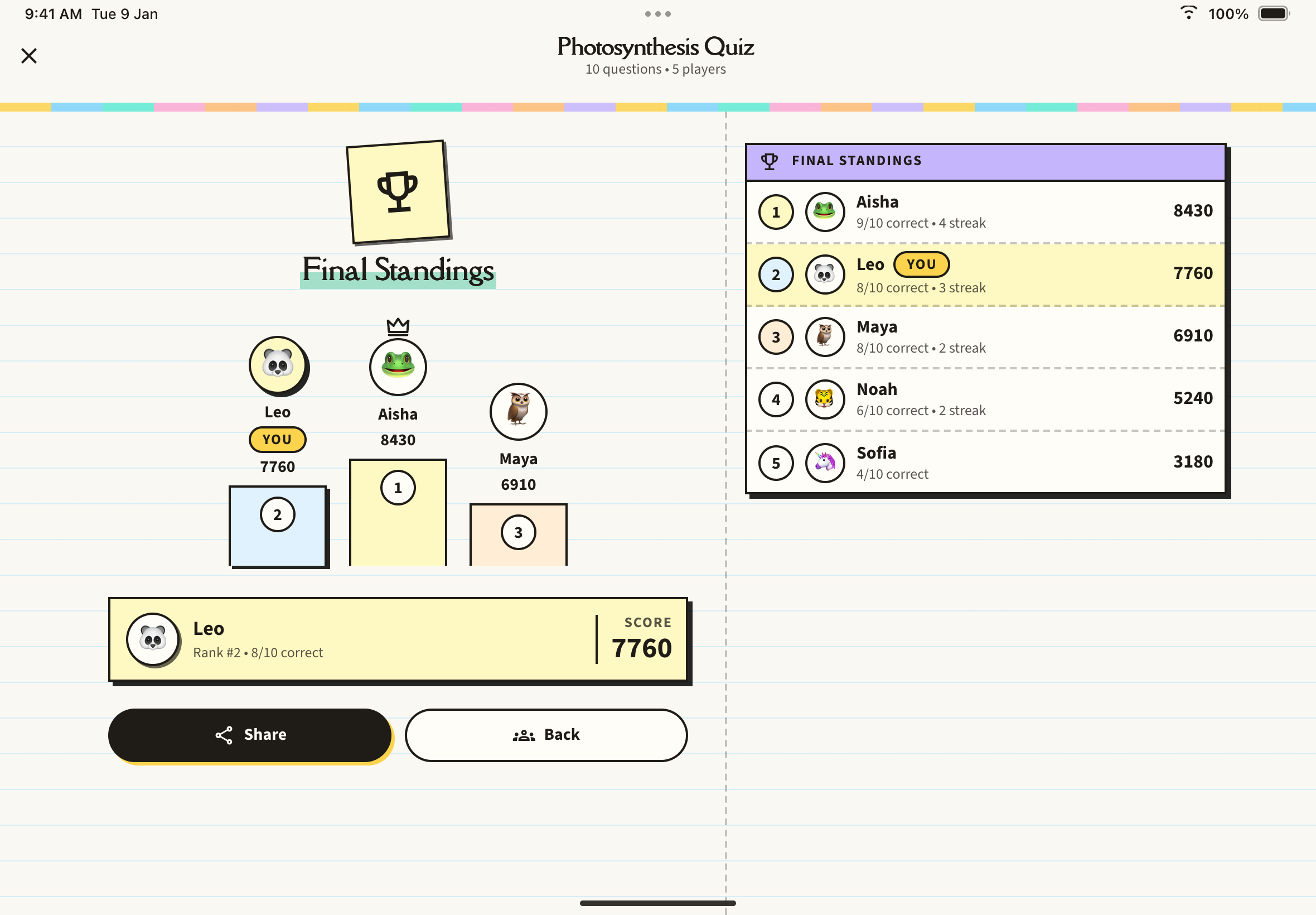
After the final question, everyone sees the results page: a podium for the top 3, your own stats and the full standings. It's the big reveal.
What You See
The top bar shows the session title with the number of questions and players, for example "10 questions • 5 players".
The Podium
The top 3 finishers stand on a podium: 1st in the centre (tallest, with a crown), 2nd on the left and 3rd on the right. Each spot shows the avatar, name and score. Your own spot has a YOU tag.
My Stats Card
Your personal summary:
- Your name and avatar
- Rank and correct answers — for example "Rank #2 • 8/10 correct"
- Score — your total points
Final Standings
Every player is listed in rank order with their avatar, name, a line such as "8/10 correct • 3 streak" (the streak only shows when your best streak was more than 1), and their score. Your row is highlighted and tagged YOU.
On a phone or a portrait iPad, everything stacks in one column. On a landscape iPad, the standings sit in a second column.
Sharing Results
Tap Share (or Share Results on a narrow screen). If you don't see it, the results haven't been saved yet.
Your device's share sheet opens with a message like: I just played "Photosynthesis Quiz" on Notesmakr! Aisha took 1st place! Challenge your friends, followed by a link to the shared results page. Send it by message, social media or anything else on your device.
Leaving the Results Page
Tap Back (Back to Group Study on a narrow screen) or the X at the top to return to the Group Study tab.
Viewing Past Results
Tap Group Study, the 4th tab.
Under Recent Sessions, tap Past.
Tap a finished or cancelled session to open its results.
Session History
Recent Sessions has two tabs:
- Active — sessions in the lobby, generating, ready, or live. Tapping one opens the lobby or the game.
- Past — finished and cancelled sessions. Tapping one opens its results.
Each card shows:
- The session title
- A status pill: LOBBY, GENERATING, READY, LIVE, FINISHED or CANCELLED
- Whether you Hosted or Joined, the number of questions (for example "10Q") and when it happened (for example "2h ago")
The list loads 20 sessions at a time. Tap Load more sessions at the bottom to see more.
If you're the host of a session that hasn't ended, the card has a three-dot menu with Terminate Session, which ends it for everyone.
Next Steps
- Hosting a Session — host another round
- Group Study overview — back to the main section