
Create from YouTube
Turn a YouTube video that has captions into a structured study note with AI
Learning from a lecture, tutorial, or explainer on YouTube? Paste the video's link and Notesmakr turns what is said in the video into a clear, structured study note, the same kind of note you get from a PDF or pasted text.
Before You Start
- The video needs captions. Notesmakr works from the video's captions (subtitles). Automatically generated captions count. A video with no captions can't be turned into a note.
- Use a link to one video. Each note is made from one video. Standard links such as
youtube.com/watch?v=...,youtu.be/...and YouTube Shorts links work. - You need an internet connection. Notesmakr reads the captions from YouTube on your device.
Step-by-Step Guide
On Home, open the Notes tab and tap New note.
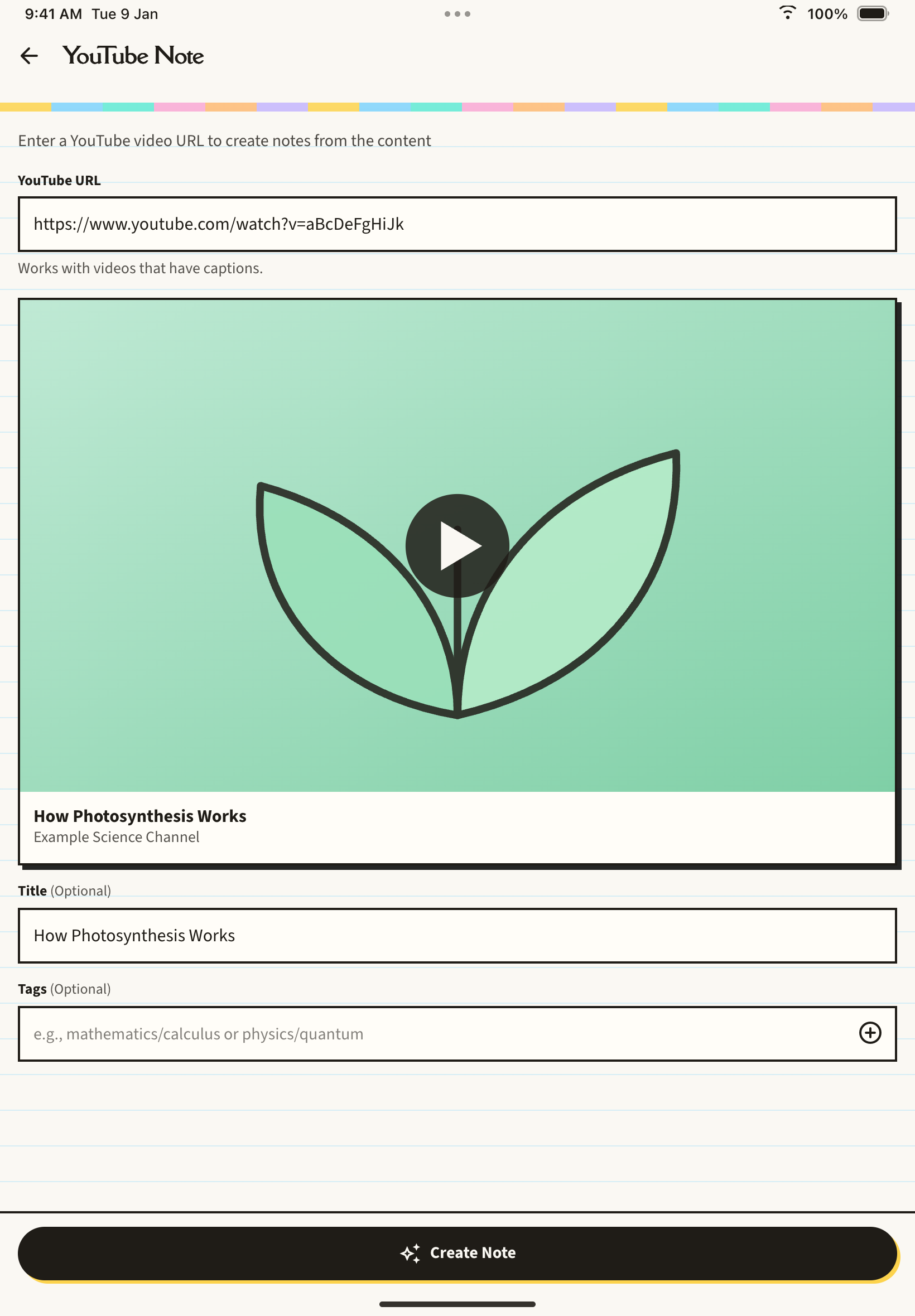
Tap Youtube Video from the creation options (it says "Extract knowledge from videos" underneath). The screen that opens is titled YouTube Note.
Type or paste the link into the YouTube URL field. The hint under it reminds you: "Works with videos that have captions." If the text isn't a YouTube link, the field turns red and says "That link doesn't look like a valid video URL."
After a moment, a preview of the video appears with its thumbnail, title, and channel, so you can confirm it is the right one. The video's title is also filled into the Title field for you. Edit it, or clear it and leave it blank to let AI choose a title.
Add tags to find the note later. You can also leave this empty.
Notesmakr gets the captions and builds your note. When it is ready, the note opens automatically.
How It Works
Notesmakr reads the video's captions straight from YouTube and turns that text into a study note: a clear explanation of the topic with key concepts, just like your other notes.
- Language: if the video has captions in your app's language, Notesmakr uses them. Otherwise it uses the first human-written caption track it finds, or any available track.
- Cost: a video uses one note from your plan, however long the video is.
- Long videos: there is no limit on video length, but one note can hold only so much. If the captions are very long (roughly three hours of speech), the note is made from the first part of the video. When you open it you'll see "Made from the first part".
If Something Goes Wrong
If creating the note fails, a red message appears under the link field. Fix the problem (or edit the link) and tap Create Note again.
| Message | What to do |
|---|---|
| That link doesn't look like a valid video URL. | Check the link and paste a normal video link. |
| This video is private, removed, or unavailable in your region. | Try a different video. |
| No captions or transcript available for this video. | Choose a video that has captions. |
| Too many requests right now. Please wait a moment and try again. | Wait a minute, then tap Create Note again. |
| Couldn't reach the video service. Check your connection and try again. | Check your internet connection and try again. |
| Couldn't load this video. Please try again. | Try again in a moment. |
| Failed to process video. Please try again. | Try again, or try a different video. |
If you reach your plan's note limit, you'll see an upgrade message instead.
Tips
- Pick videos with clear speech. Lectures, tutorials, and explainers make the best notes. Captions of music or noisy videos give weaker notes.
- One topic per video. A focused 10-30 minute video makes a better note than a long, mixed one.
- Leaving the page: if you go back after typing, Notesmakr asks "Discard changes?". If you leave while your note is being created, it is still created and counted toward your plan.
- Then study it: from the finished note you can create flashcards and generate a quiz.