
The Study Desk
Your Home dashboard: revision, agenda, notes, practice, tests, study time and focus on one screen, arranged the way you like
The Study Desk is the first tab on Home. It is a scrolling dashboard of cards, each answering one question: when is my next exam, what is coming up, what was I reading, what is due to practise, how is my time going. Above the cards is a row of one-tap Shortcuts.
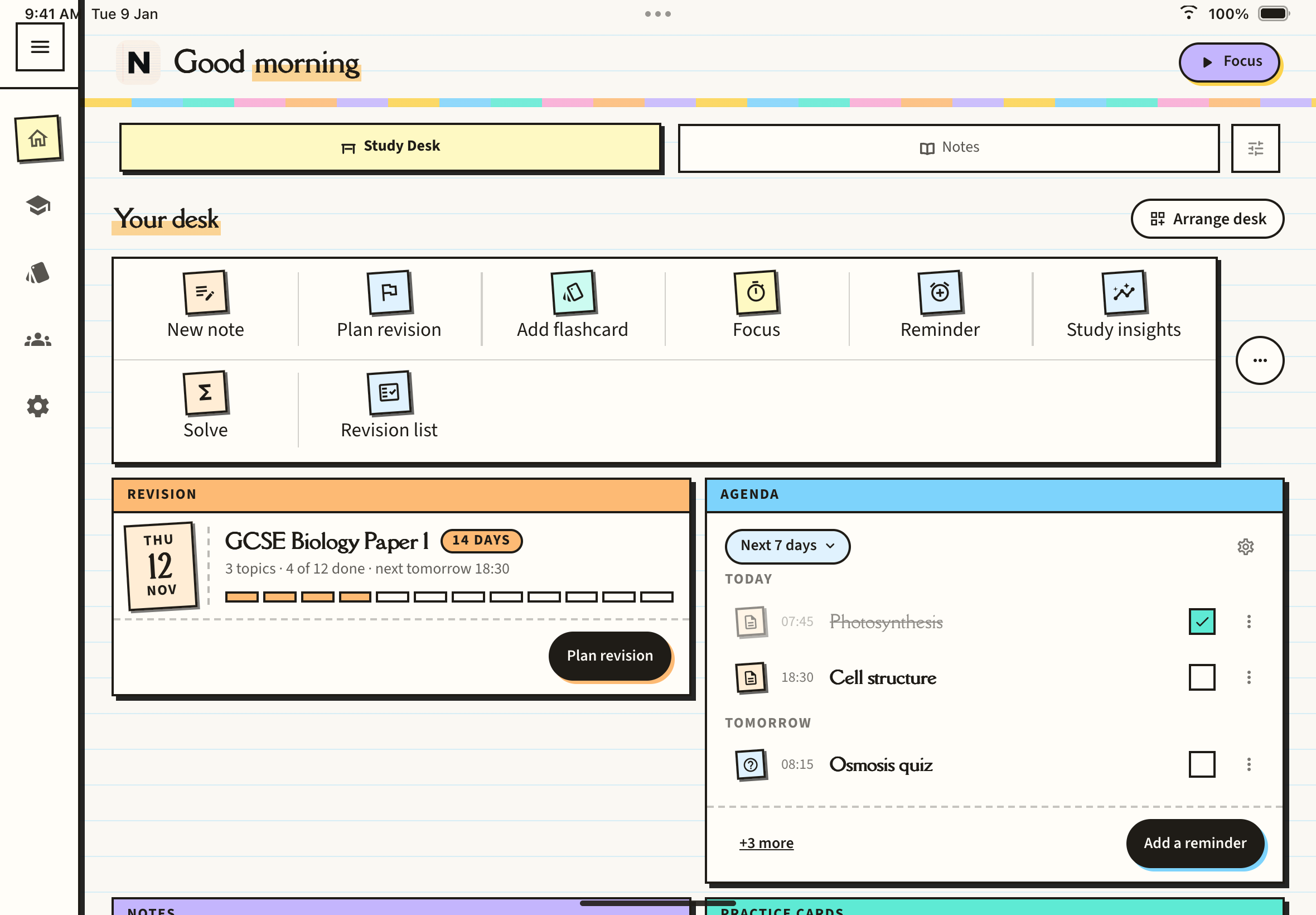
Home has two inner tabs, Study Desk and Notes. The header shows a greeting and the Focus pill, and the desk itself is headed Your desk.
Before you have anything
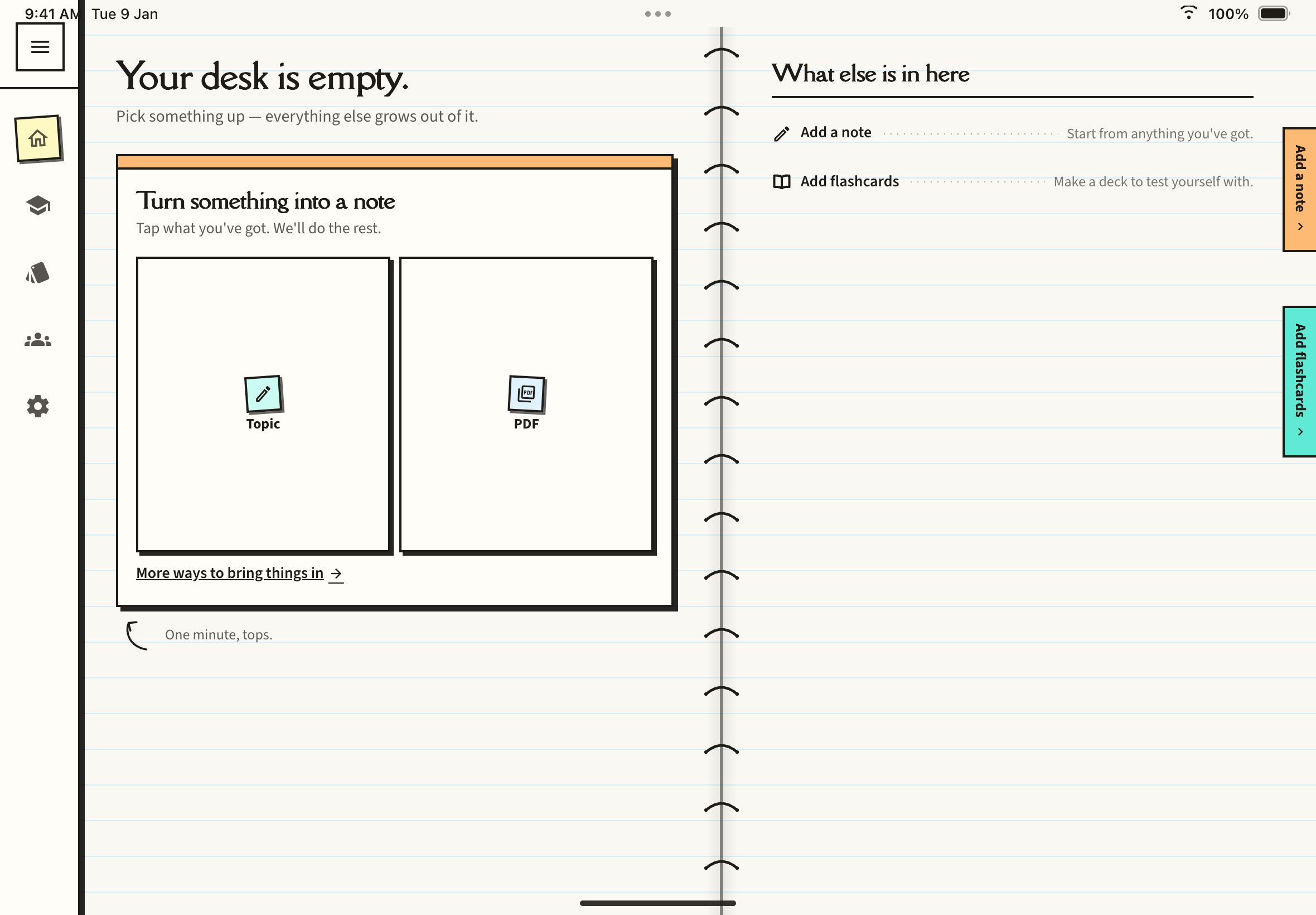
Until your account has something in it (a note, a flashcard deck, a study path, a revision plan or a reminder), Home shows a page called Your desk is empty. with a Turn something into a note card and a short list: Add a note and Add flashcards. Once you add anything, the desk appears and stays. Deleting everything later does not bring the empty page back; the cards show their own empty messages instead.
The cards
Pull down on the desk to refresh every card. By default the order is Shortcuts, Revision, Agenda, Notes, Practice cards, Test papers, Study insights, Focus.
- Revision: your nearest exam as a ticket with the date, a countdown (such as "14 DAYS") and one block per revision session. Within three days of the exam it turns red. If you missed sessions, a Catch up pill appears. Plan revision is always at the bottom (see Revision Plans and Reminders); if you have no exam yet, the card says Plan my revision.
- Agenda: your reminders and revision sessions, grouped by day. Tap the chip to cycle Today, Next 7 days and Next 30 days. Tick the box to mark an item done, tap a row to open its note, deck, quiz or mind map, and use Add a reminder for a new one.
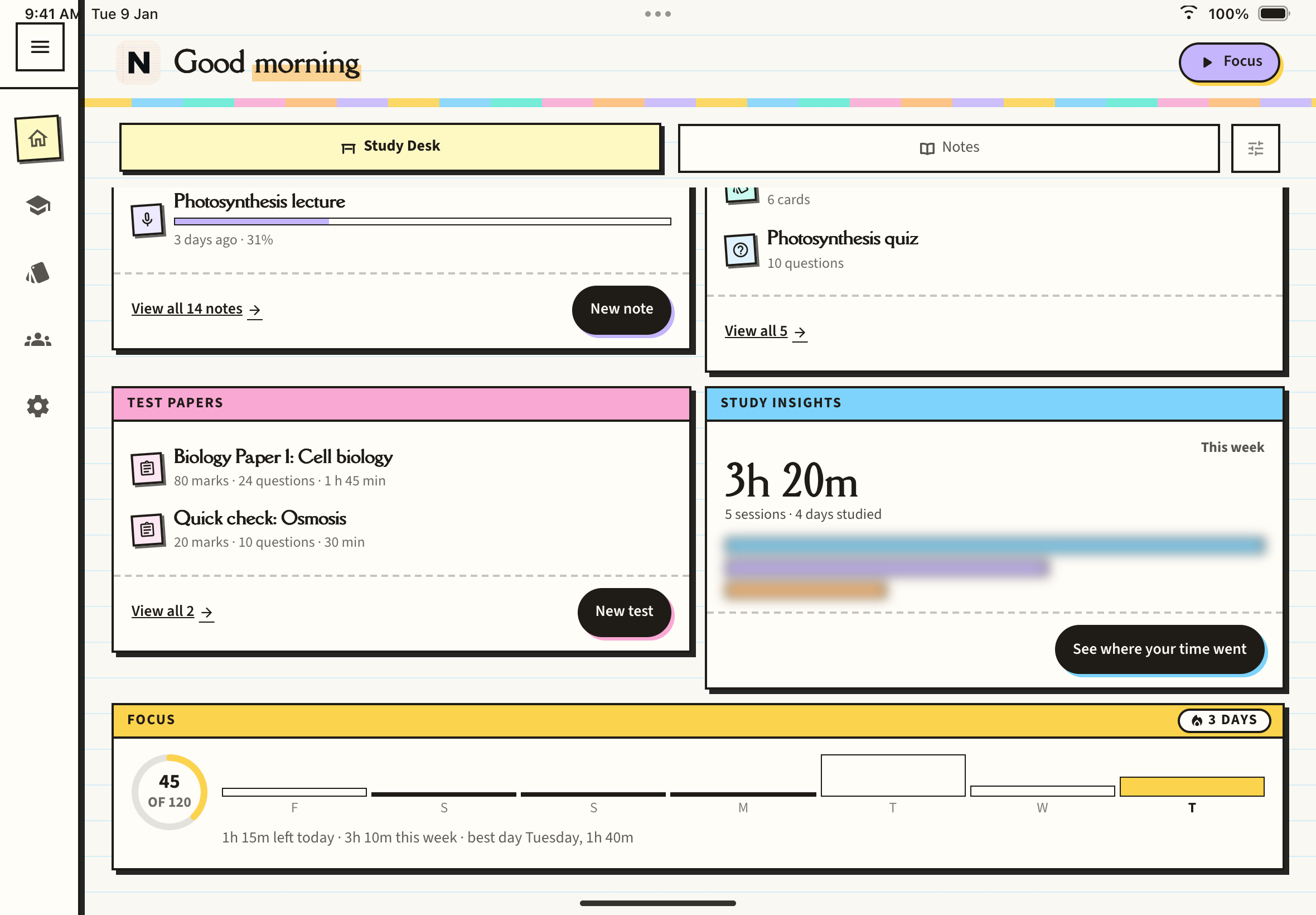
- Notes: the notes you touched most recently, each with a comprehension bar. View all opens the Notes tab and New note starts a new one. Notes inside a study path are not listed here; they live in their path.
- Practice cards: flashcard decks with cards due and quizzes you have not attempted. Tap a row to start it.
- Test papers: your practice papers, with marks, question count and time. New test creates one. See Practice Papers.
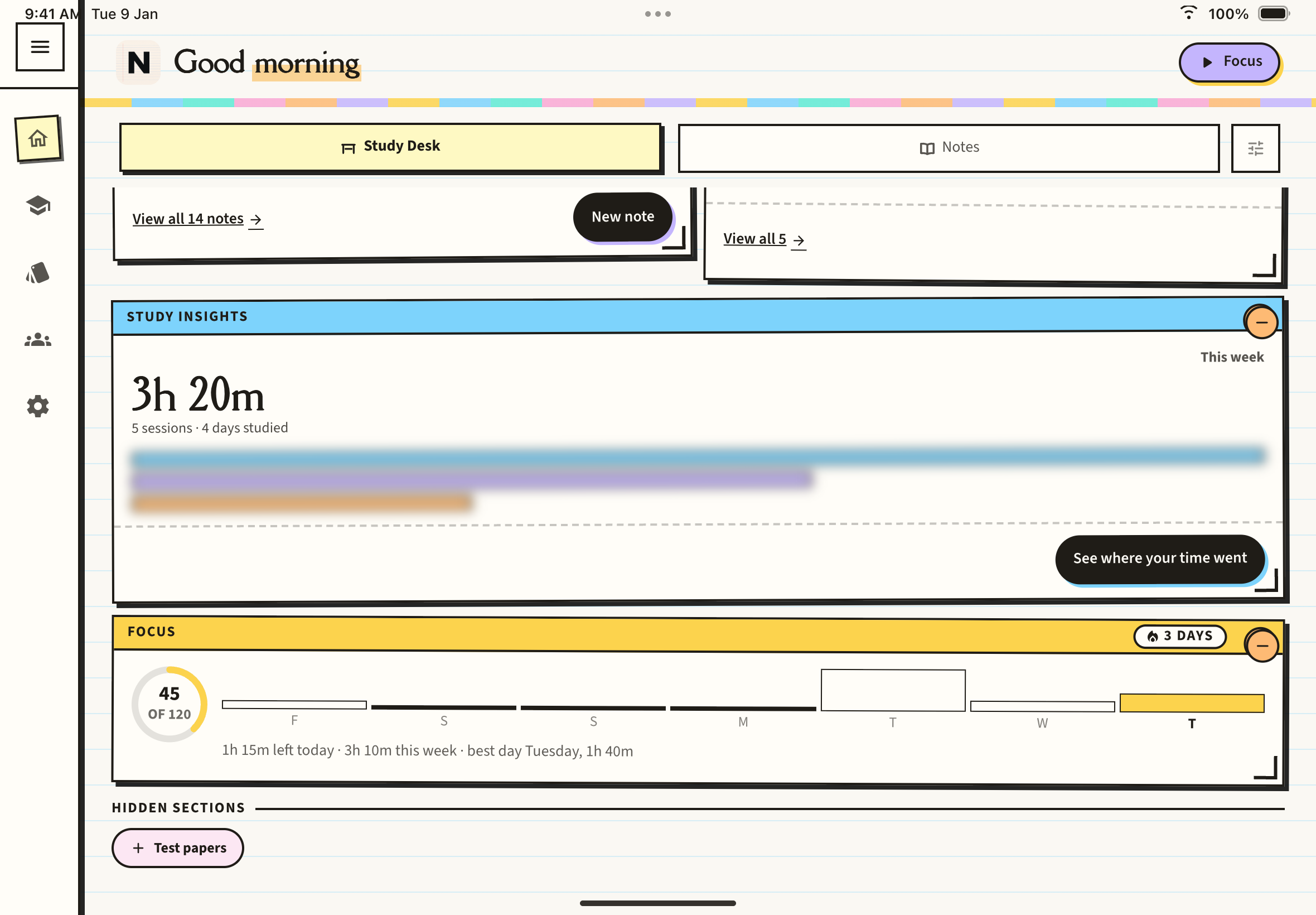
- Study insights: this week's study time. On a paid plan you see the top subjects; on the free plan you see a preview and a See where your time went button.
- Focus: your Focus Timer progress. Before your first session it shows the 25 min Focus, 5 min Break, repeat four times loop with a Start 25 minutes button; afterwards it shows today's ring, a seven-day chart and your streak.
Shortcuts
The strip at the top holds one-tap actions. On iPad it shows eight tiles and on iPhone four. You can choose from New note, Quick topic, PDF note, Audio note, Scan note, Solve, Add flashcard, Plan revision, Reminder, Focus, Join group study, Take a test, Revision list and Study insights.
To change them:
Tap the round ... button at the end of the Shortcuts row and choose Edit shortcuts.
In Choose your shortcuts, tap a tile under On your Home screen to remove it, or tap one under Add more to add it. Press and hold a tile to drag it into a new position.
Tap OK. Reset to defaults puts the original set back.
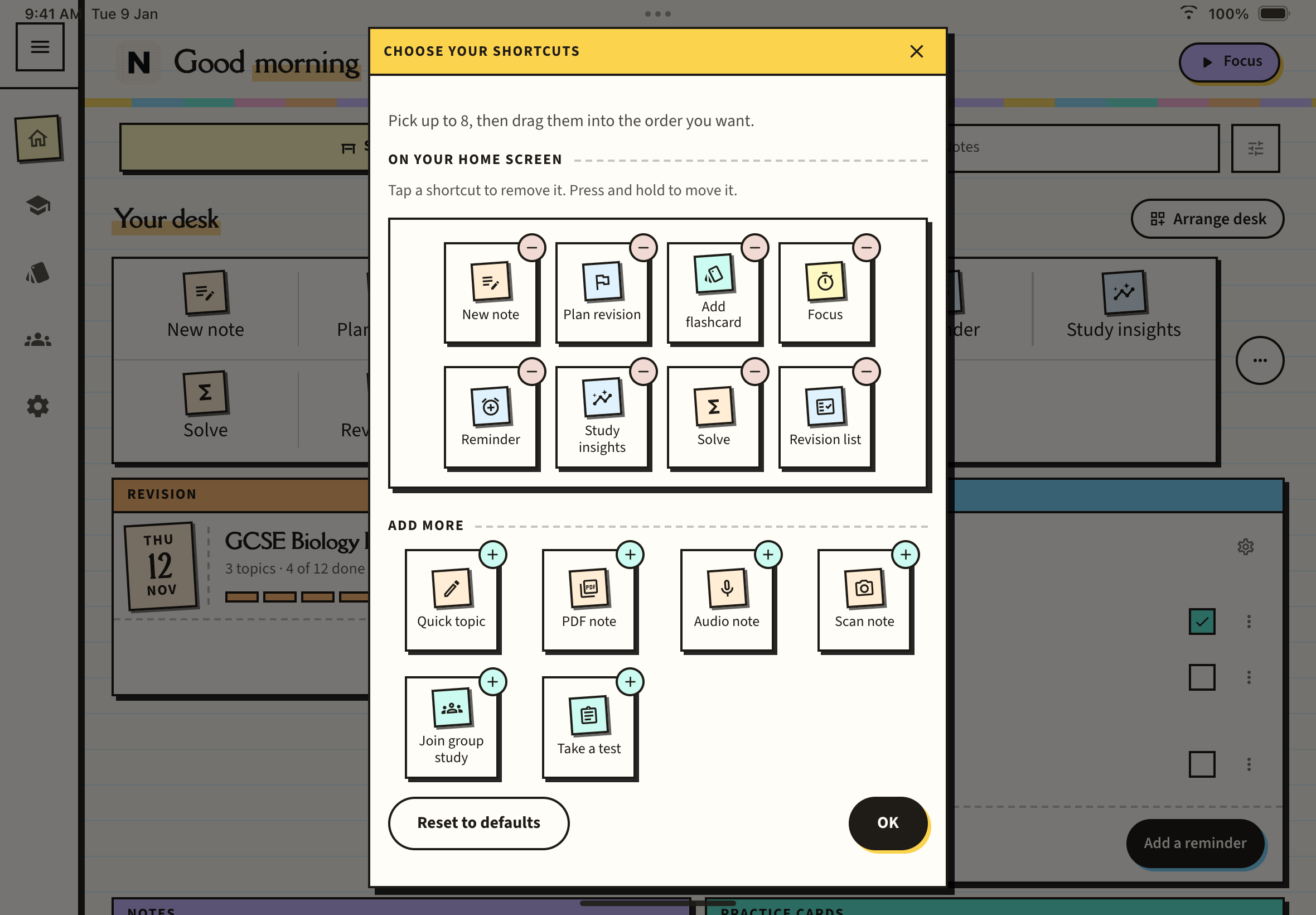
You can have up to eight on iPad (four on iPhone). If you add one beyond that, the oldest is removed to make room. Join group study only joins a session; hosting is a separate feature. To hide the whole strip, choose Hide from Home in the same ... menu; to bring it back, turn on Home shortcuts in Settings.
Arrange your desk
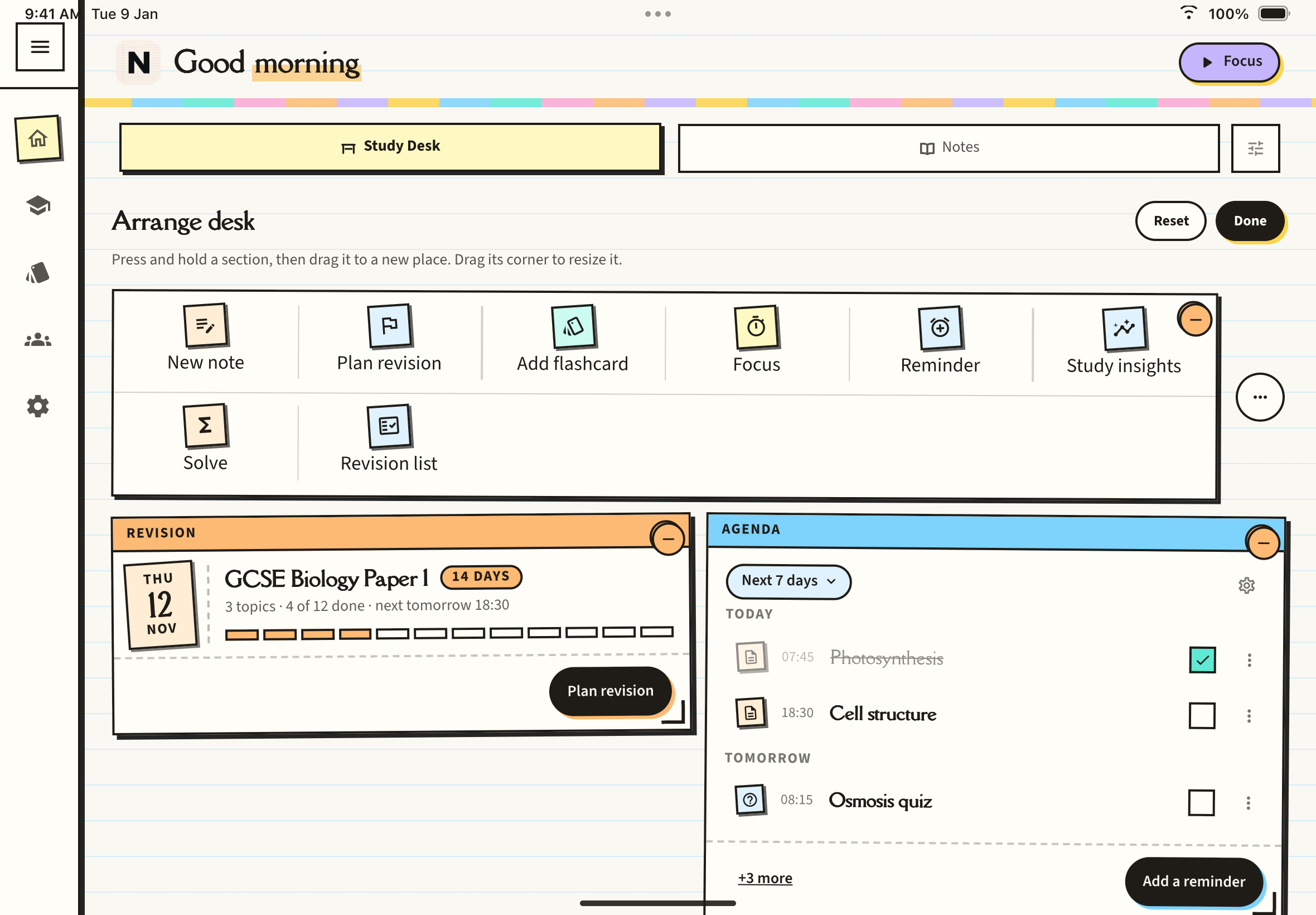
Tap Arrange desk (top right of Your desk), or press and hold any card. The cards start to jiggle.
Press and hold a card and drag it to a new place. Drag the corner bracket at its bottom right to resize it: sideways switches between half and full width on iPad, and down or up changes how many rows a list card shows. Tap the minus badge on a card to hide it.
Tap Done. Reset restores the original order and shows hidden sections again.
Hidden cards wait in the Hidden sections tray at the bottom. Tap a name there to bring that card back.
Edit home tabs
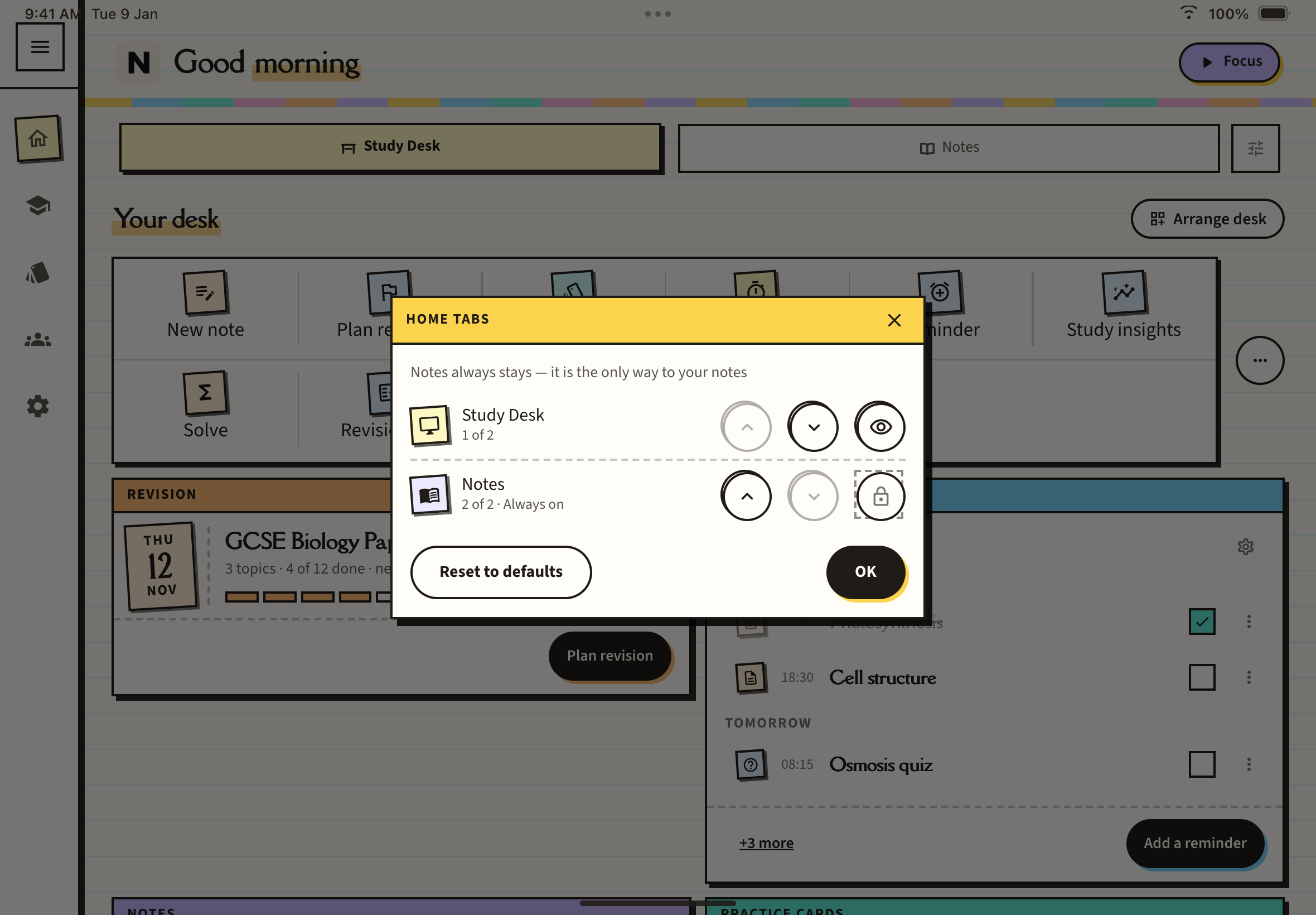
Tap the small sliders button beside the Study Desk and Notes tabs to open Home tabs. Use the arrows to reorder them and the eye to hide Study Desk. Notes always stays, because it is the only way to reach your notes. If you move Notes first, Home opens on Notes.
Free and paid
The desk, arranging it and the shortcuts are free. Creating a note from the desk uses one of the notes on your plan, and generating flashcards or quizzes uses your AI generations, as it does anywhere else. The free plan includes 5 notes and 40 generations in total. The Study insights card shows real data on a paid plan only.