
Study Insights
See where your study time went by subject and chapter, and how your focus blocks went (a paid plan)
Study insights shows where your study time went. The Topics tab breaks it down by subject and chapter, and the Focus tab shows how your Focus Timer blocks went. The full page needs a paid plan; free accounts see a preview.
Where to find it
- The blue chart button in the header of the Study tab.
- The Study insights card on the Study Desk, and the Study insights Shortcuts tile.
- The See where your time went button on the Focus stats page.
How time is counted
Time counts only while you study in the app: reading notes, flashcards, quizzes, test papers, mind maps, Q&A and group study. When the app is in the background or you stop interacting for a few minutes, the clock stops, and very short stretches are dropped. When unsure it under-counts rather than over-counts. Study within 10 minutes of each other counts as one session. Planning time is shown separately and never added to a subject.
The free preview
On the free plan the page shows your real totals (study time, sessions, days studied and focus blocks) above a blurred sample marked EXAMPLE, with an Unlock my study insights button. Subject, chapter and score pages are locked.
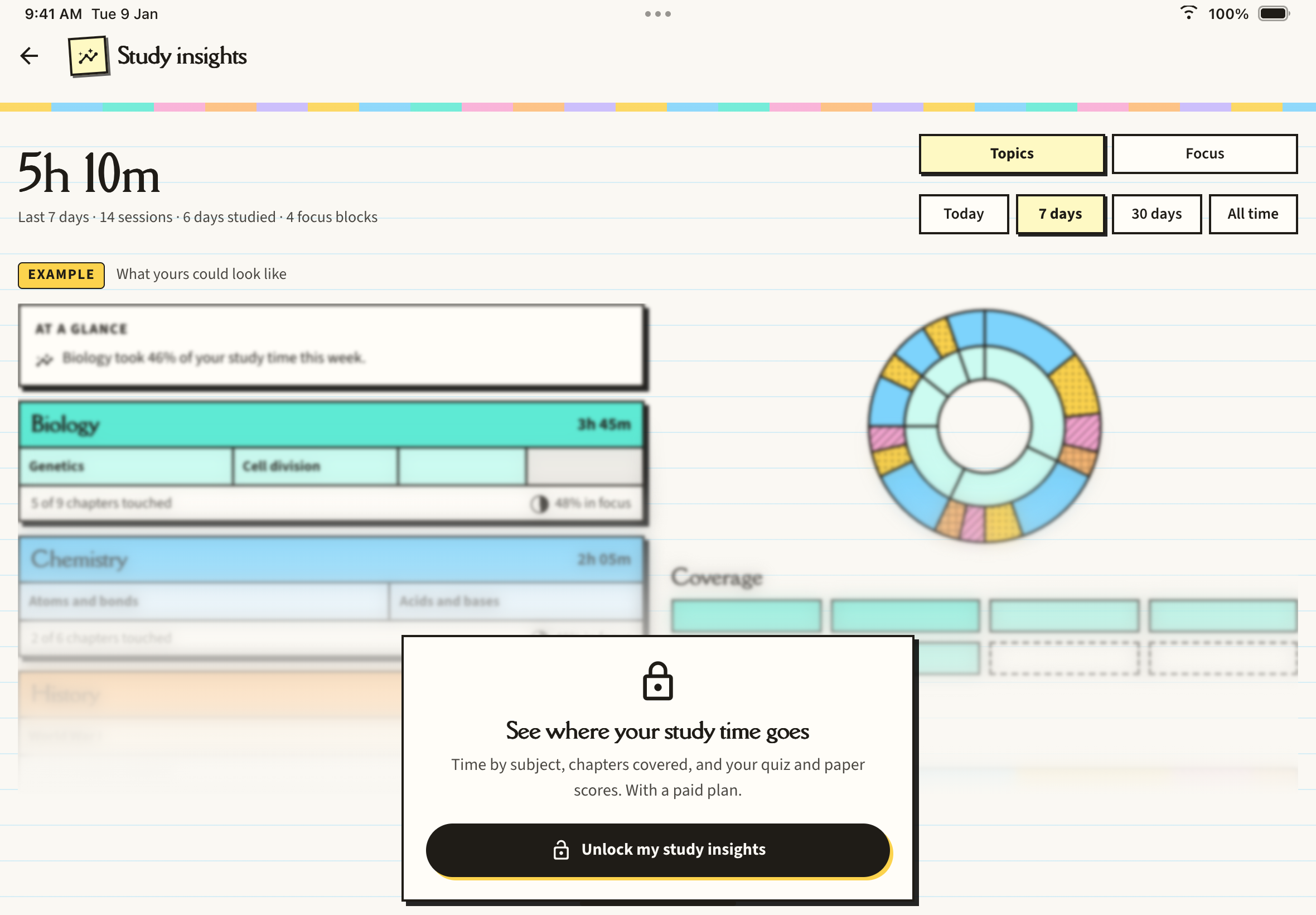
The Topics tab
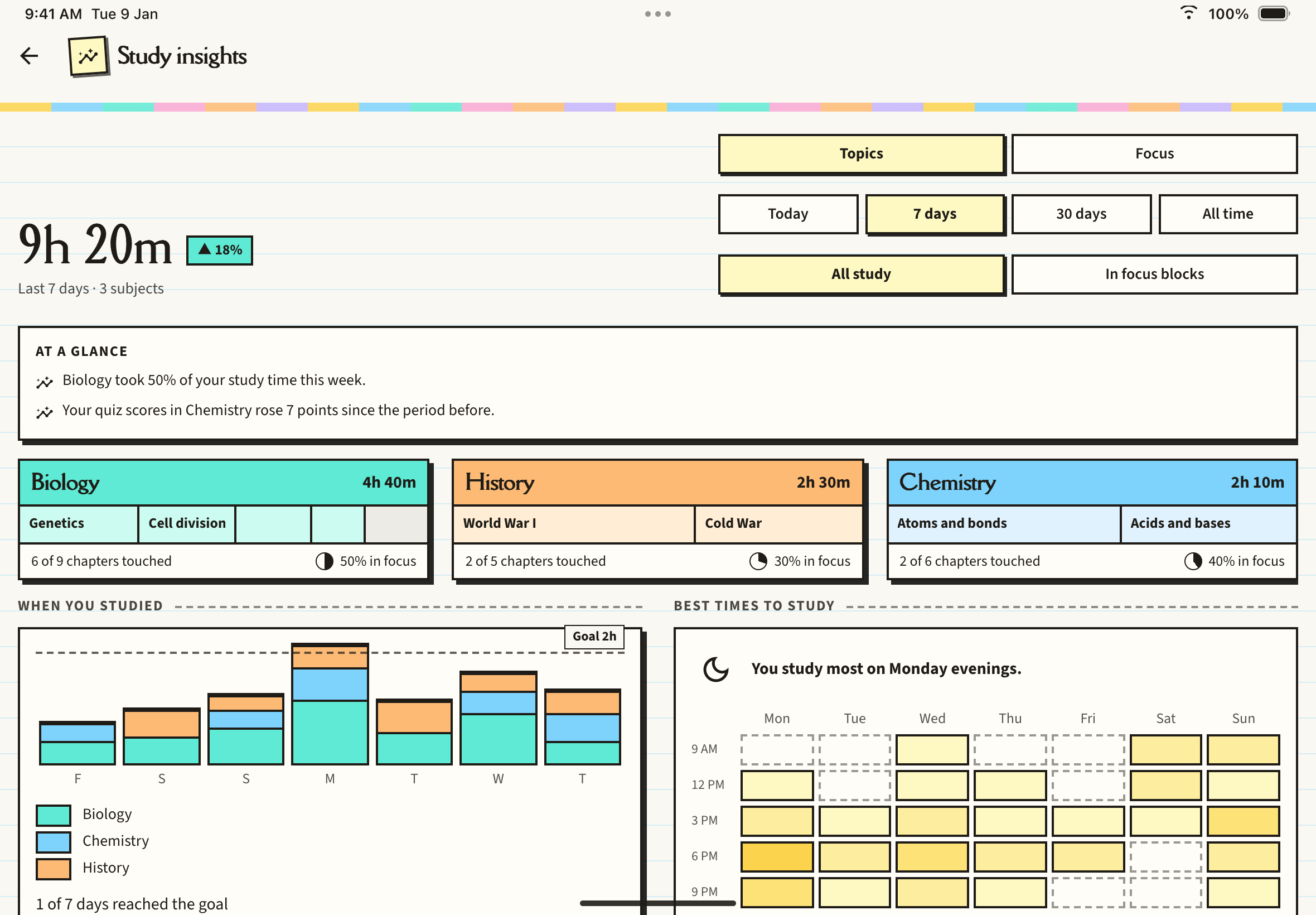
Use the switches at the top to choose Topics or Focus, a range (Today, 7 days, 30 days or All time), and All study or In focus blocks. The headline total has a change chip comparing against the previous period of the same length.
Below it:
- At a glance: up to three plain sentences, such as which subject took the most time.
- A card per subject: total time, a strip of its chapters, how many you have touched and the share studied during focus blocks.
- When you studied: daily bars by subject, with your daily focus goal as a dashed line.
- Study sessions and Best times to study: this needs at least five study days of data.
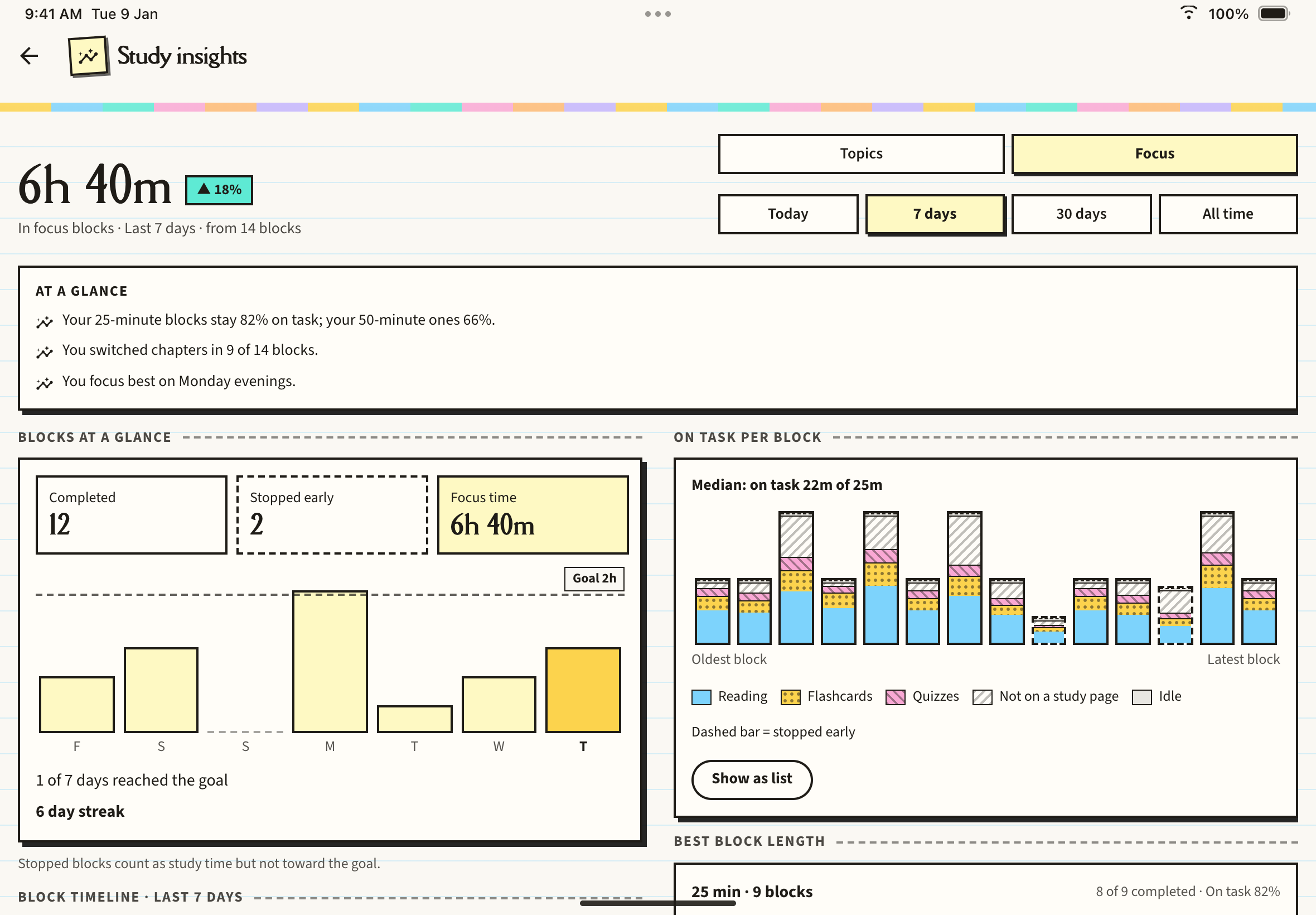
The Focus tab
The Focus tab reports on completed focus blocks: how many were Completed or Stopped early, daily focus time against your goal, how much of each block was spent on a study page, the best block length and time of day, and how often you switched chapters. It describes what happened; it does not say why. Cards with too little data are left out.
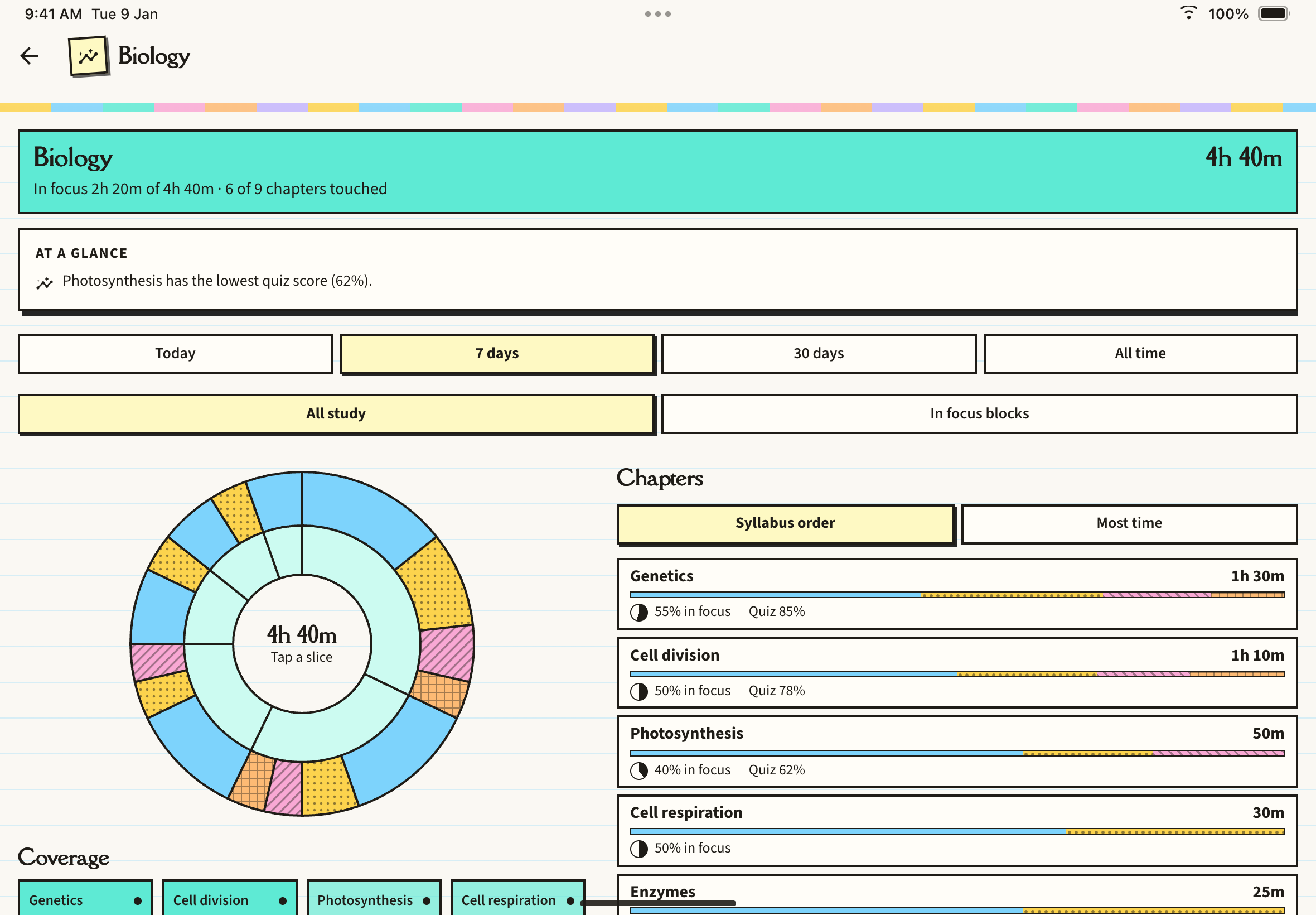
Subjects and chapters
Tap a subject card to open its page: a total, a ring chart with chapters inside and activities outside, a Chapters list (in Syllabus order or by Most time) with time, share in focus and quiz score, and a Coverage map showing chapters you have not touched yet.
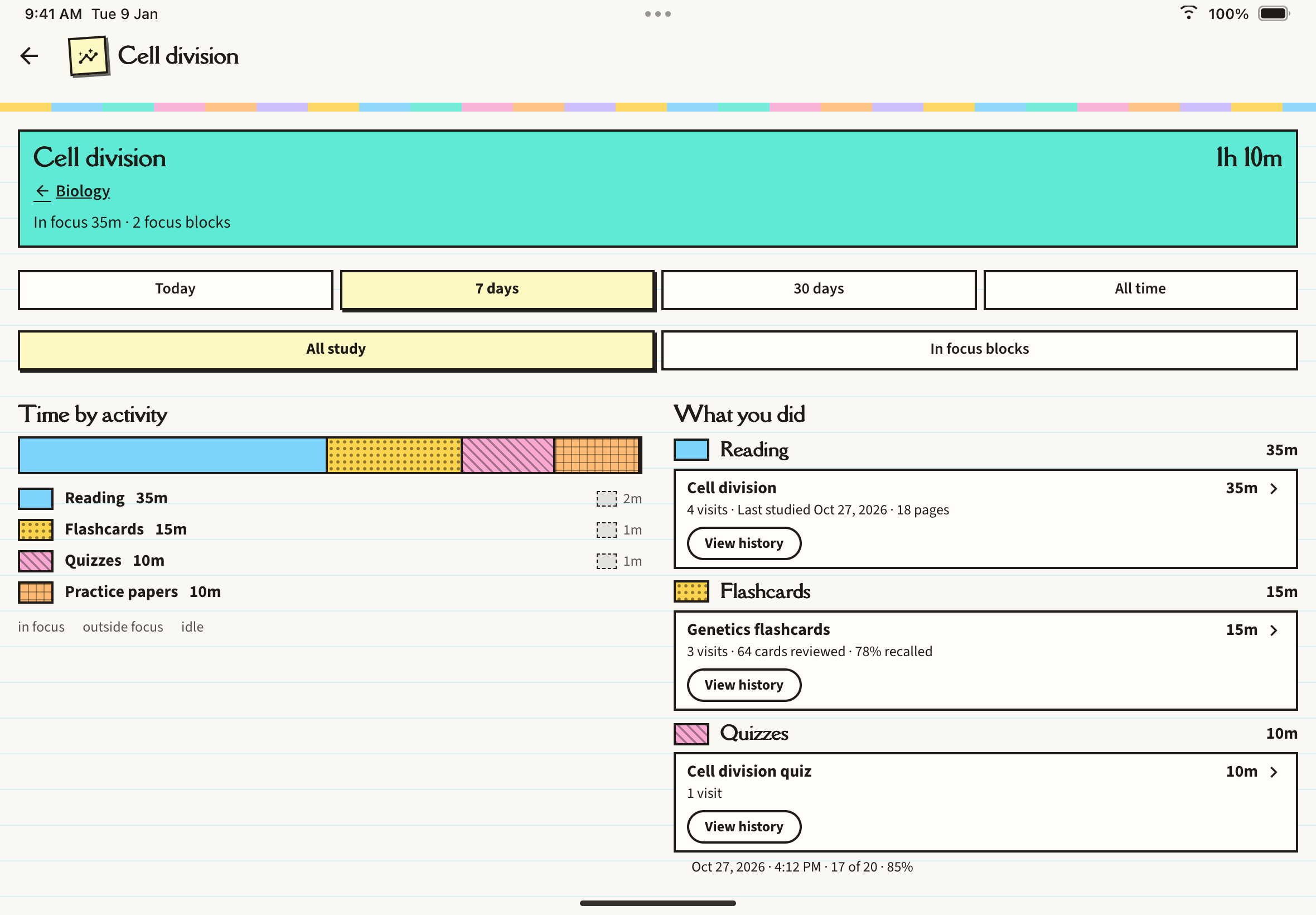
Tap a chapter to see Time by activity (reading, flashcards, quizzes, practice papers) and What you did, with visits, cards reviewed, recall and quiz scores. View history opens the visits for one item.
Privacy and controls
In Settings > Study Settings, the Track my study time switch controls recording for your whole account. It is on by default. Turning it off stops recording straight away and deletes nothing, and the pages then say Study time tracking is off. Delete my study history removes your study-time records from the device and the servers, after a confirmation. The text you read or write is never saved. See Study Settings.