Notes Tab
Your main hub for viewing, organizing, and creating study notes in Notesmakr
The Notes tab is your home base in Notesmakr—where all your study materials live. This is the first screen you see after signing in, and it's designed to give you quick access to everything you're learning.
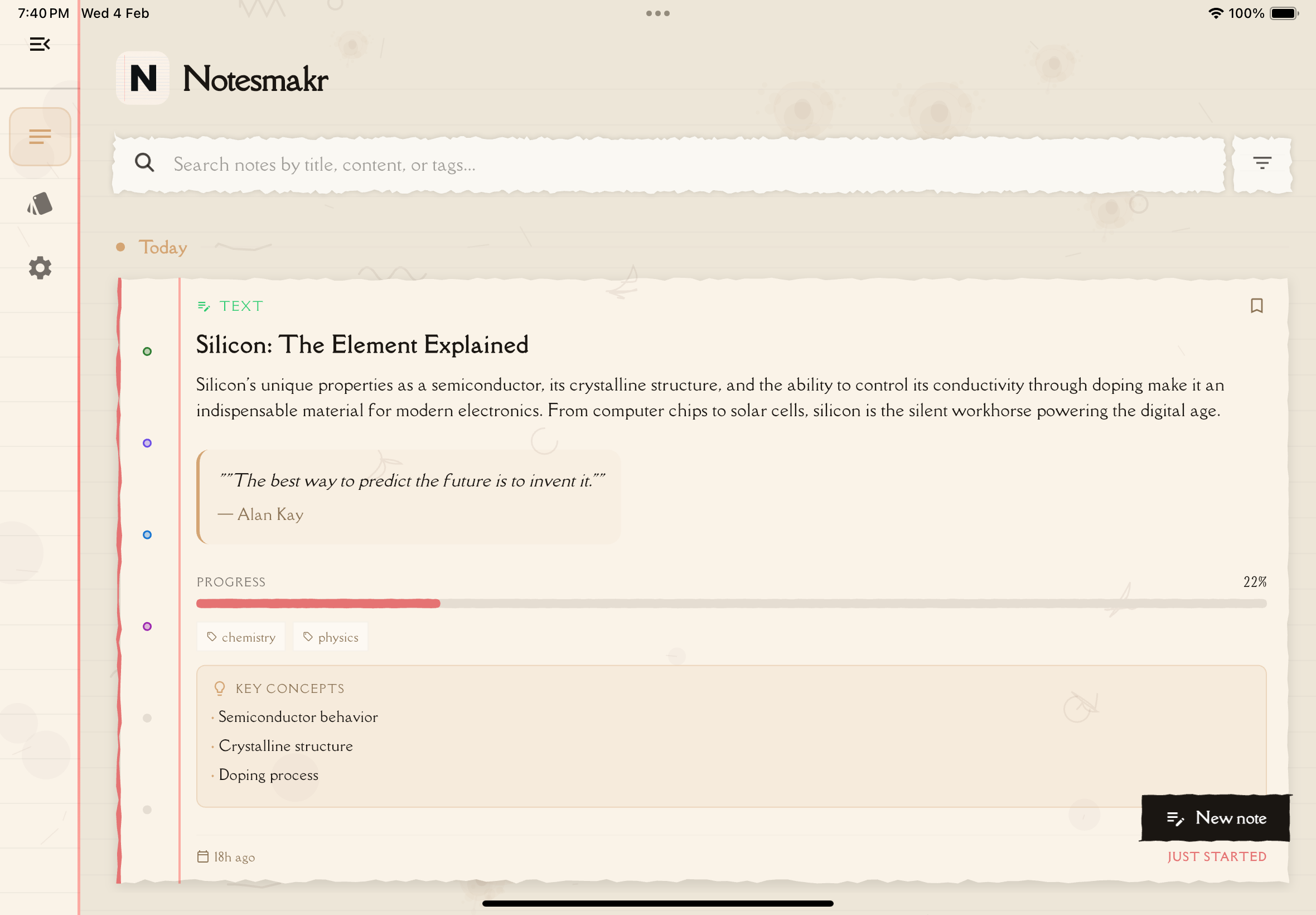
What You See
The Notes tab displays all your notes as cards in a scrollable list. Each card is a visual summary of one study note, making it easy to scan and find what you need.
Note Card Anatomy
Each note card shows:
Title: The main subject or topic of your note (e.g., "Introduction to Photosynthesis", "JavaScript Closures")
Preview Text: A snippet of the content so you can identify notes at a glance
Tags: Colored tags showing subjects, topics, or custom labels you've added
Source Icon: A small icon indicating how the note was created:
- 📄 PDF document
- 🎤 Audio recording
- 📝 Text/typed
- 📷 Scanned image
- 🧮 Snap & Solve
Creation Date: When you created this note
Understanding Level: A badge showing your mastery level for the note (e.g., "Just Started", "Getting There", "Almost Got It", "Mastered")
Tap any note card to open it and start studying. The most recently created or studied notes appear at the top by default.
Creating New Notes
The + (plus) button is your gateway to creating new study materials. It's prominently displayed—usually in the bottom-right corner as a floating action button.
The Five Creation Methods
When you tap the + button, you'll see five options:
Upload a PDF document (textbook chapters, research papers, lecture slides). The AI extracts and summarizes the content into study notes.
Best for: Academic papers, textbooks, lecture slides, ebooks
Record live or upload an audio file (lectures, podcasts, voice memos). The AI transcribes and summarizes it into structured notes.
Best for: Recorded lectures, podcasts, audio books, voice notes
Type or paste text directly into the app. The AI organizes and enhances your content into study-ready notes.
Best for: Web articles, personal notes, textbook excerpts, copied text
Take a photo of textbook pages or notes with your camera. OCR (optical character recognition) extracts the text, and AI creates structured notes.
Best for: Textbook pages, handwritten notes, whiteboards, printed materials
Photograph any question—math, chemistry, physics—and get instant step-by-step solutions powered by AI.
Best for: Math problems, chemistry equations, physics questions, homework assignments
Each method is explained in detail in the Creating Notes section.
Organizing Your Notes
As you create more notes, organization becomes important. Notesmakr offers several ways to keep things tidy:
Search
Tap the search icon (magnifying glass) in the top-right corner to search for notes by:
- Title
- Content keywords
- Tags
- Date created
As you type, results filter in real-time.
Use specific keywords from your notes for faster searching. For example, "mitochondria" will quickly find your biology notes.
Sort Options
Tap the filter/sort icon to change how notes are ordered:
- Last Reviewed: Most recently reviewed notes first (default)
- Created Date: By creation date
- Understanding Level: By mastery level
- Review Count: Notes you've reviewed most frequently
- Title: Alphabetically A-Z by title
Tags and Categories
Add tags to your notes for easy grouping:
- Open a note
- Tap the tag icon or "Add Tag"
- Choose existing tags or create new ones
- Tags appear on the note card and in filters
Common tag examples:
- Subjects: Biology, Math, History, Programming
- Difficulty: Easy, Medium, Hard
- Status: To Review, Mastered, In Progress
- Exams: Midterm, Final, Quiz 3
Filters
Use filter chips to show only specific notes:
- By Source: Show only PDF notes, audio notes, text notes, etc.
- By Tag: Show notes with a specific tag
- By Understanding Level: Filter by mastery level
- Bookmarked/Shared: Show only bookmarked or shared notes
Note Actions
Each note card supports quick actions:
Tap to Open
Tap anywhere on a note card to open it in the study interface.
Swipe Actions
Swipe left on a note card to reveal the delete action:
- Delete: Remove the note (with confirmation)
Note Menu
Each note card has a menu button that shows additional options:
- Delete: Permanently remove this note
Deleting a note also removes all associated flashcards, quizzes, and study progress. This action cannot be undone!
Note Status Indicators
Visual indicators help you quickly understand each note's status:
Understanding Level: A text badge showing your mastery level:
- "Just Started" — you've begun reviewing
- "Getting There" — making progress
- "Almost Got It" — nearly mastered
- "Mastered" — you've achieved high mastery on this note
Bookmark: A bookmark icon indicates notes you've bookmarked for quick access
Empty State
When you first start using Notesmakr or have no notes, you'll see a helpful empty state screen with:
- A welcoming message
- Quick tips on how to create your first note
- Examples of what you can create
- The + button prominently displayed
Getting started tip: Create your first note with something simple—a short article or audio recording. This helps you get comfortable with the process before tackling longer, more complex materials.
Filtering Notes
Use the filter chips at the top of the notes list to narrow down your view:
- By Source: Show only PDF notes, audio notes, text notes, scanned notes, or Snap & Solve notes
- By Understanding Level: Filter by mastery level
- By Tags: Show notes with specific tags
- Bookmarked Only: Show only your bookmarked notes
- Shared Only: Show only shared notes
Filters can be combined for precise searching.
Syncing and Offline Access
Cloud Sync
All your notes automatically sync across your devices when you're online. Changes appear on all your devices within seconds.
Offline Mode
You can view, study, and edit existing notes without internet. New notes created offline will sync automatically when you reconnect.
Creating notes from PDFs or audio requires internet for AI processing. Text notes and scans can be created offline and processed later.
Performance Tips
Keep the Notes tab fast and responsive:
- Archive old notes: Move completed or outdated notes to the archive
- Use tags wisely: Too many tags can make filtering confusing
- Delete unnecessary notes: Clear out duplicate or test notes
- Enable smart sync: (Settings) Download only essential notes for offline use
Notes Tab Settings
Customize how the Notes tab works:
Go to Settings → Note Card Design to adjust how note cards are displayed, including which elements are visible on each card.
Common Questions
Q: How many notes can I create? A: Free plans have a lifetime AI note creation limit based on fair usage policy thresholds, while premium plans offer unlimited creation.
Q: Can I organize notes into folders? A: Currently, notes are organized using tags and filters rather than folders. This gives you more flexibility (one note can have multiple tags).
Q: What if I accidentally delete a note? A: Deletion is permanent, so please be careful. A confirmation dialog is shown before any note is deleted to prevent accidents.
Q: Can I bookmark a note? A: Yes! Use the bookmark feature to mark notes you want quick access to, then filter by bookmarked notes on the Notes tab.
What's Next?
Ready to create your first note?
Want to study an existing note?
Need flashcards for active recall?