Sharing a Note
Generate share links, choose visibility options, and manage your shared study notes
Sharing a study note is simple—just a few taps to create a shareable link. This guide walks you through generating share links, choosing visibility options, and managing your shared notes.
Sharing Your First Note
To share a study note:
Navigate to the study note you want to share. Make sure it's complete and contains the content you want others to see.
In the study note page, tap the Share button in the toolbar to open the share page.
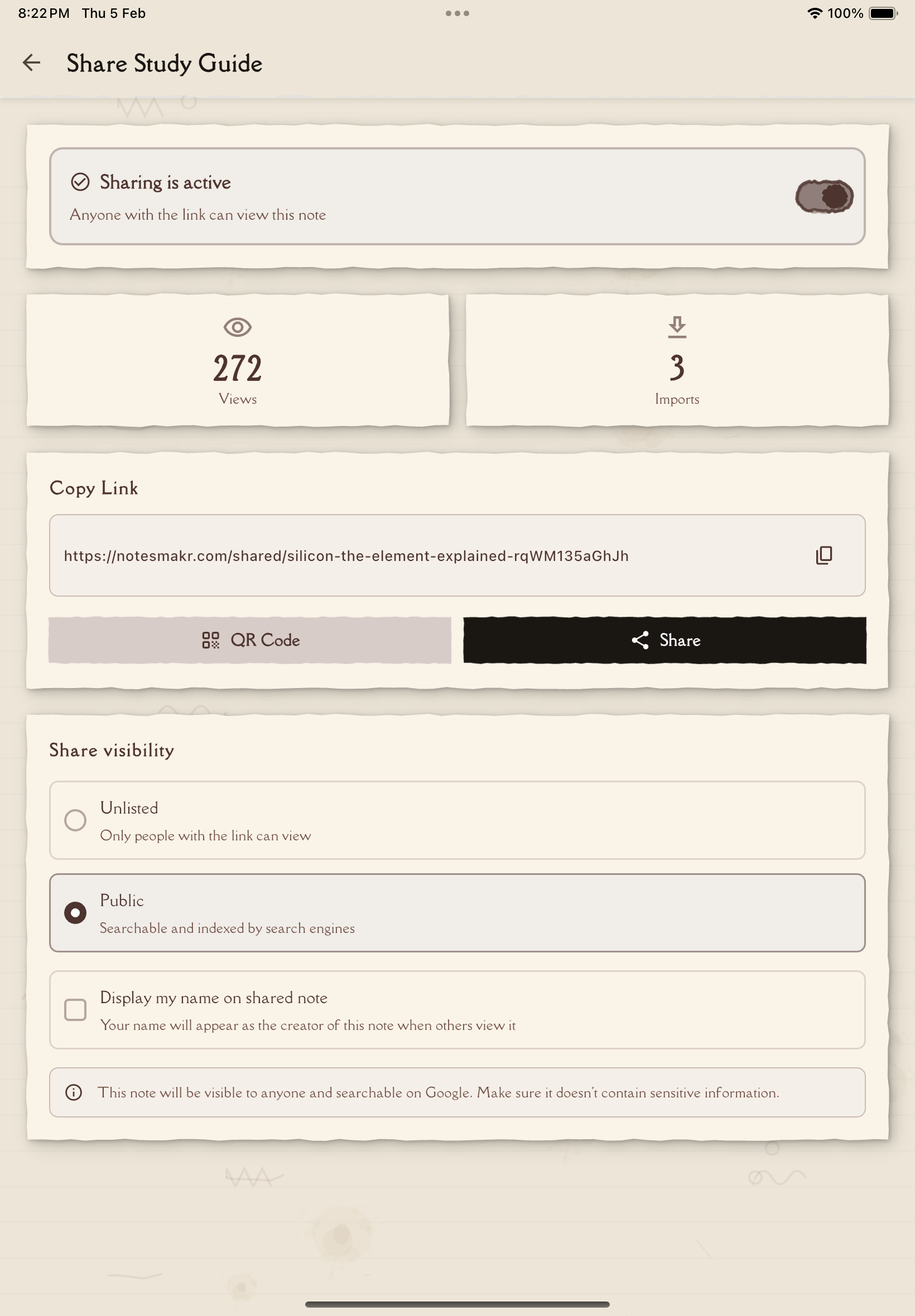
When you open the share page, Notesmakr automatically creates a share link if one doesn't exist. You'll see the share URL displayed immediately.
Select your sharing visibility:
- Unlisted (default) — Accessible only via direct link, not indexed by search engines
- Public — Listed in Notesmakr's public directory and indexed by search engines (warning message shown)
The share link is now ready! You can:
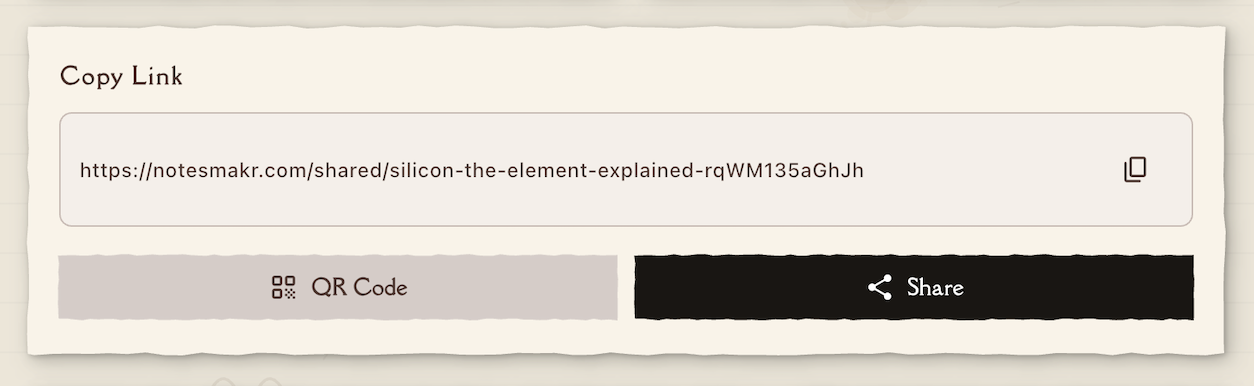
- Copy Link — Tap the copy button to copy the URL
- Share via App — Tap the share button to use your device's native share sheet
- View QR Code — A QR code is generated for easy sharing in person
- Toggle Sharing — Use the switch to enable/disable the share link
Understanding Visibility Options
Public Sharing
When you choose Public, your note:
- Appears in Notesmakr's public note directory
- Can be found through in-app browse/search features
- Gets indexed by search engines (Google, Bing, etc.)
- Can be discovered by anyone interested in the topic
- Displays in search results when people search for related keywords
Best for:
- Helping the broader learning community
- Building a portfolio of study notes
- Contributing to open educational resources
- Topics you want to be easily discoverable
Unlisted Sharing
When you choose Unlisted, your note:
- Is accessible ONLY via the direct link
- Does NOT appear in public directories
- Is NOT indexed by search engines
- Can only be found by people who have the exact URL
Best for:
- Sharing with specific friends or study groups
- Keeping notes semi-private
- Testing before going fully public
- Selective distribution
You can always change a note from unlisted to public (or vice versa) later. Start unlisted if you're unsure, then switch to public once you're confident!
The Share Link
Your shared note gets a unique URL in one of these formats:
notesmakr.com/shared/{token} notesmakr.com/shared/{your-note-title}-{token}
The URL includes a 12-character share token and may include a readable slug based on your note's title for better SEO.
Link Features
- Permanent — The link doesn't expire as long as sharing is enabled
- Unique — Each shared note has a different 12-character token
- SEO-friendly — Slug-based URLs (when available) help with discoverability
What's Included
When someone visits your share link, they see:
- Simplified content — Your Feynman explanation of the material
- Original content — The source material (if simplified version doesn't exist)
- Note metadata — Title and creation date
- Import button — Option to import the note to their own account (creates an independent copy)
What's Private
These items remain private and are NOT shared:
- Study tools — Flashcards, quizzes, and mind maps
- Personal annotations — Typed notes, handwritten drawings, voice recordings
- Highlights and underlines — Your text markups
- Study progress — Study time, comprehension levels, last studied dates
- Tags and organization — Your personal categorization
- Profile information — Unless you enable "Show Author Name"
- Edit capabilities — Viewers can only read (read-only mode)
Sharing Methods
Once you've generated a link, share it via:
Copy Link
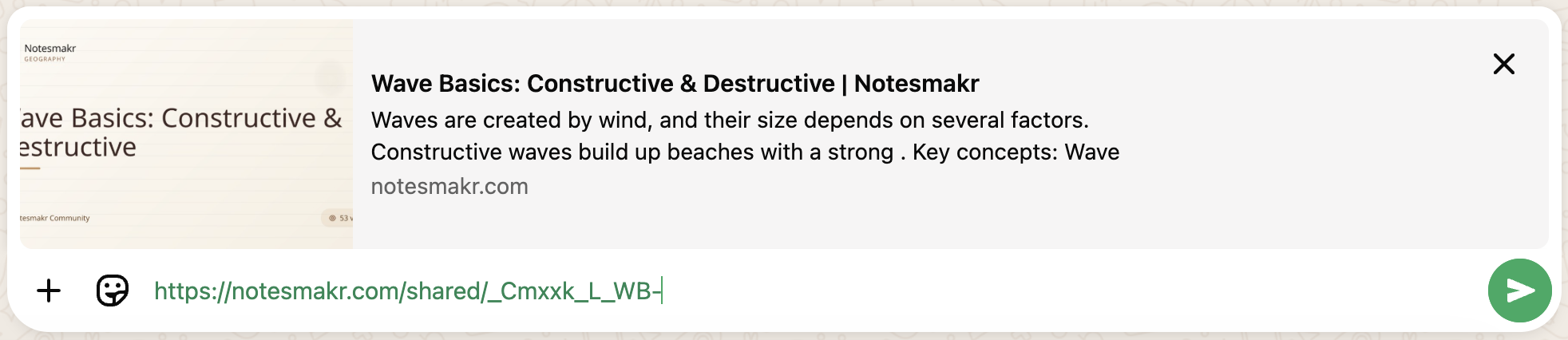
Copy the URL to paste anywhere:
- Text messages
- Slack/Discord/Teams
- Social media posts
- Class forums or learning management systems
Native Share Sheet
Use your device's built-in sharing options:
- iOS: Share to Messages, Mail, Notes, etc.
- Android: Share via WhatsApp, Gmail, Drive, etc.
QR Code
A QR code is automatically generated on the share page for:
- Printing on study materials
- Displaying in presentations
- Easy mobile scanning
Social Media
Share directly to:
- Twitter/X
- Reddit education communities
When sharing on social media, add context! Instead of just posting the link, explain what the note covers and who might find it helpful. This increases engagement and helps more people benefit from your work.
Managing Shared Notes
View Share Statistics
On the share page, you can see:
- View count — How many times the link was accessed
- Import count — How many users imported the note to their account
These statistics update in real-time as people interact with your shared note.
Edit Visibility
Change a note from unlisted to public or vice versa:
- Open the share page for your note
- Select a different visibility option:
- Unlisted — Only accessible via direct link
- Public — Indexed by search engines and discoverable
- The change takes effect immediately
Show/Hide Author Name
You can choose whether to display your name on shared notes:
- On the share page, find the "Show author name" checkbox
- Check it to display your name publicly
- Uncheck it to remain anonymous
- This helps give credit to your work while maintaining privacy if desired
Stop Sharing
To make a note private again:
- Open the share page for your note
- Toggle the sharing switch to OFF
- The link becomes inactive immediately
When you stop sharing (toggle off), the link becomes inactive immediately. Anyone who previously accessed the link will no longer be able to view the note. You can re-enable sharing by toggling it back on—the same share URL will work again.
Updating Shared Notes
Edits Sync Automatically
When you edit a shared note, changes appear on the shared link when viewers refresh the page—no need to regenerate the link.
What updates:
- Simplified content — Your updated Feynman explanation
- Original content — Any changes to source material
- Title — Updated note title
What doesn't update:
- The share URL stays the same
- Viewer access isn't disrupted
- Study tools don't sync (they remain private)
Best Practices for Updates
- Fix typos and errors as soon as you find them
- Add improvements without worrying about breaking the link
- Notify frequent viewers if you make major content changes (optional)
Pin a note in your shared note list reminding you to review and update public notes periodically. Keeping shared notes accurate and current helps maintain trust with your audience.
Sharing Etiquette and Guidelines
Give Credit
If your note heavily references a specific source:
- Mention the source in your note's description
- Include citations where appropriate
- Don't claim others' work as your own
Respect Copyright
Only share content you have the right to share:
- Your own original explanations are always okay
- Publicly available information (with attribution) is generally fine
- Private class materials or copyrighted textbook content may not be appropriate
Be Accurate
Double-check facts before sharing publicly. Others rely on your note to learn correctly.
Stay Respectful
Keep language appropriate and inclusive. Your notes represent you to a wide audience.
Monitor Reports
If viewers report inappropriate content using the flag icon, take it seriously and review your shared notes to ensure they meet community standards.
You're responsible for the content you share. Make sure it's accurate, appropriate, and doesn't violate any copyright or academic integrity policies.
Promoting Your Shared Notes
Want to help more people discover your notes?
Optimize Your Title
Use clear, searchable titles:
- Good: "Photosynthesis Explained Simply – Biology for High Schoolers"
- Bad: "My Biology Notes"
Write Clear Content
Focus on making your simplified explanation as clear and helpful as possible. The quality of your explanation is what makes your note valuable to others.
Share on Relevant Platforms
Post to:
- Reddit education communities (r/studytips, r/biology, etc.)
- Study Discord servers
- Class group chats
- Twitter/X with relevant hashtags
Include Context
When sharing, explain:
- What the note covers
- Who it's for (grade level, course, exam prep)
- Why you created it
Quality over quantity! Sharing a few excellent, well-explained notes is more impactful than sharing dozens of rushed, incomplete ones.
Troubleshooting Sharing Issues
Share Link Not Creating
- Network issue — Ensure you're connected to the internet
- Try again — Close and reopen the share page
- Check note content — Make sure your note has content to share
Link Not Working
- Check sharing status — Verify sharing is still enabled (it wasn't stopped)
- URL copied correctly — Ensure the full URL was copied (no truncation)
- Viewer's internet — Confirm the viewer has an active connection
Content Not Updating
- Refresh the page — Viewers may need to refresh to see updates
- Cache issue — Wait a few minutes for content to propagate
- Browser cache — Try opening in incognito/private mode
Privacy and Security
Who Can See Shared Notes?
- Public — Anyone on the internet
- Unlisted — Anyone with the direct link
Can Viewers Edit My Note?
No. Shared notes are read-only. Viewers can copy the note to their own account (creating a separate copy), but cannot modify your original.
Can I Track Who Views My Note?
You can see aggregate statistics (total view count and import count) but NOT individual viewer identities (privacy-protected).
Can I Unshare Anytime?
Yes. Toggle sharing off at any time to immediately revoke access. You can toggle it back on later if needed.
Next Steps
Once you've shared your note, check out:
- Viewing a Shared Note — See what the viewer experience looks like
Start sharing and contribute to the learning community!