The Lobby
Wait for participants and start the game from the lobby
The lobby is the waiting room where participants gather before the quiz begins. The host shares the join code, waits for everyone to arrive, and starts the game when ready.
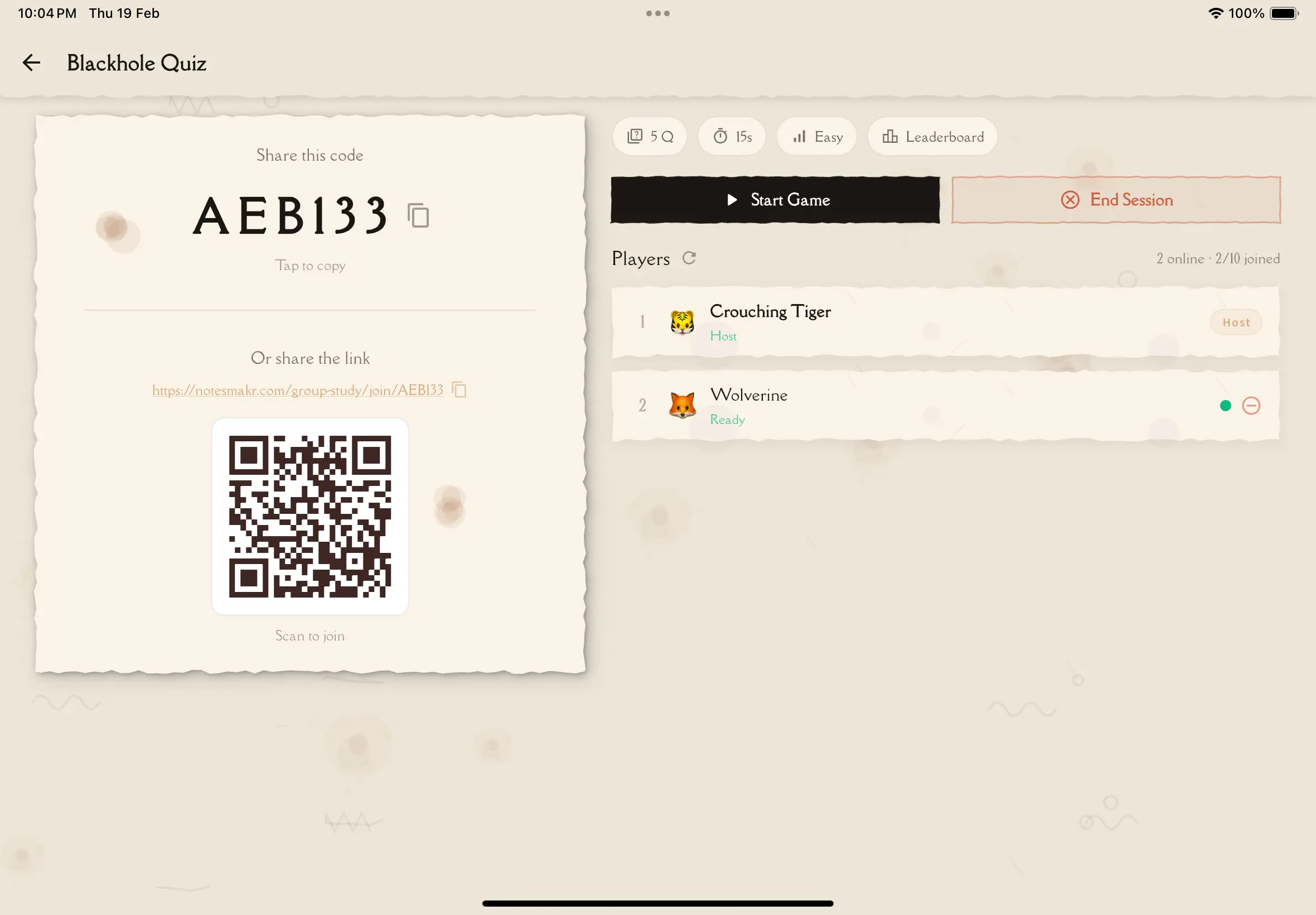
What You See in the Lobby
- Session title — the name the host gave the session
- Join code — the 6-character code displayed prominently for sharing
- QR code — scannable code for quick joining
- Participant grid — avatars and names of everyone who has joined
- Participant count — how many people are in the session
- Status indicator — shows whether the session is in Lobby, Generating, or Ready state
Host Controls
As the host, you have full control of the lobby:
Share the Code
Tap the copy button next to the join code to copy it to your clipboard. You can also use the share button to send it via messaging apps, email, or any other method.
Show the QR code on a projector or shared screen for classroom settings — participants can scan it with their phone camera to join instantly.
Start the Game
When everyone has joined, tap the Start Game button. Here's what happens:
The AI generates quiz questions from your selected content. A loading indicator shows progress.
Once questions are generated, the status changes to Ready.
A 3-2-1 countdown plays for all participants, then the first question appears.
Cancel the Session
Tap the overflow menu (three dots) and select Terminate Session. A confirmation dialog appears — this ends the session for everyone.
If you leave the app or switch to another app while in the lobby, the session is automatically cancelled for all participants. Stay in the app until the game starts.
Participant Experience
As a participant in the lobby, you can:
- See other participants — watch as others join in real-time
- View the join code — share it with more friends if needed
- Wait for the host — only the host can start the game
- Leave the lobby — tap back to exit; you'll be removed from the session
Participants cannot start, cancel, or modify the session — those controls are host-only.
Session Flow
Host creates session. Participants join using the code or link.
Host taps Start Game. AI generates quiz questions from the content.
Questions are generated. The countdown is about to begin.
3-2-1 GO! Everyone sees the animated countdown overlay.
All participants are moved to the gameplay screen. The first question appears.
Tips
- Wait for everyone — make sure all participants have joined before starting
- Share the code early — send the code while you're setting up so people can join as you configure settings
- Check the participant count — verify the expected number of players are shown before starting
Next Steps
- During the Game — what happens once the quiz starts
- Hosting a Session — how to create and configure a session